
Calling isn't all about outbound calls, at WAVV, we understand you may want options for leads that call YOU! WAVV provides a few options for inbound calls. Here’s how to get started and ensure you're using this feature to its fullest potential.
Set Your Inbound Call Settings
Open WAVV Manager and click on “Dialer Settings”. Locate the inbound settings section.
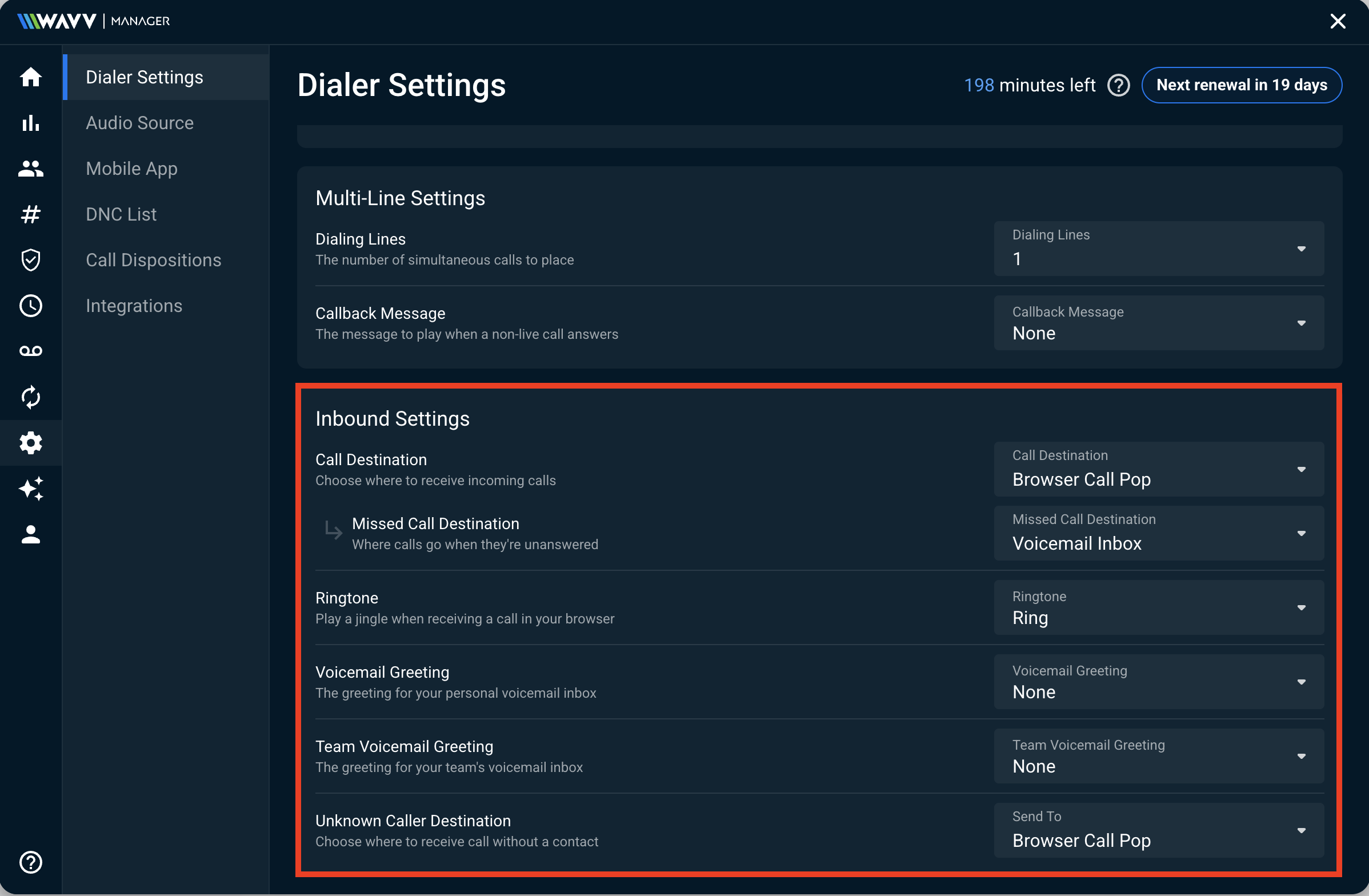
Call Destination
You have a few options for your call destination.
Browser Call Pop
When you get an inbound call, a window will pop up in your browser, and a ringtone will sound, giving you the option to answer it.
Voicemail
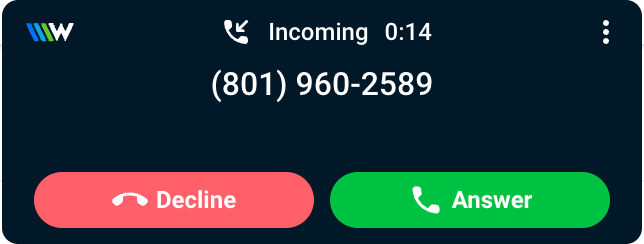
When you get an inbound call, you can send all of them to voicemail. You can then check and listen to voicemails in the "Voicemail" tab in your WAVV Dialer Manager.
There are team voicemails available for numbers that are shared with the whole team, or personal voicemails if messages are being left to a number that is specifically assigned to you.
Note: If your inbound call destination is set for agents to answer (browser call pop or a specific phone number), but an inbound call is declined by all available agents on your team it will go voicemail, where the caller will have the opportunity to hear a default greeting and leave a recorded message for you to play back later.
Specific Phone Number
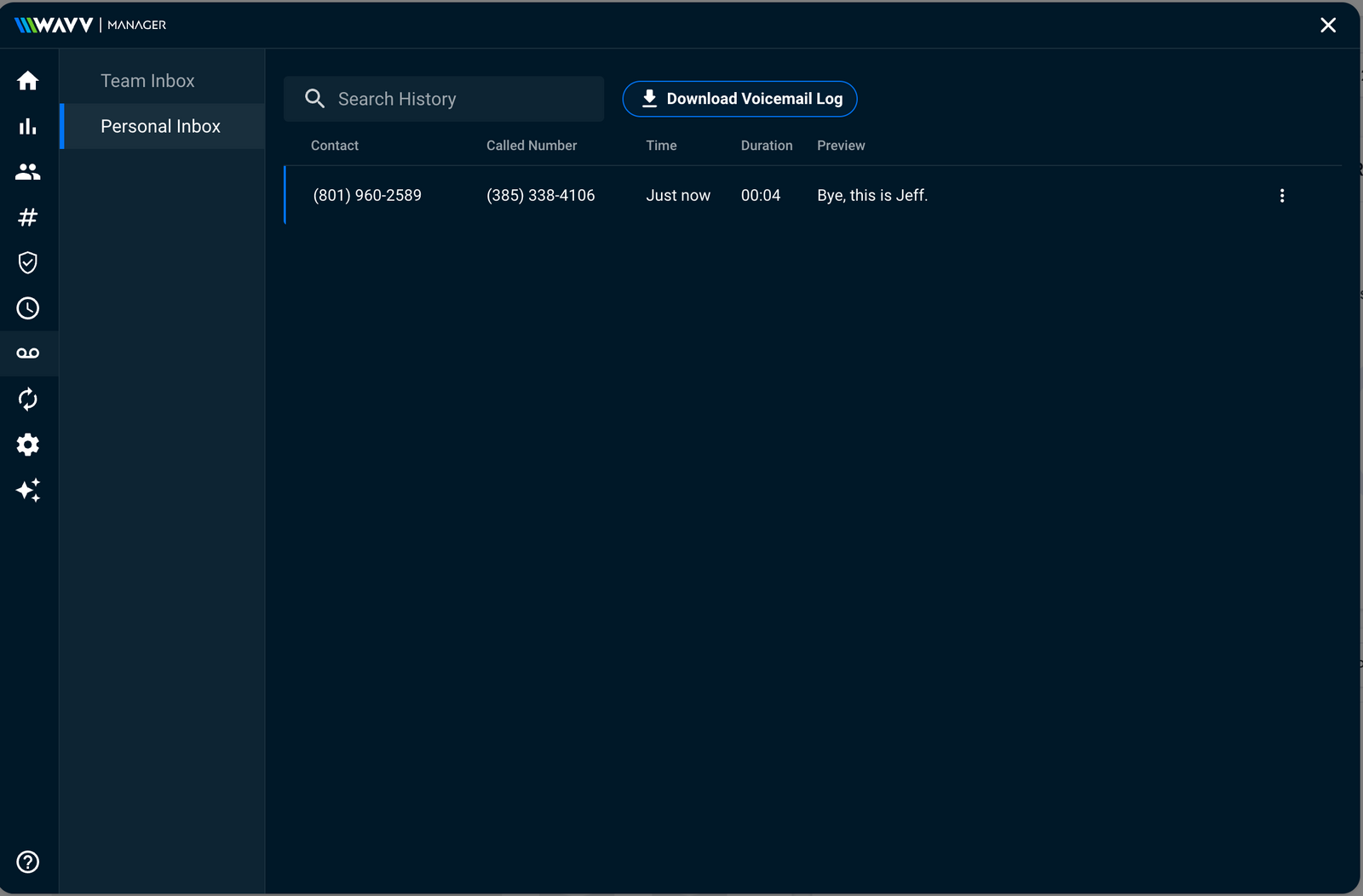
You can also send phone numbers to a specific phone number. This is specifically helpful if you have more than one team member making calls. You can choose a team member to receive all inbound calls and have the team member set their Caller ID to that specific phone number.
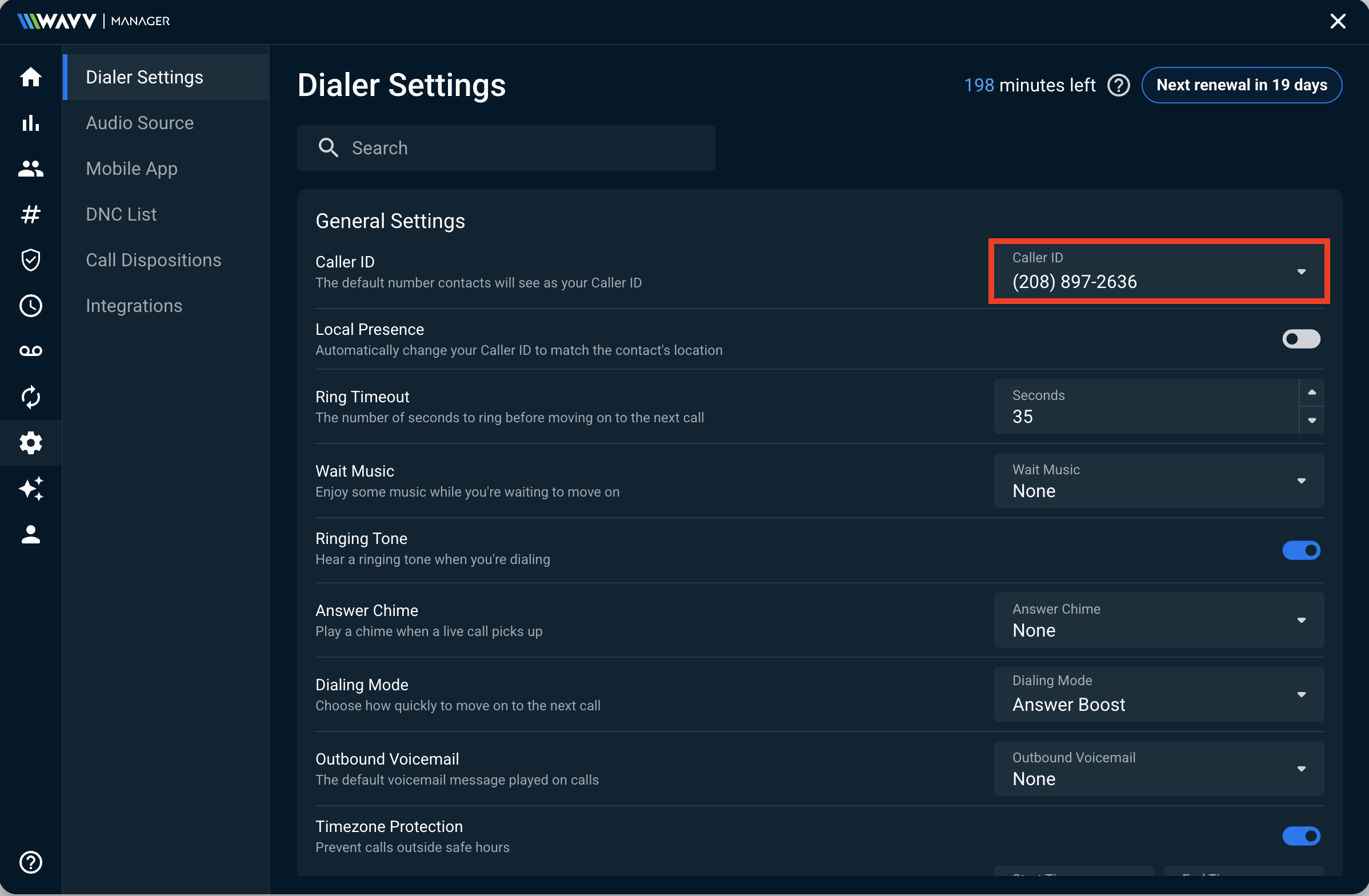
Missed Call Destination
If you miss an inbound call, you can select a secondary destination for the call to go.
Unknown Caller Destination
Sometimes, you may receive calls from a phone number that isn't saved in your CRM. This could happen when you call a lead and they call back from a different phone number you don't have saved. WAVV needs to know where to send these calls. You can select a destination similar to your normal inbound calls.
If you don't have anything set here, the calls will never connect with you.
Other Settings
Ringtone: Personalize your ringtone for inbound calls!
Voicemail Greeting: Record (or upload) a personalized voicemail greeting by clicking the pencil icon or clicking the drop down and selecting the "+ Add" button.
Team Voicemail Greeting: Record (or upload) a personalized voicemail greeting for numbers that are shared with the whole team.
Answering or Declining Calls
Click “Accept” to pick up the call; your call controls will then appear, allowing you to mute, hold, or transfer the call.
Select “Decline” if you're unable to take the call; it will route to voicemail or another designated team member.
After Call Actions
Disposition Notes:
After ending a call, a prompt will appear asking for any notes or disposition outcomes from the inbound call. Fill this in to maintain a comprehensive call record.
View Call Logs:
Navigate to “Call History” in your WAVV Dialer Manager to review past inbound (and outbound) interactions and caller details. This helps track conversion outcomes and identify follow-up actions.
Inbound Browser Call Pop Not Occurring
At times, the Browser Call Pop will not pop up in the desktop. These include when/if:
The user does not have a dialer seat
The user is in a call with someone else
The user is monitoring
The user is in a transferred call
The call has ended but a disposition is still pending