
WAVV's dialer settings let you customize how the dialer behaves—so you can call the way that works best for you.
All of your calling preferences live in one place inside WAVV Manager, including things like how many lines you’re dialing with, what happens when someone calls you, and whether calls open your CRM contact view.
Where to Find Dialer Settings
Open WAVV Manager
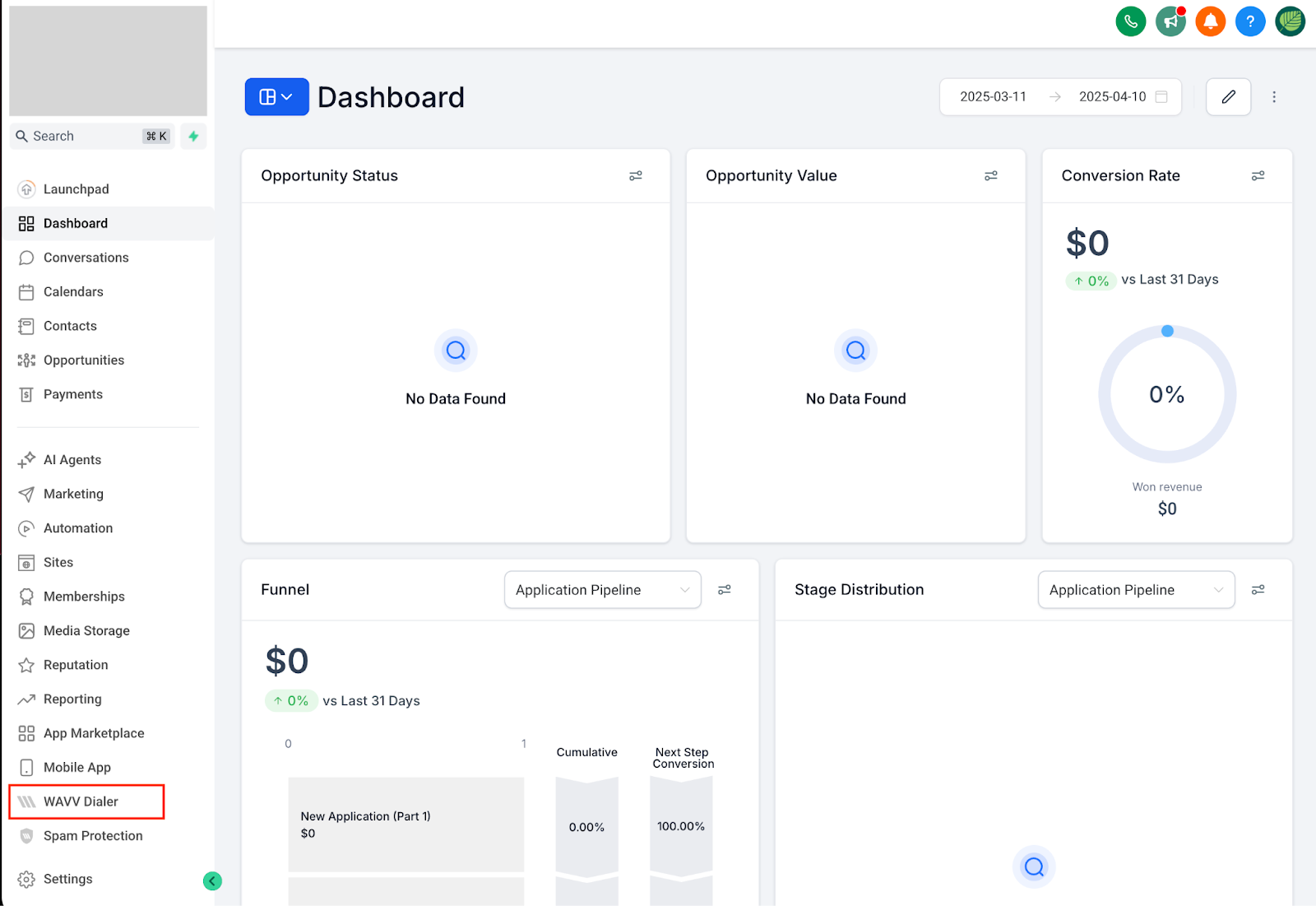
Click the Settings icon (gear) in the left-hand menu
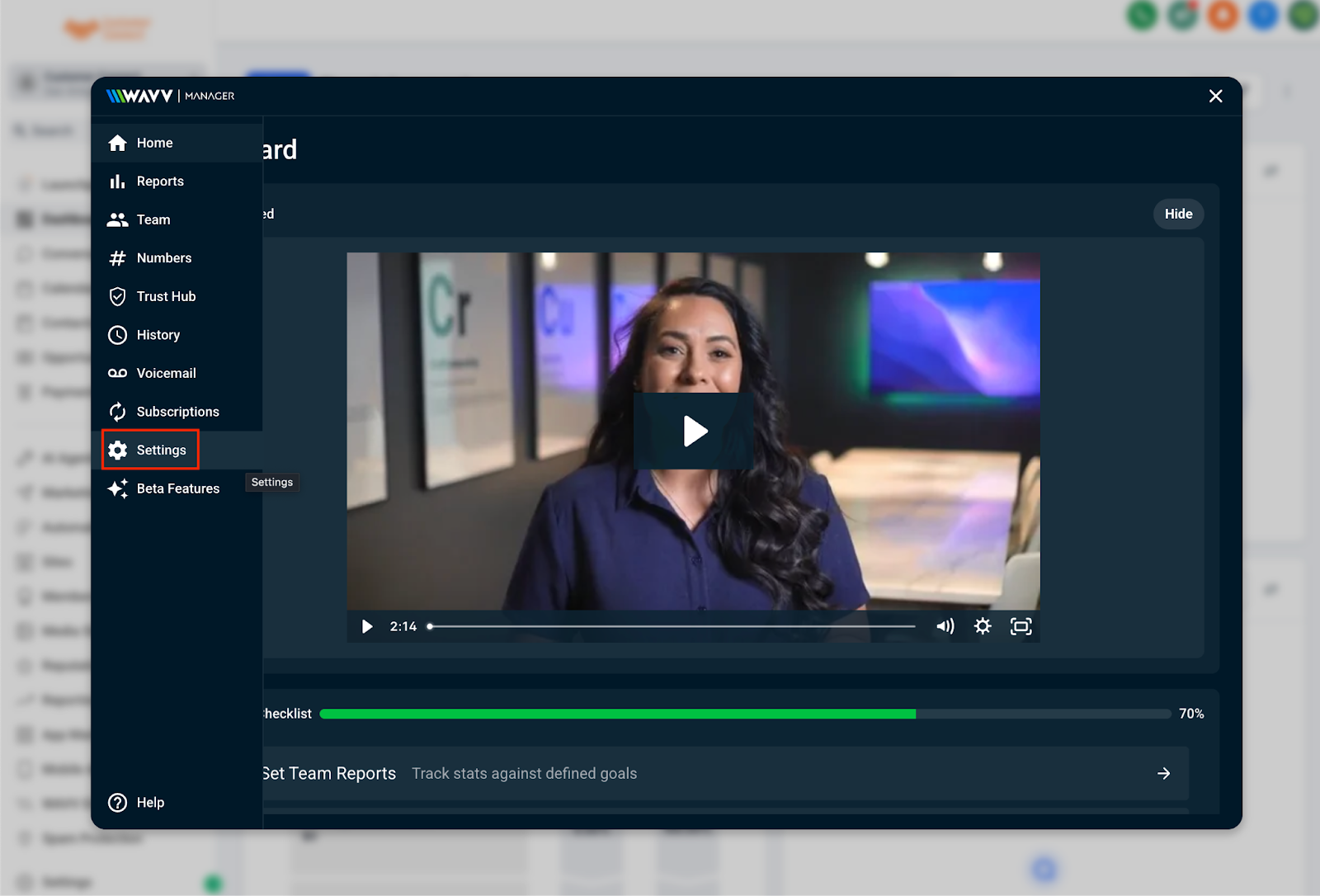
Click Dialer Settings
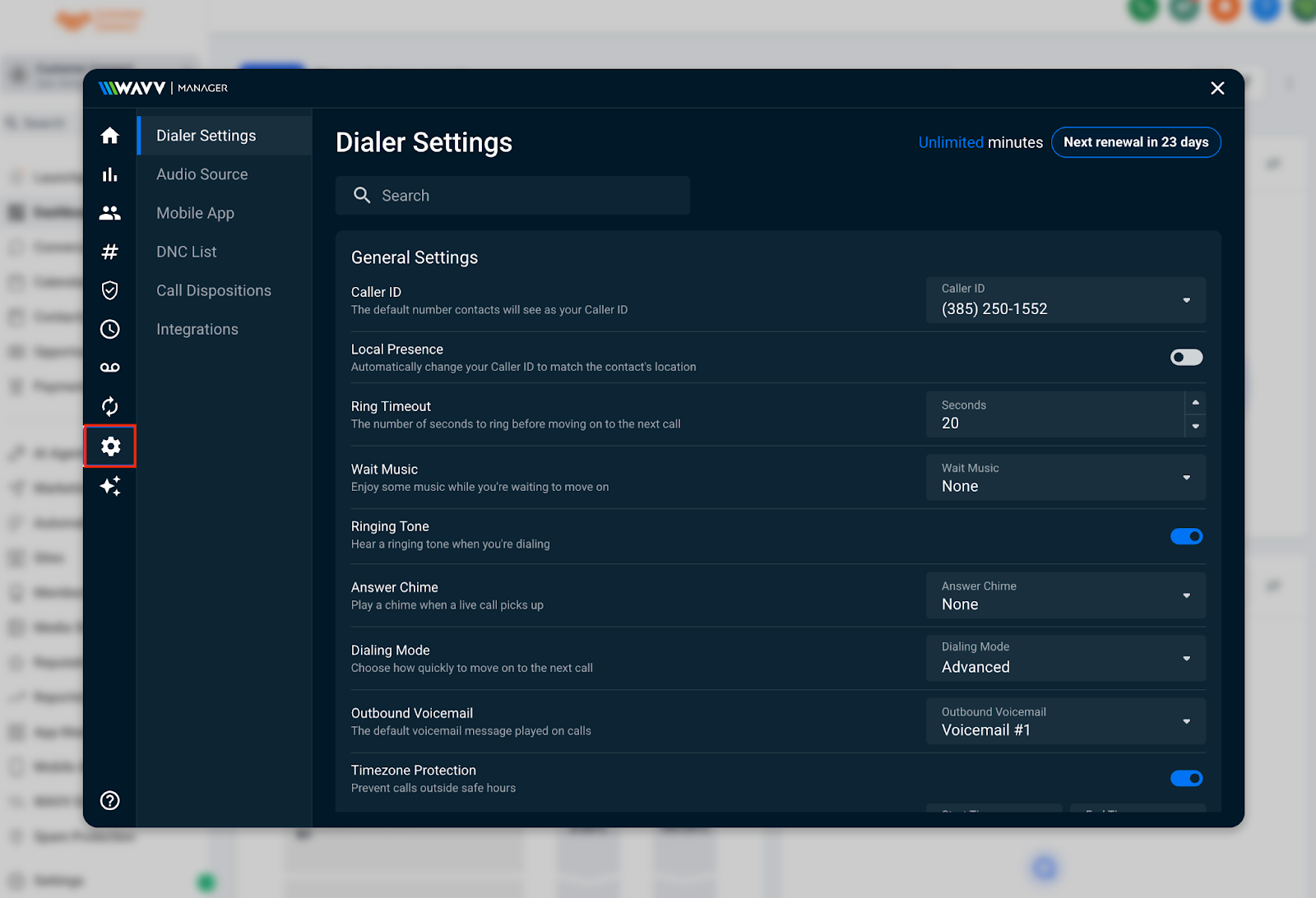
This is where you’ll manage everything related to your dialing experience.
Dialer Settings Overview
WAVV organizes settings into helpful sections so you can easily find what you need.
General Settings
These settings let you customize how WAVV behaves while you’re calling—everything from what number shows up to how fast the dialer moves between calls.
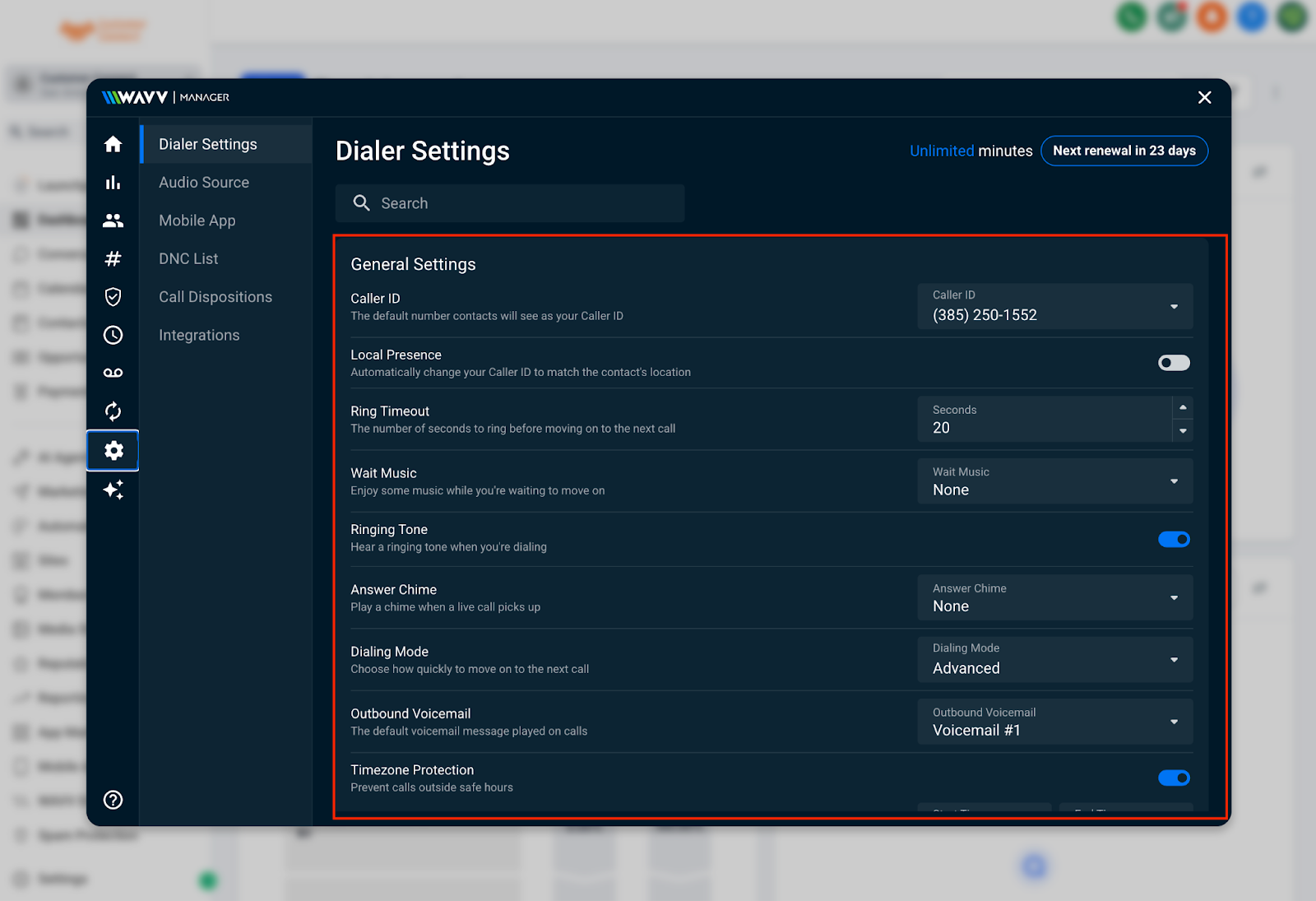
Caller ID
This is the number people will see when you call them
Your caller ID can be any number found under the “Numbers” tab in WAVV Manager.
➡️ Learn about phone numbers
Local Presence
When turned on, WAVV automatically uses a number (from your numbers tab) that matches the lead’s area code.
Here’s how it works:
The dialer checks your number pool and uses a number that matches:
Same area code
Same state
Closest geographic region
Your default number (if nothing else matches)
Helps build trust and increase answer rates.
Ring Timeout
Set how long a call rings before WAVV moves to the next one.
Example: If set to 30 seconds, WAVV will ring the number for 30 seconds, then move on.
Best practice: Let the dialer handle it! Manually hanging up can interfere with call outcomes. If you feel like you're waiting too long, try lowering the ring timeout instead of clicking hang up yourself.
Wait Music
Choose what to listen to while your call connects. Options include:
Rock
Jazz
Electronic
You can also try our Spotify Beta Feature to play your own music.
Ringing Tone
Hear a ringing sound while WAVV is dialing—just like a regular phone.
Optional, but helpful if you like audio feedback.
Answer Sound
Get a short alert sound when someone picks up.
Great if you’re multitasking and not watching the screen.
Dialing Mode
Choose how WAVV moves through your calls:
Click to Start New Calls (Standard Mode)
You manually click to begin each call (even if they don’t answer).
Start New Calls Immediately (Advanced Mode)
Calls begin automatically after each one ends.
Best for power users who want to call quickly without stopping.
Skip waiting for voicemail machines and only connect to live calls (Answer Boost). Your default outbound voicemail will still drop.
Outbound Voicemail
Upload or record a voicemail to drop automatically when WAVV detects an answering machine.
If set as your default, WAVV will drop it for you when it hears voicemail.
Time Zone Protection
Set calling hours based on the lead’s local time zone according to their area code.
Example: If your set window is 8 AM–6 PM, WAVV won’t call anyone outside that range.
Helps you stay compliant and respectful.
Record Calls
Choose how WAVV handles call recordings:
Never Record – Never record your calls
Always Record – Every call is recorded automatically
After Click – Calls record after you click the record button
From Start – calls record automatically, you click to save them
Make sure to follow state and federal laws when recording calls.
Call recordings will always live on the contact card in the conversation panel and the notes section. You can also find recordings in your Call History tab.
Call Transcription
WAVV can transcribe your calls and generate summaries.
View and search transcribed calls in WAVV Manager → Call History.
Jump to Contact
When turned on, WAVV opens the contact’s CRM page as soon as they answer.
Turn this off if you prefer to stay on your current screen.
Multi-Line Settings
WAVV’s multi-line dialer helps you move faster by calling more than one person at a time. These settings let you control how it works and how leads experience it on their end.
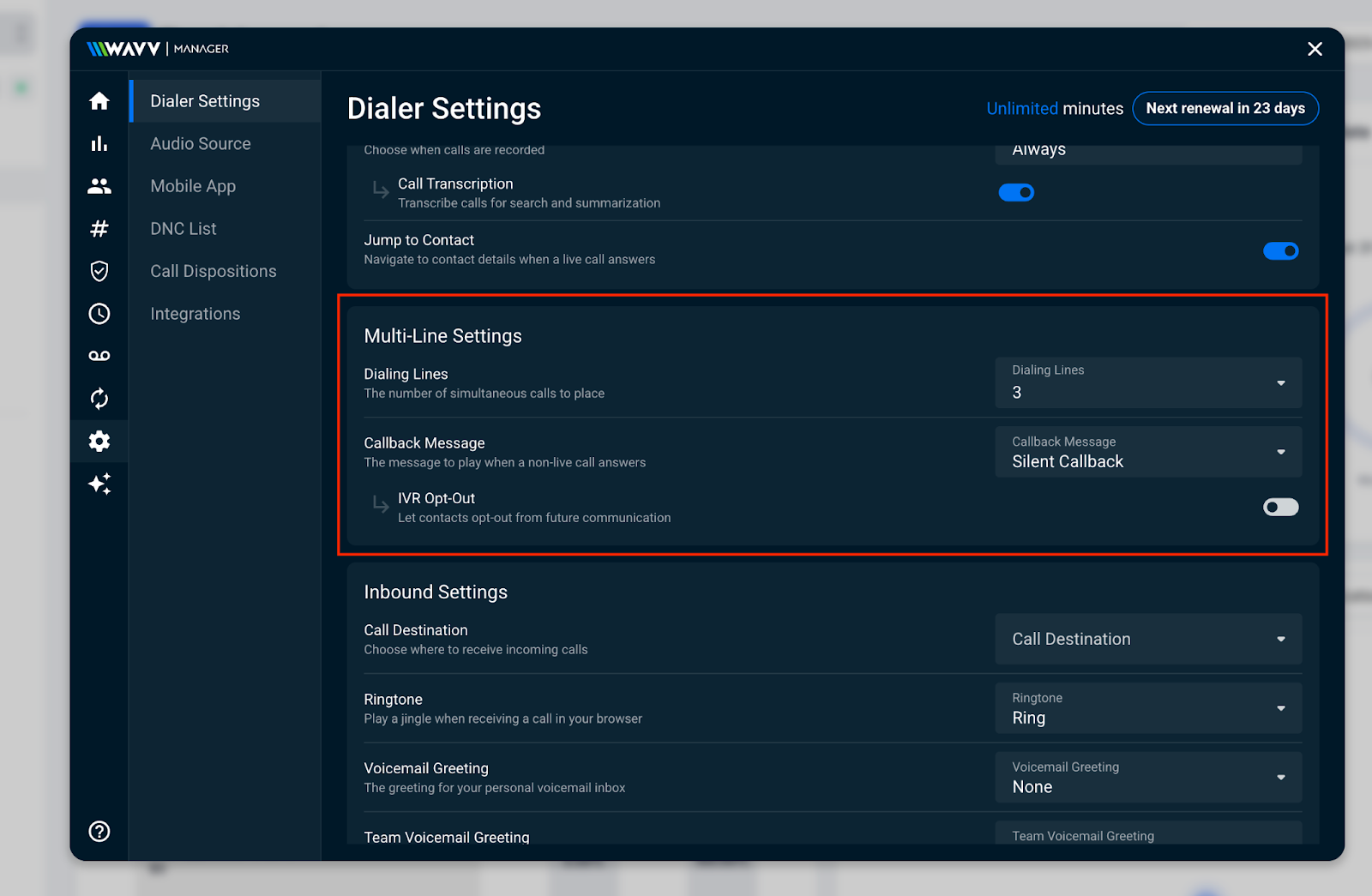
Dialing Lines
Choose how many calls WAVV makes at once—1, 2, or 3—based on your subscription.
More lines = more speed
Callback Message
If more than one person answers at the same time, WAVV connects you to the first one—and plays this message to the others.
This is important because when a callback message is selected, the dialer will know to add the second caller as a priority callback, meaning, as soon as your call is over, Wavv will immediately call that second person back.
You can:
Record your own
Or leave it blank (extra calls will simply disconnect)
Tip: A callback message helps make the experience smoother for leads you miss.
For more information about Callback messages, click here!
IVR Opt-Out (Press 1 to Stop Calls)
Give contacts the option to press 1 to stop receiving calls.
If someone opts out:
They’re automatically added to your Do Not Contact (DNC) list
WAVV will skip them in future dialing
Managers can also manually add or remove numbers from the DNC list.
Inbound Settings
These settings control what happens when someone calls your WAVV number—where the call goes, and what happens if you miss it.
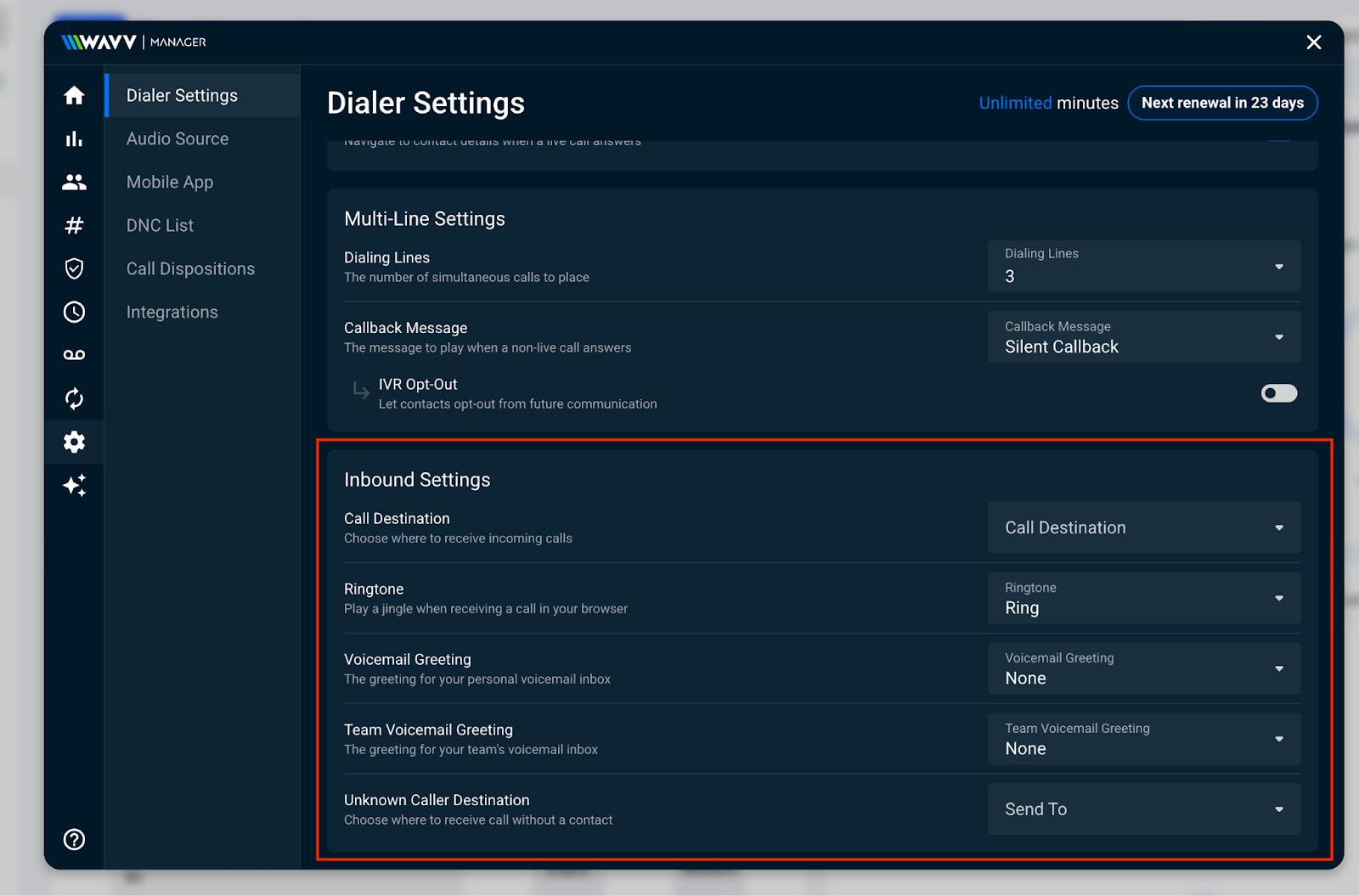
Call Destination
Decide where inbound calls should ring when someone dials your WAVV number.
You can choose from:
Browser Pop-Up – The call shows up right in your CRM (great if you're working at your computer)
Voicemail – Send the calls to your voicemail
External Phone – Send calls to your cell or another device
Other – Route the call to a different verified number on your account
Choose the option that fits how you prefer to receive calls during the day.
Missed Call Destination
Set what happens when an inbound call isn’t answered.
Common options include:
Voicemail Inbox – Send missed calls straight to your WAVV voicemail
Another Verified Number – Forward missed calls to a teammate or your own mobile
WAVV uses this fallback so no call gets lost—even if you’re away from your screen.
Search for a Setting
At the top of the page, you’ll see a search bar. Just start typing a keyword (like “voicemail” or “music”), and WAVV will filter the list so you can quickly find what you’re looking for.
Next Step: