Single Line Dialer
If you have the Single-Line Dialer plan, this section will show you how to make calls!
You can make calls through your Contacts Page in your CRM, or through the Opportunities page. This article will go over both options.
Option 1: Through Your Contacts Page
Navigate to your contacts page in your CRM.
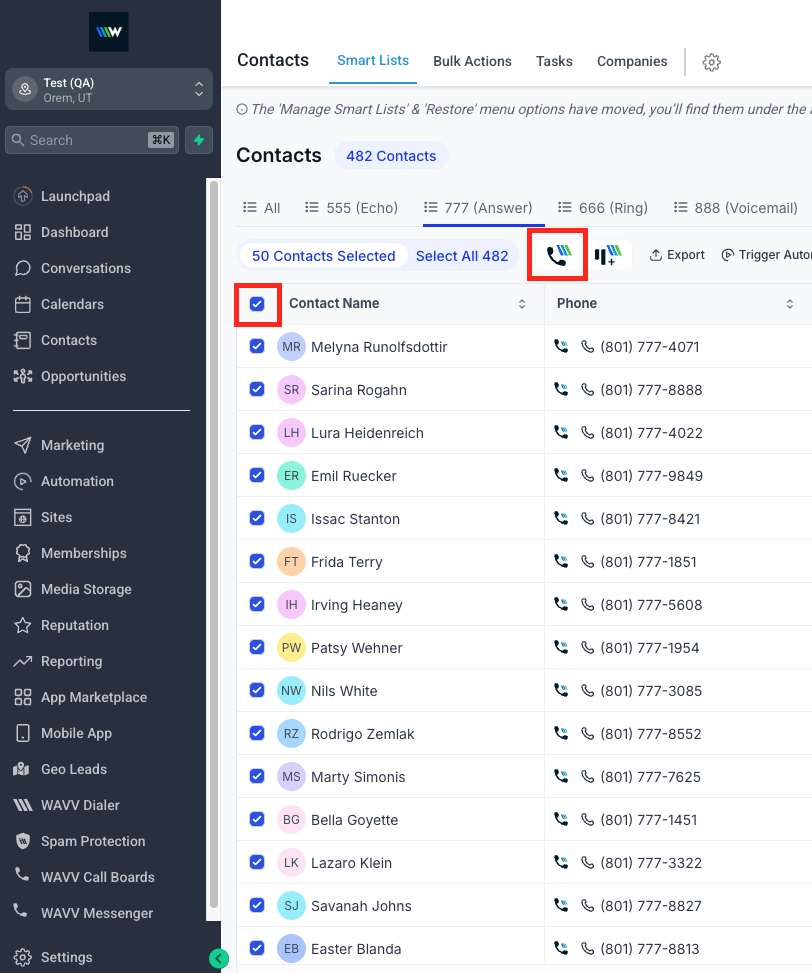
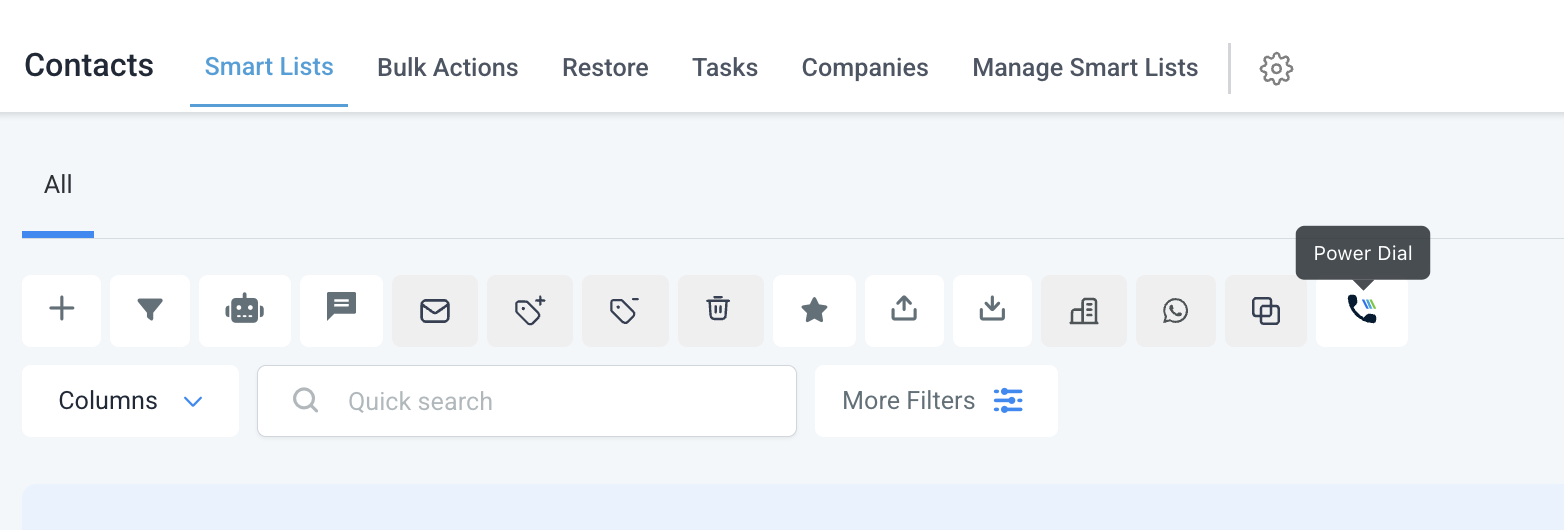
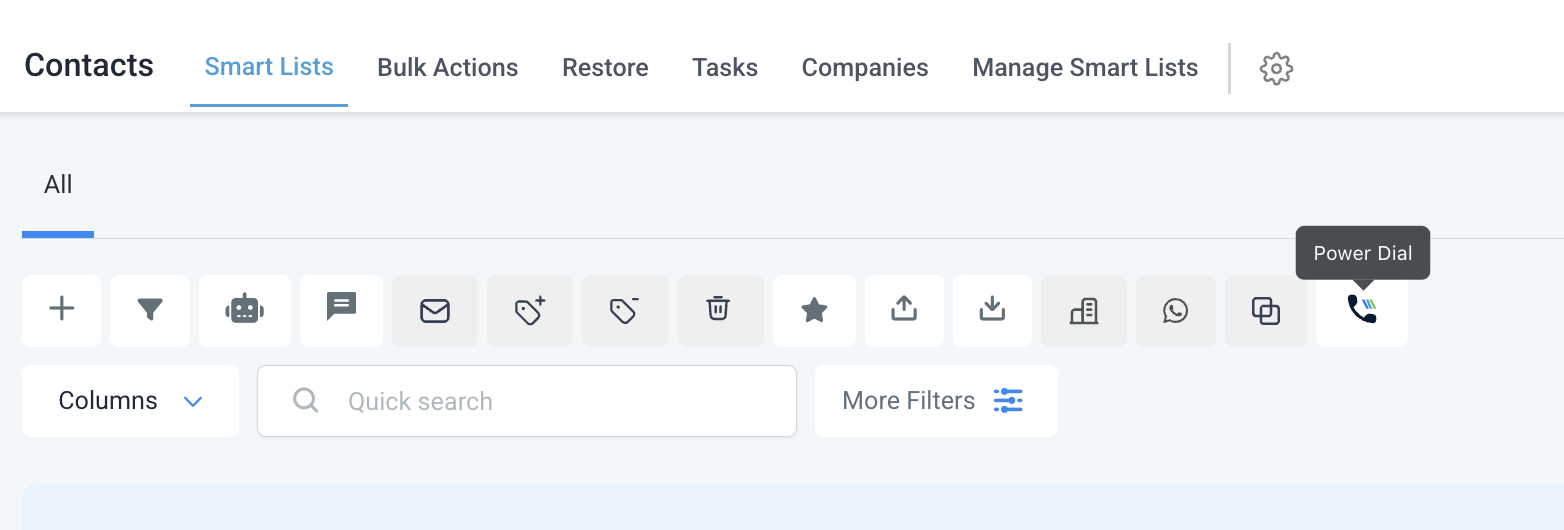
Select the list of contacts you’d like to call, then click the WAVV power dial button.
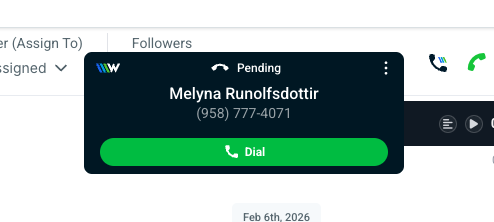
All the selected contacts will load into the dialer, click “Dial” to begin!
Option 2: Through The Opportunities Page
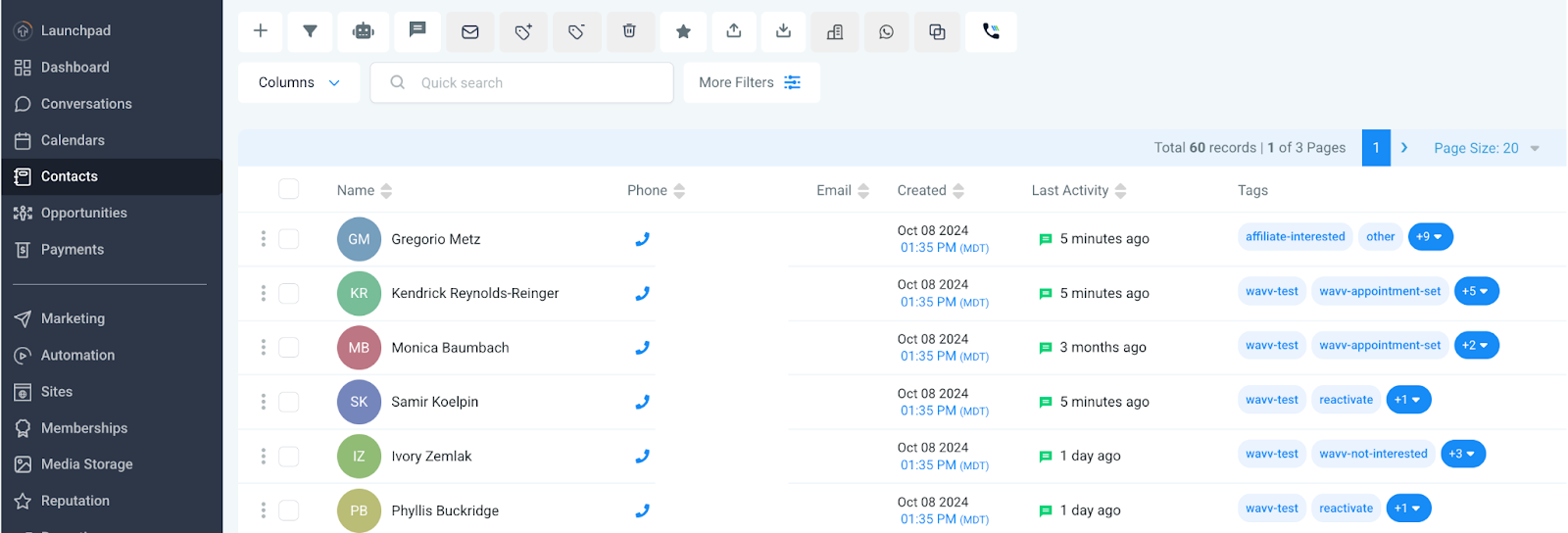
Navigate to your opportunities page, click the power dial call button next to the title of the pipeline you’d like to call.
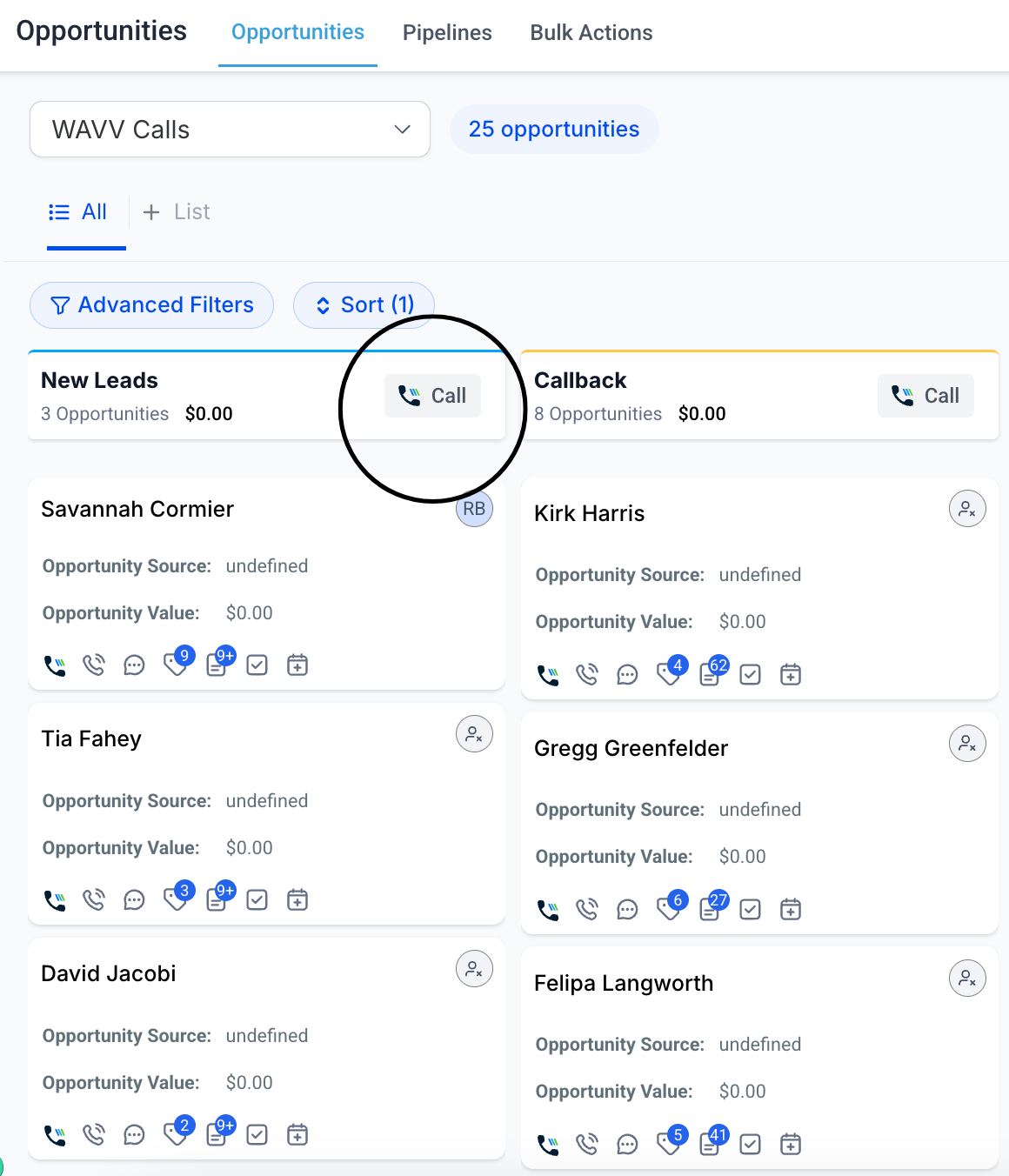
The dialer will load the pipeline into the dialer and you can begin making calls!
Campaign Window
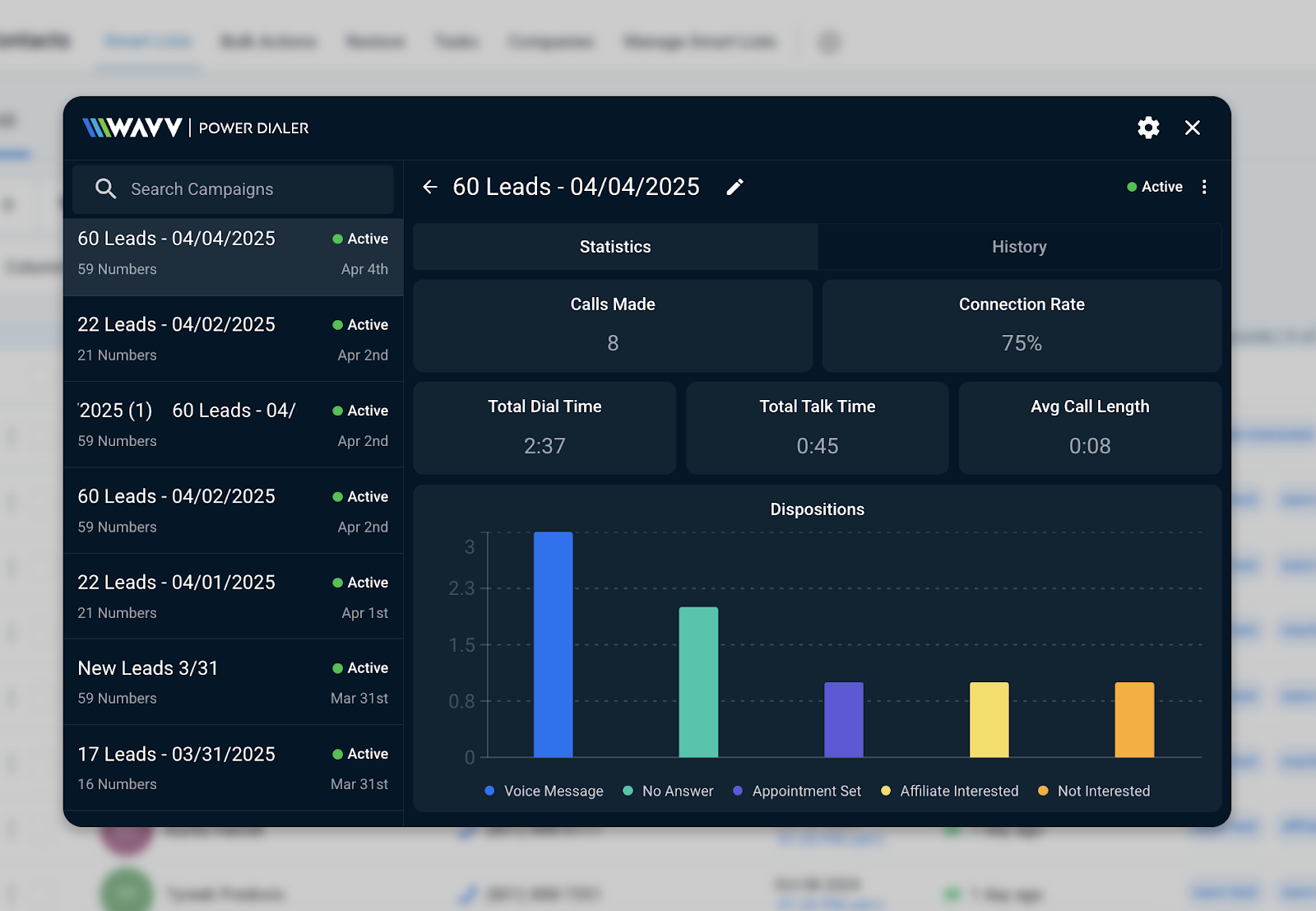
Every time you load contacts into the dialer, it creates a campaign. When you go into the contacts page and without selecting any contacts you click the power dial button, this will bring up your campaign window.
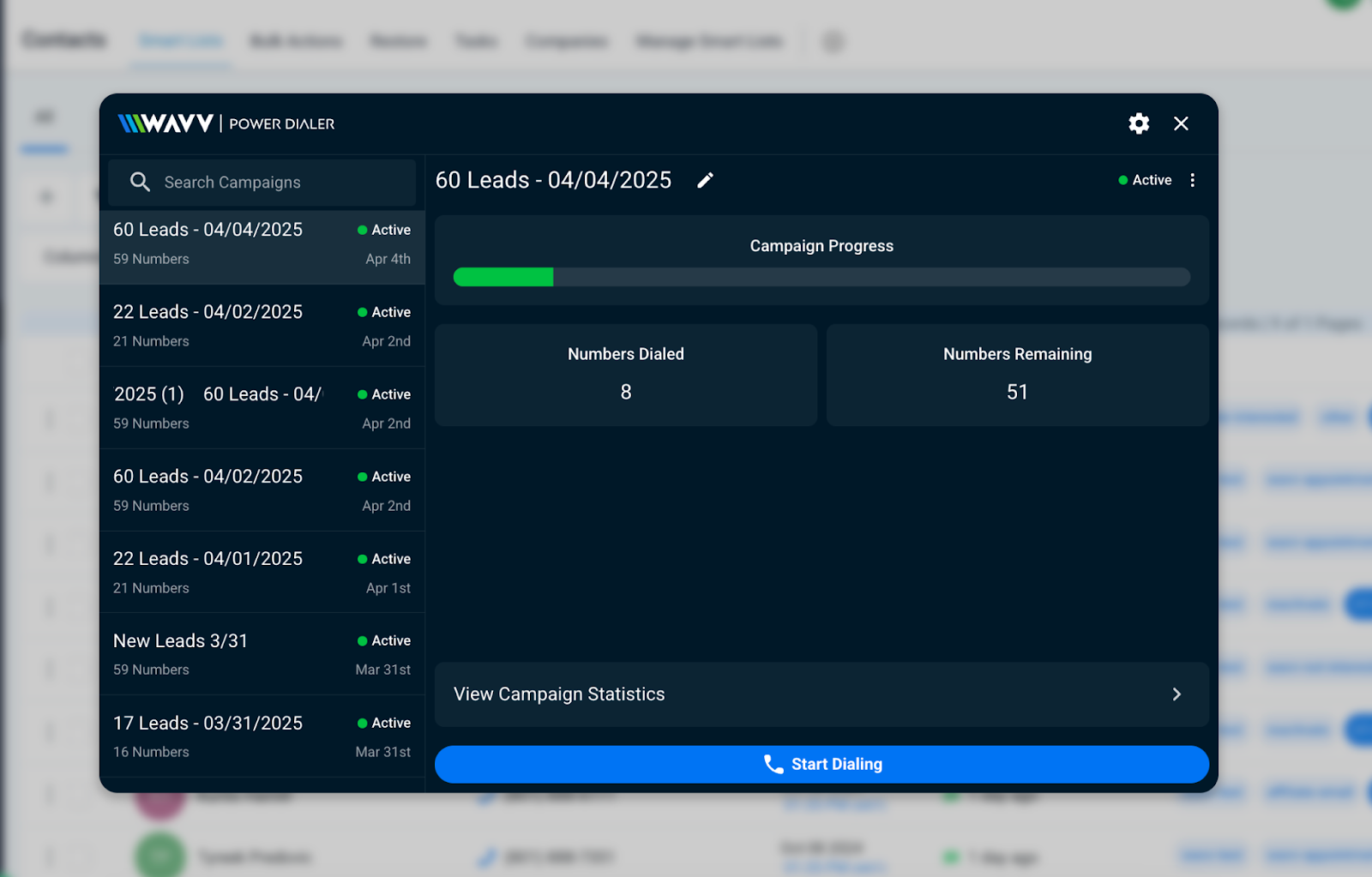
The default title for each campaign is the number of leads and the date it was created, but you can rename them.
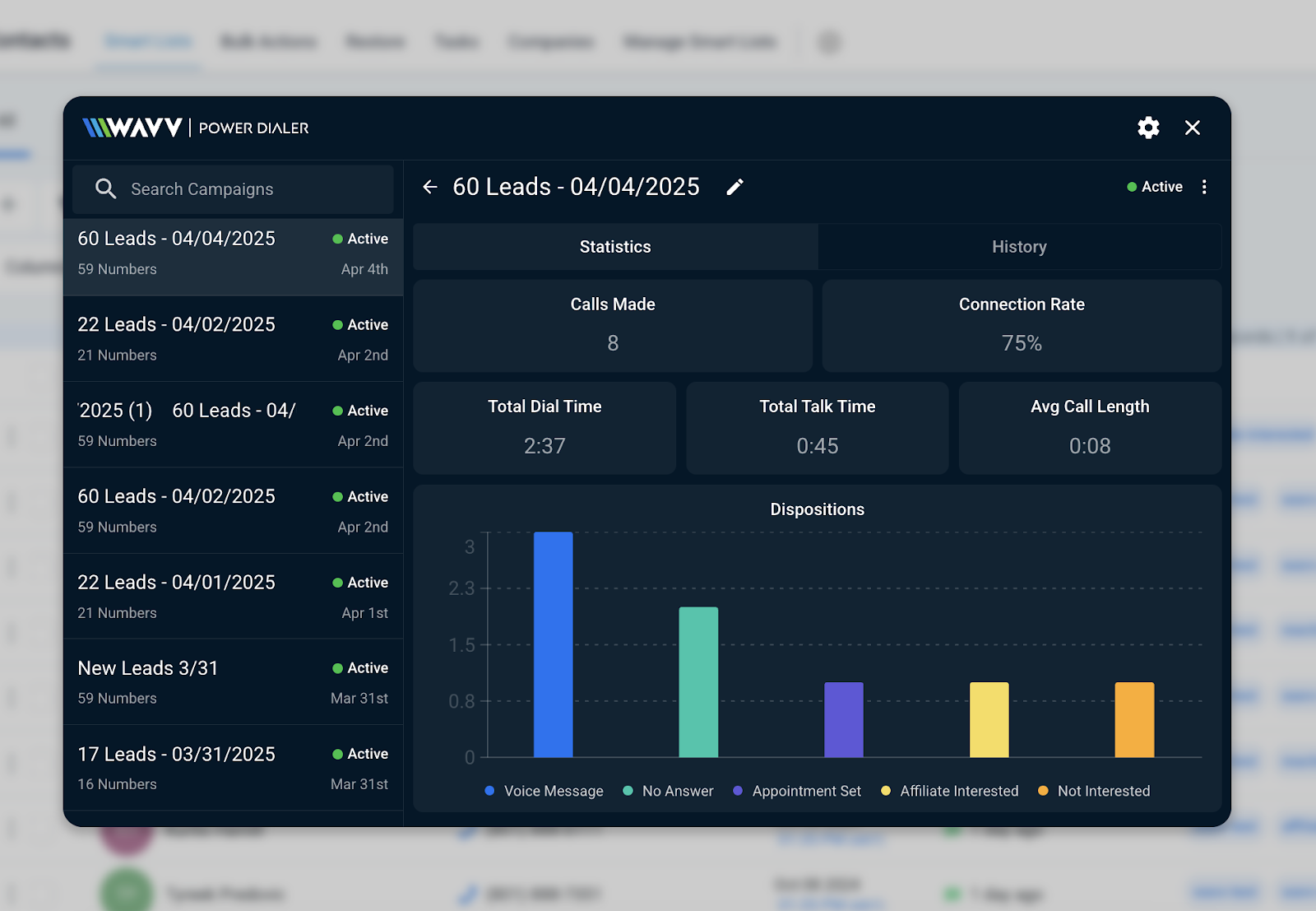
With each campaign you’ll be able to see your progress, view statistics, and you can begin dialing where you left off by clicking "Start Dialing." It’s a handy organizational tool, a bookmark for your campaigns!
Multi-Line Dialer
You can make calls through your Contacts Page in your CRM, or through the Opportunities page. This article will go over both options.
Through Your Contacts Page
Navigate to your contacts page in your CRM.
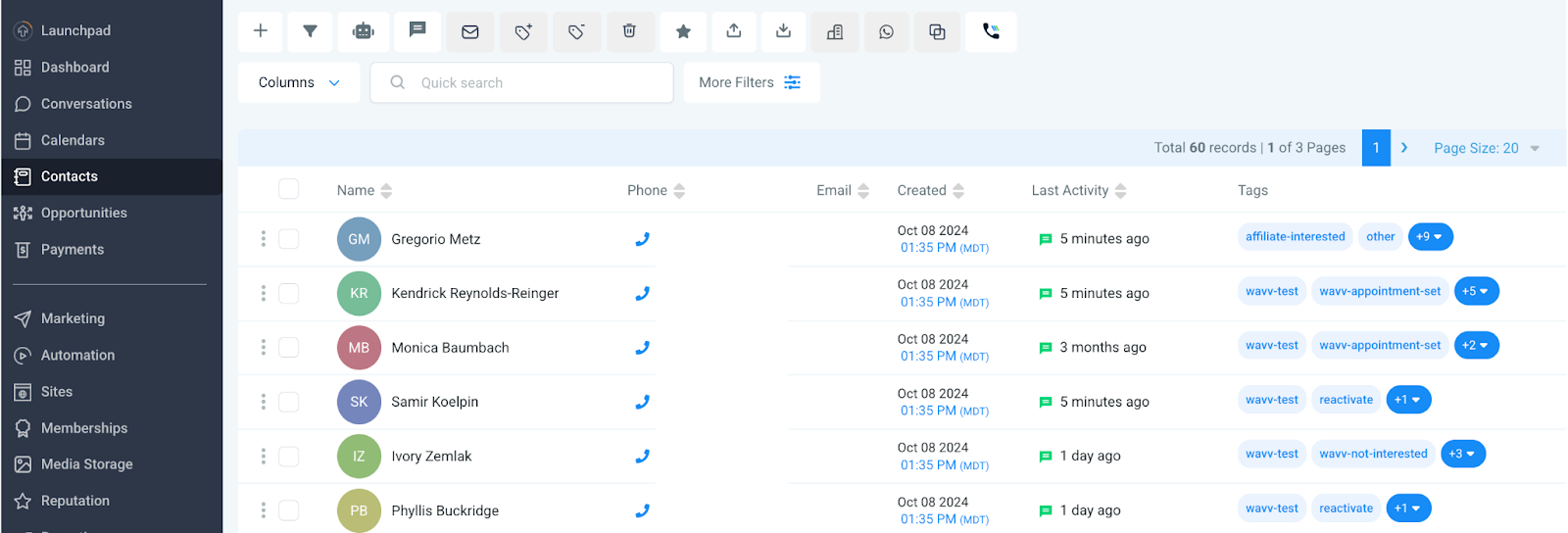
Select the list of contacts you’d like to call, click the WAVV power dial button.
All the selected contacts will load into the dialer, click “Dial” to begin!
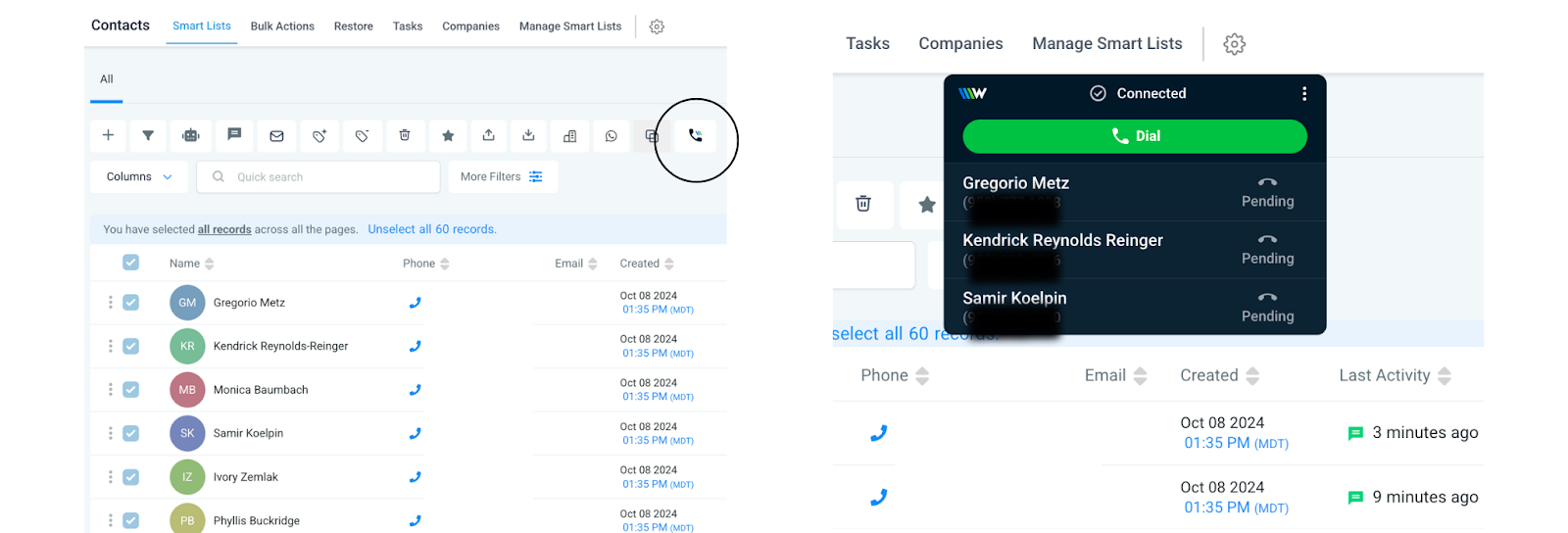
Through The Opportunities Page
Navigate to your opportunities page, click the power dial call button next to the title of the pipeline you’d like to call.
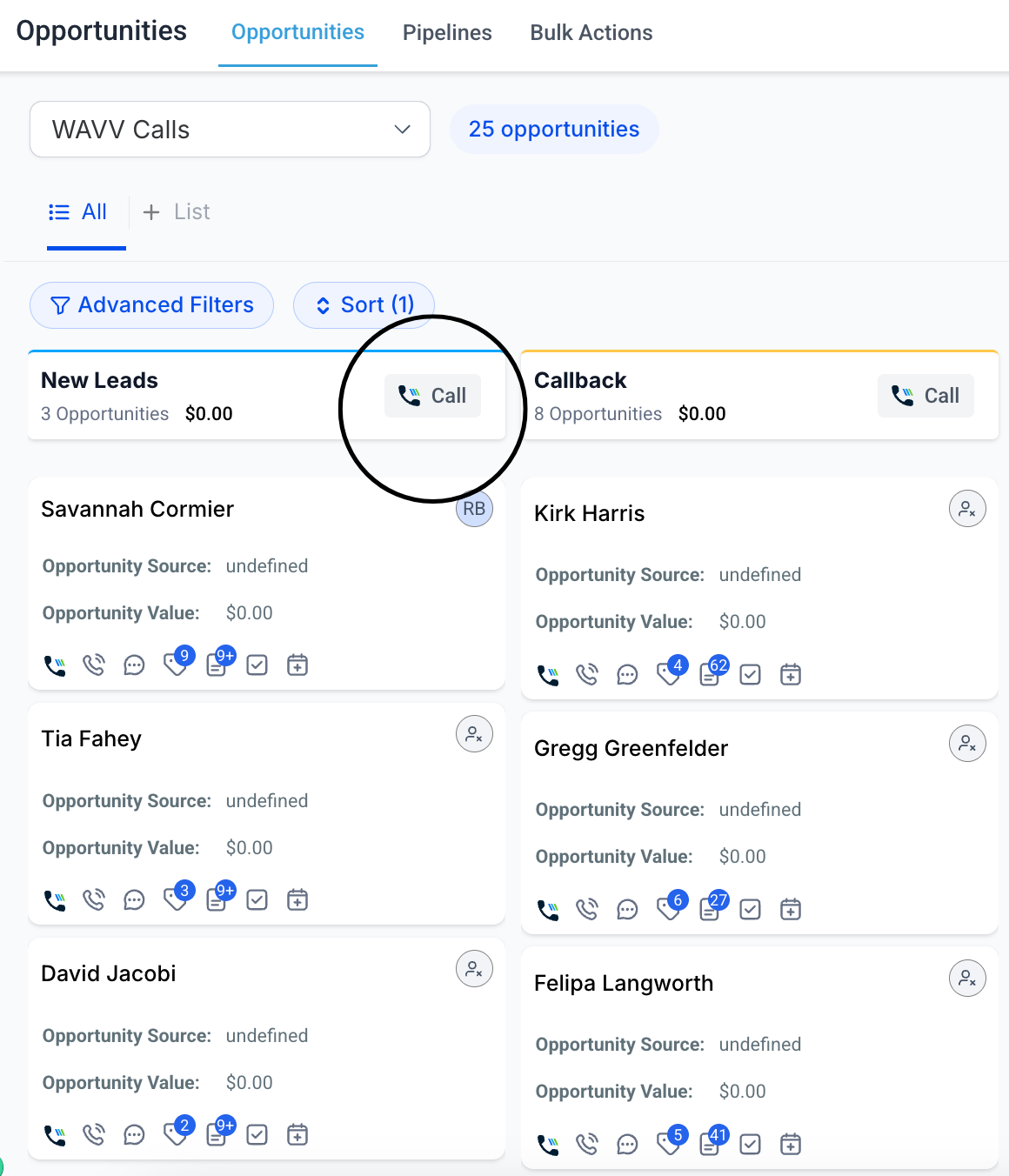
The dialer will load the pipeline into the dialer and you can begin making calls!
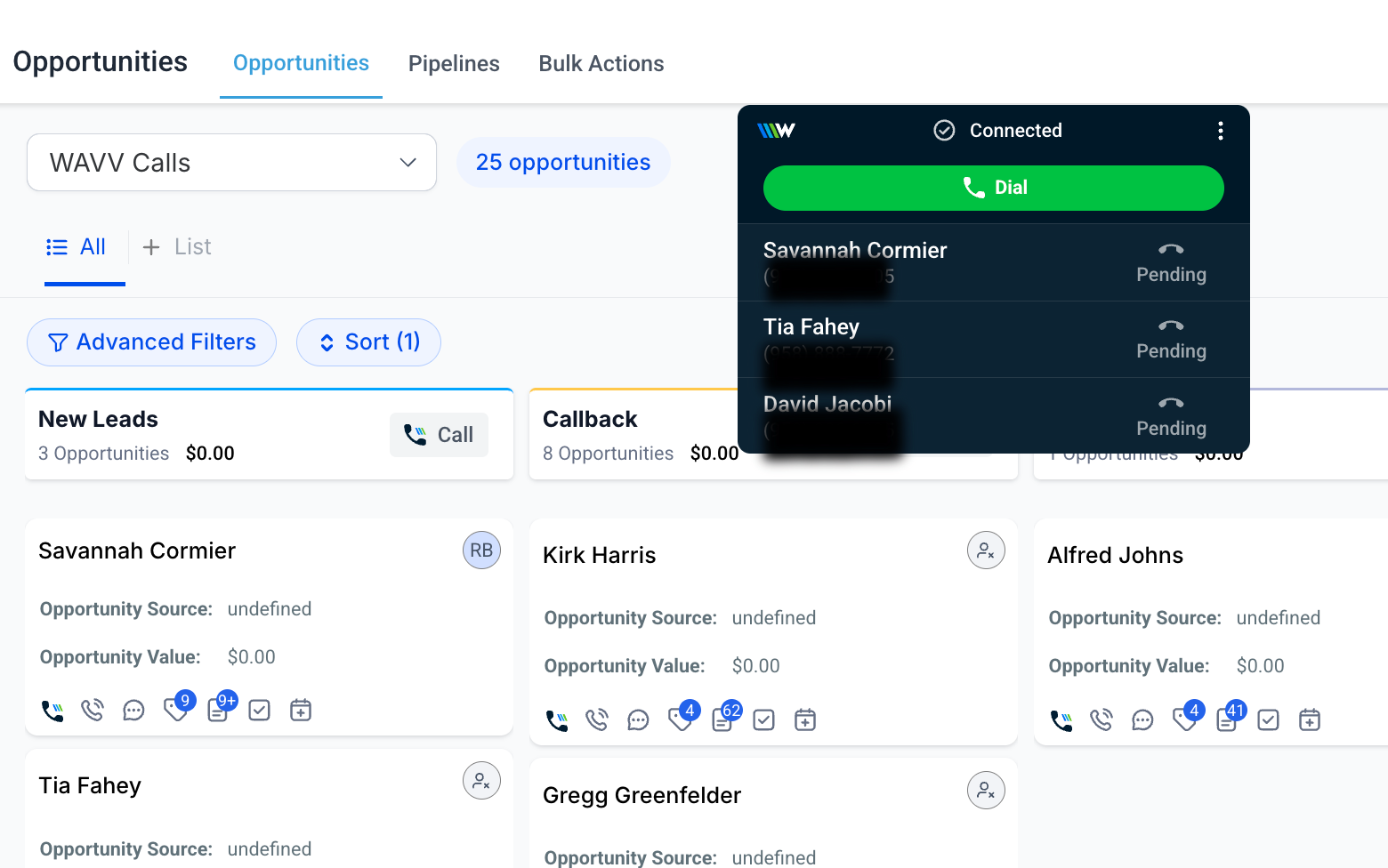
Campaign Window
Every time you load contacts into the dialer, it creates a campaign. When you go into the contacts page and without selecting any contacts you click the power dial button, this will bring up your campaign window.
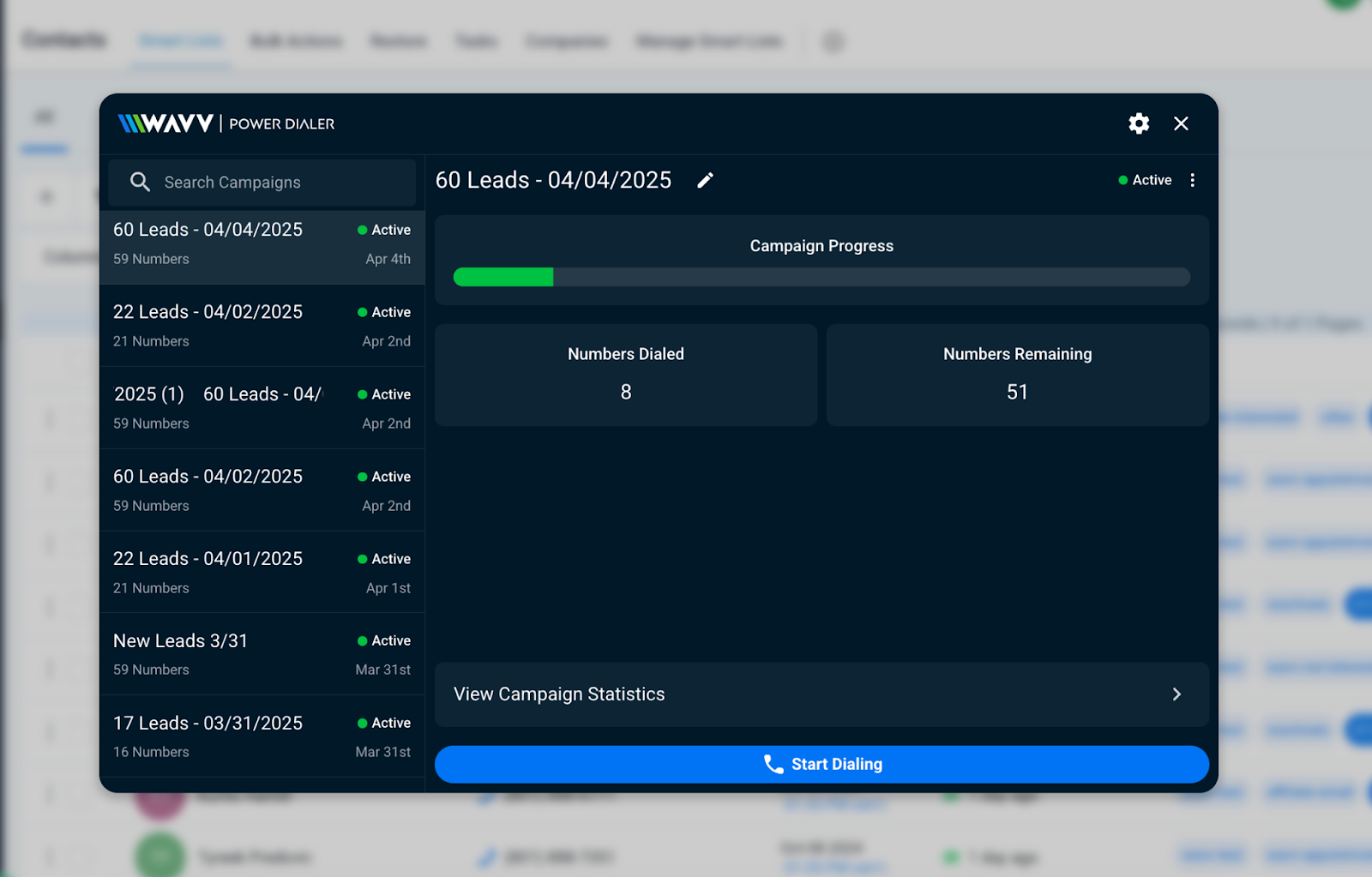
The default title for each campaign is the number of leads and the date it was created, but you can rename them.
With each campaign you’ll be able to see your progress, view statistics, and you can begin dialing where you left off by clicking "Start Dialing." It’s a handy organizational tool, a bookmark for your campaigns!