
This guide shows you how to add people to your WAVV team, choose the right role for each person, and remove someone when they leave or you need their dialer seat for someone else. You’ll do all of it from the Team Management screen.
Before you start
You’ll need:
Owner, Admin or Manager access to your WAVV team. Agents and View Only users can’t add or remove people.
An open dialer seat for anyone who will make calls (Manager or Agent). Admin and View Only roles are free and don’t use a seat.
Each person’s first name, last name and email. WAVV sends their activation code to this email.
Which role should I pick?
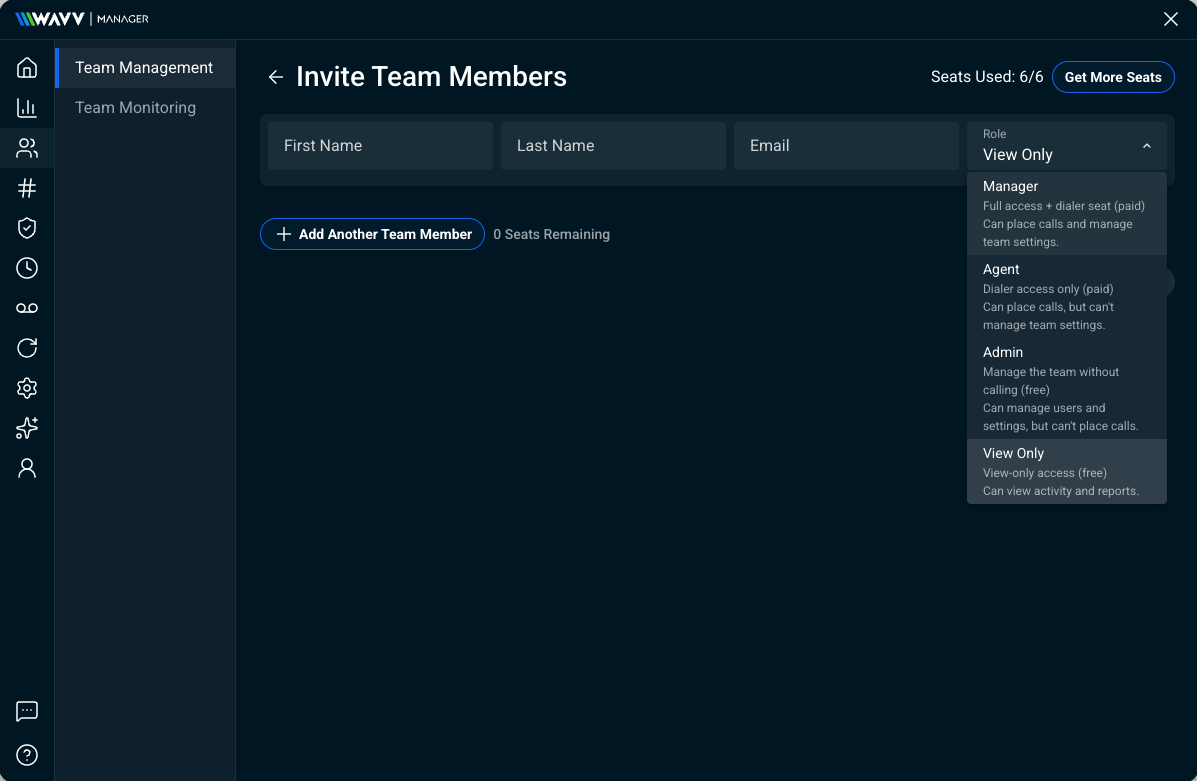
- Owner · Uses a paid dialer seat?: Optional · What they can do: Full access, including billing and subscription. Pick Owner + Manager if the owner will also make calls.
- Manager · Uses a paid dialer seat?: Yes · What they can do: Full access + dialer. Can make calls and manage team settings.
- Agent · Uses a paid dialer seat?: Yes · What they can do: Dialer only. Can make calls but can’t manage team settings.
- Admin · Uses a paid dialer seat?: No (free) · What they can do: Manages users and settings but can’t make calls.
- View Only · Uses a paid dialer seat?: No (free) · What they can do: Can view activity and reports.
Good to know: Each person who dials sets up their own settings. Owners, Admins and Managers can edit team settings, but not someone else’s personal settings, and they can only see team voicemails, not each person’s voicemails.
Add a team member
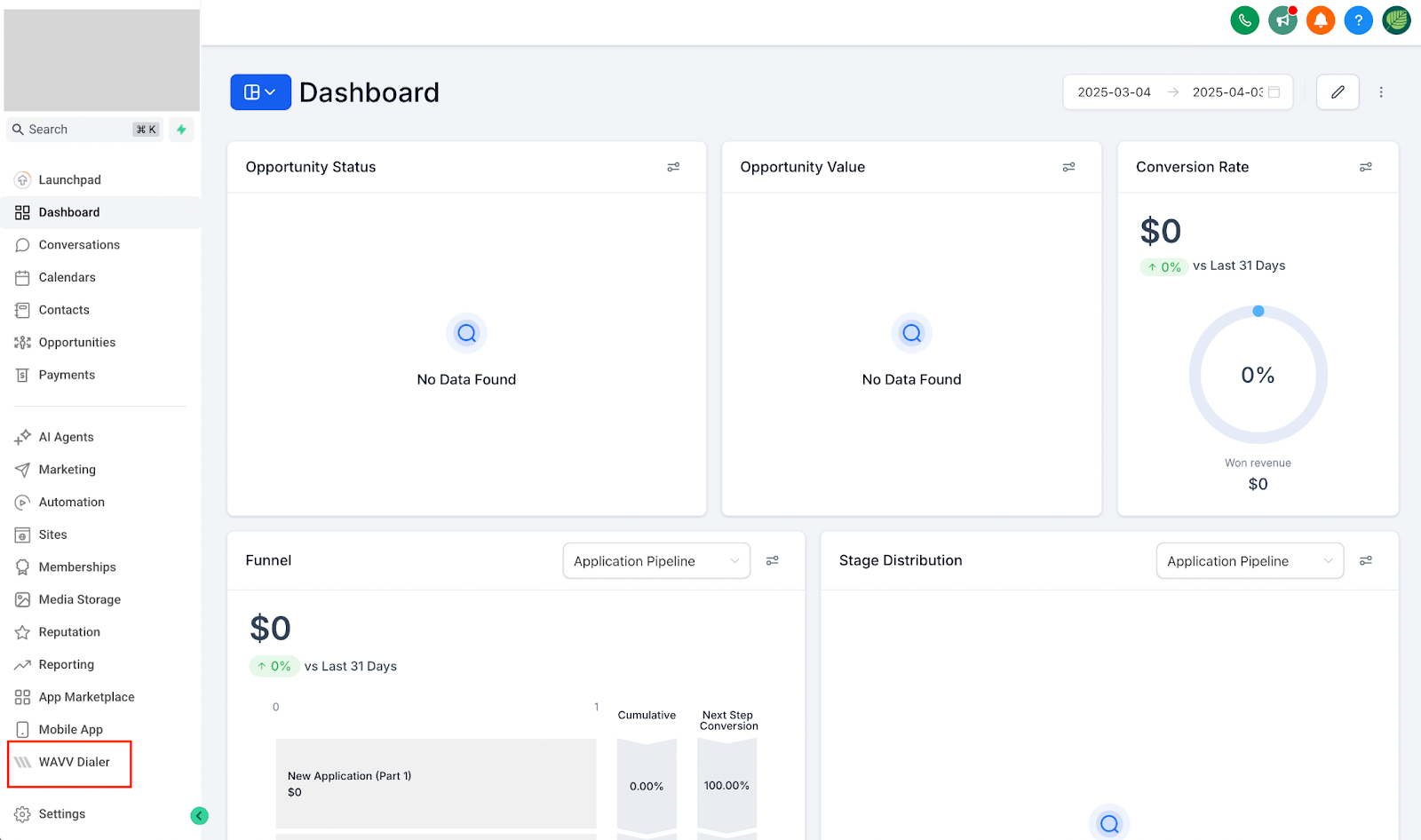
1. Open WAVV from the button in your left menu.
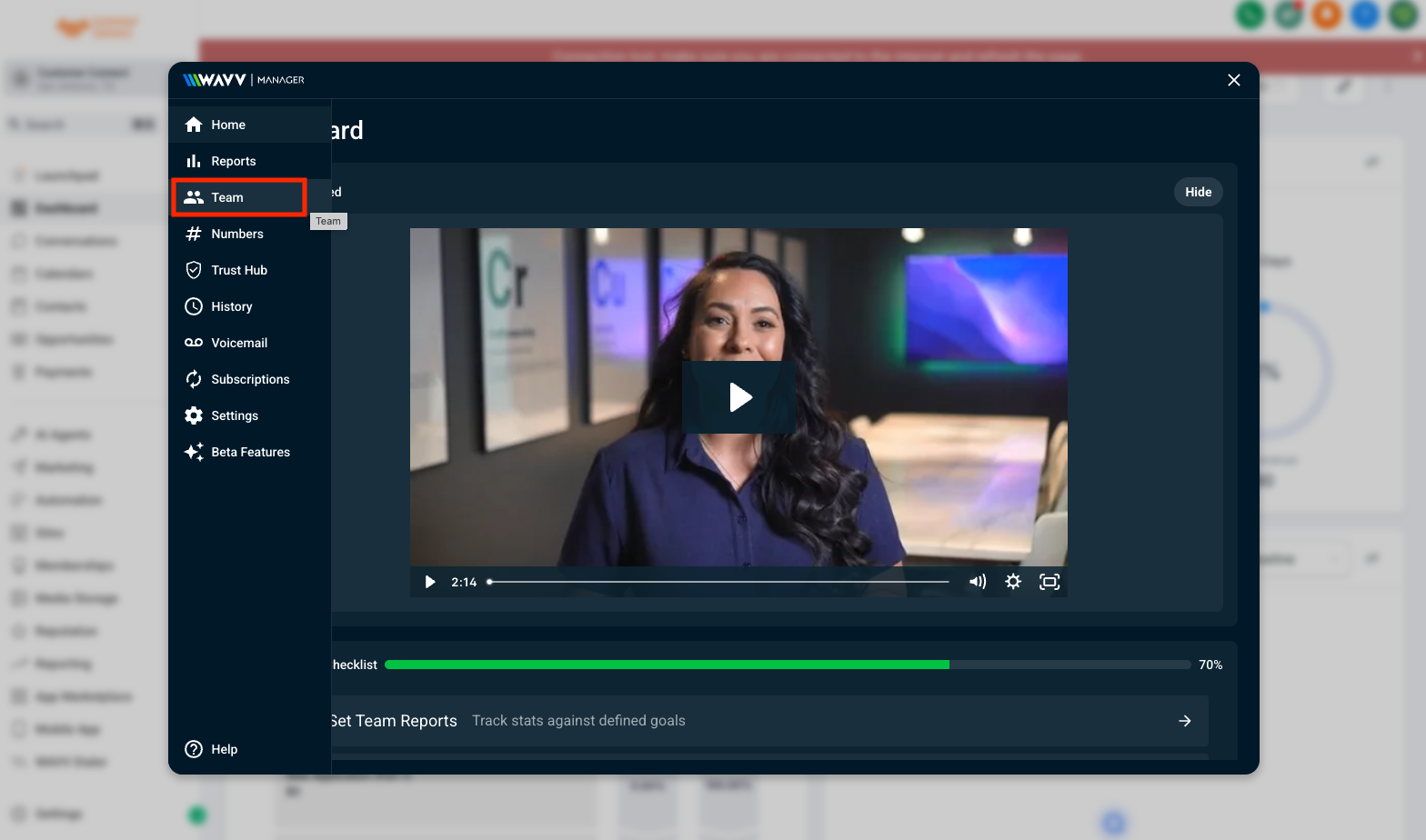
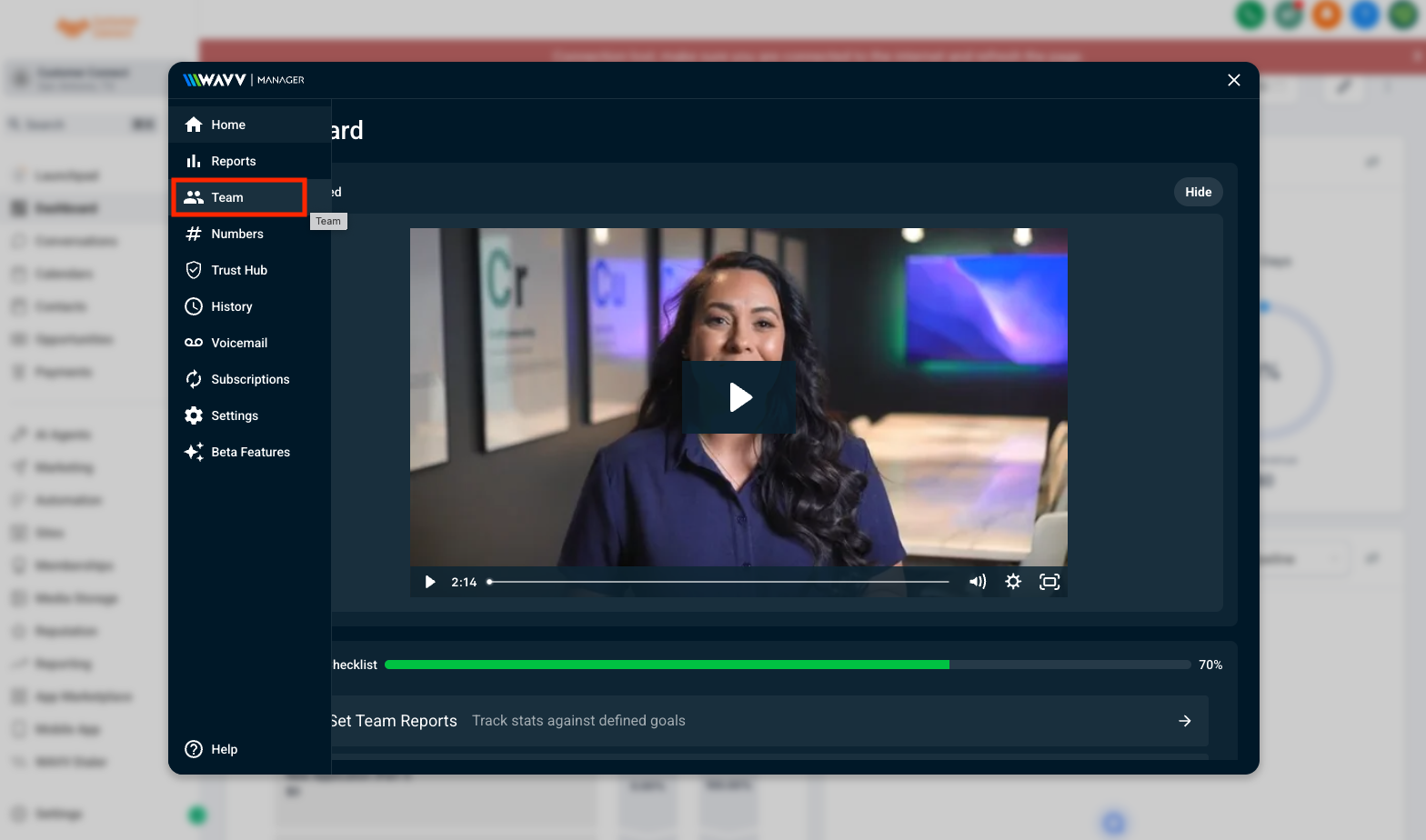
2. Click Team in WAVV’s left menu.
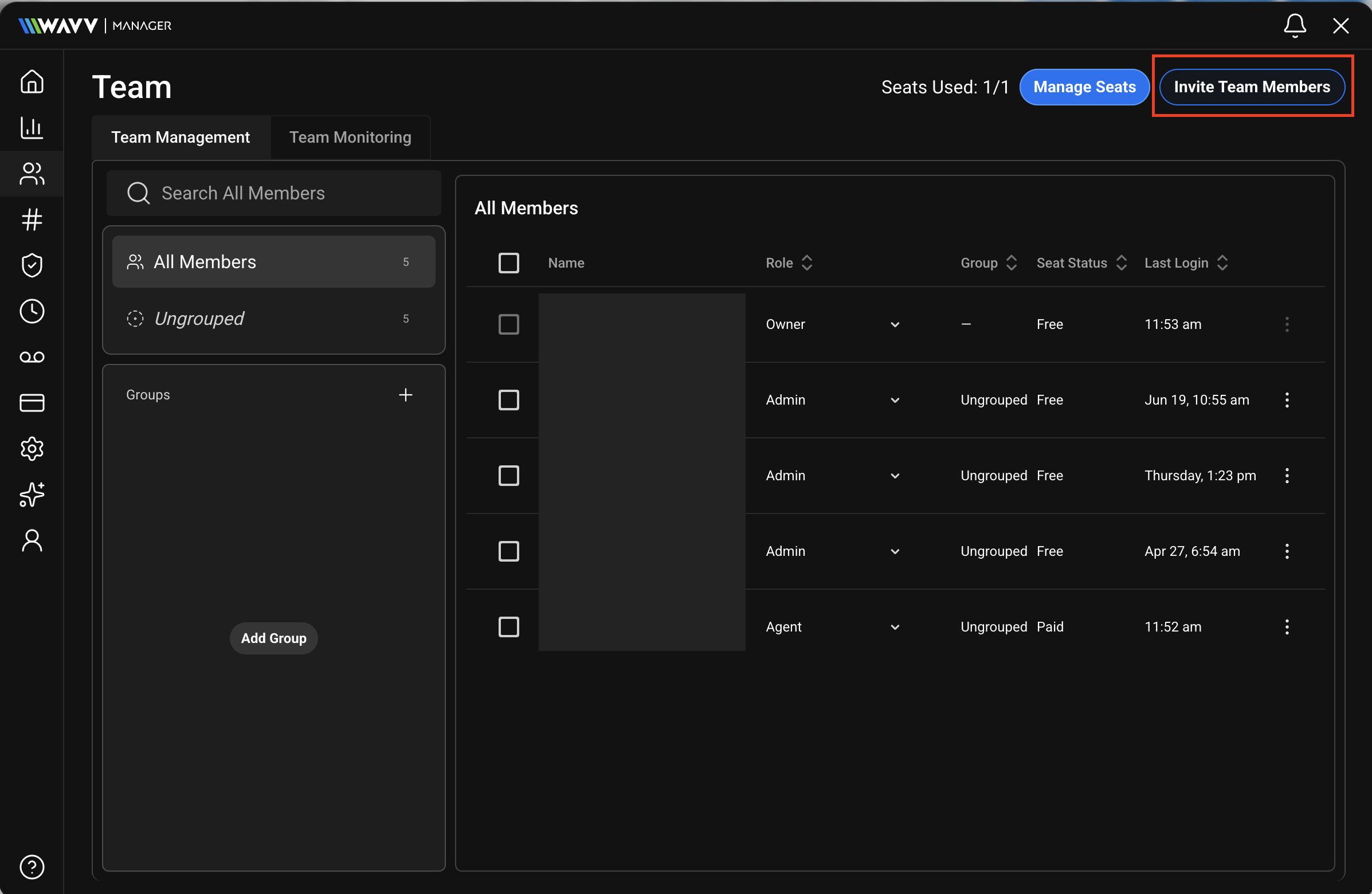
3. You’re now on Team Management, which lists the owner and every team member.
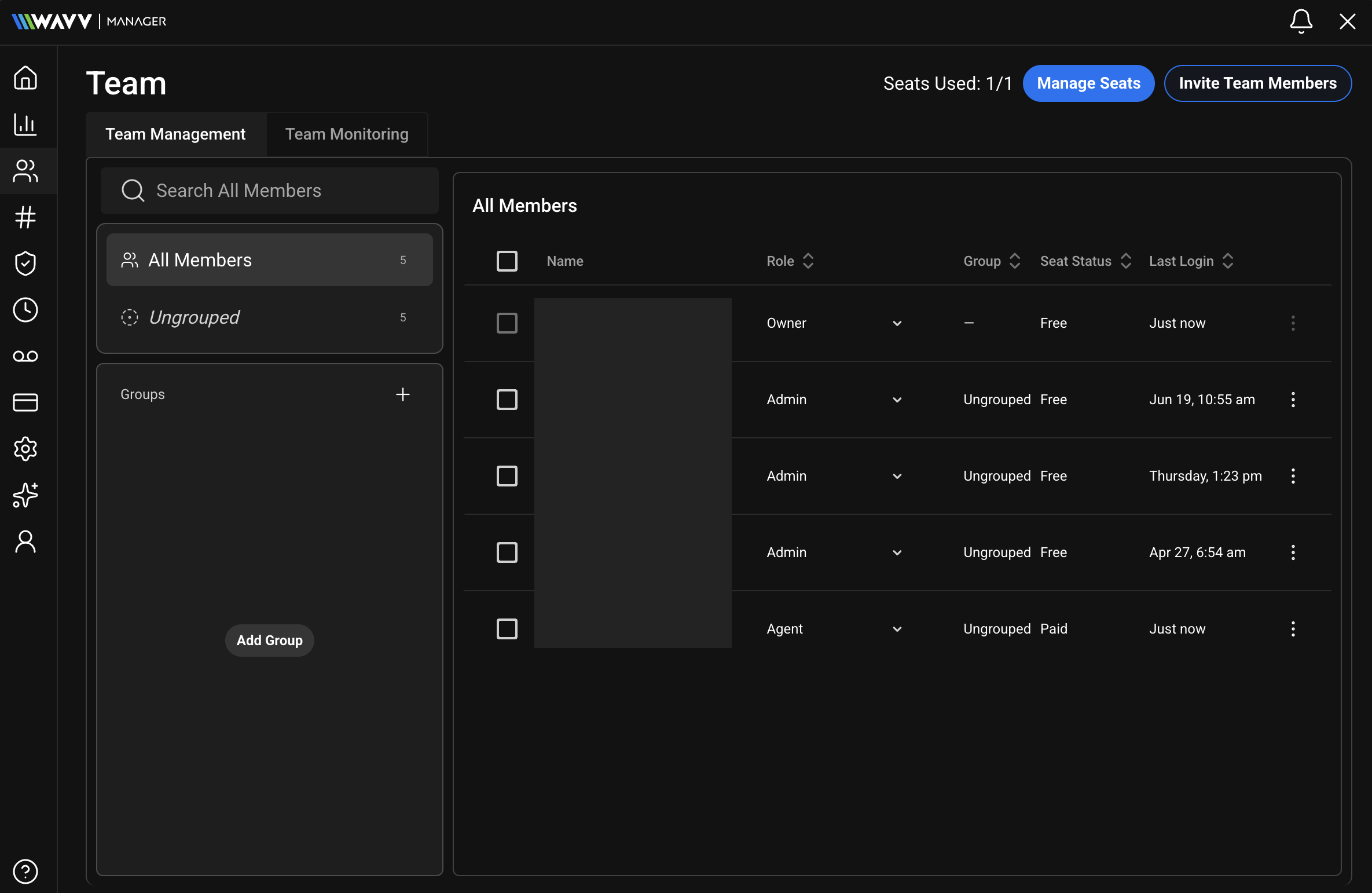
4. Will the account owner make calls? If yes, change the owner’s role to Owner + Manager. If not, leave it as Owner. The owner always keeps access to team info, reports and billing either way.

5. Check that you have an open dialer seat.
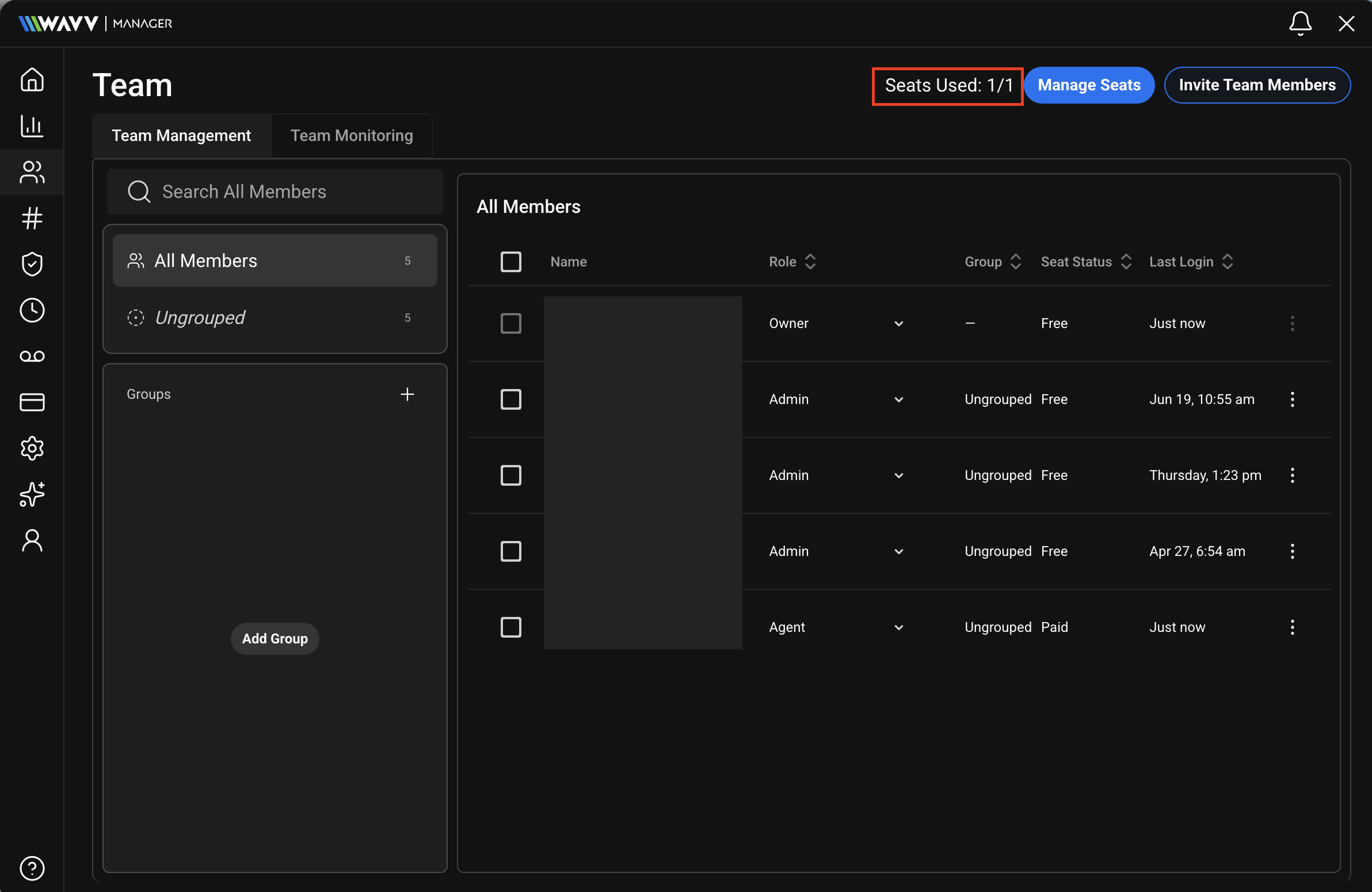
6. No open seats? Click Manage Seats.
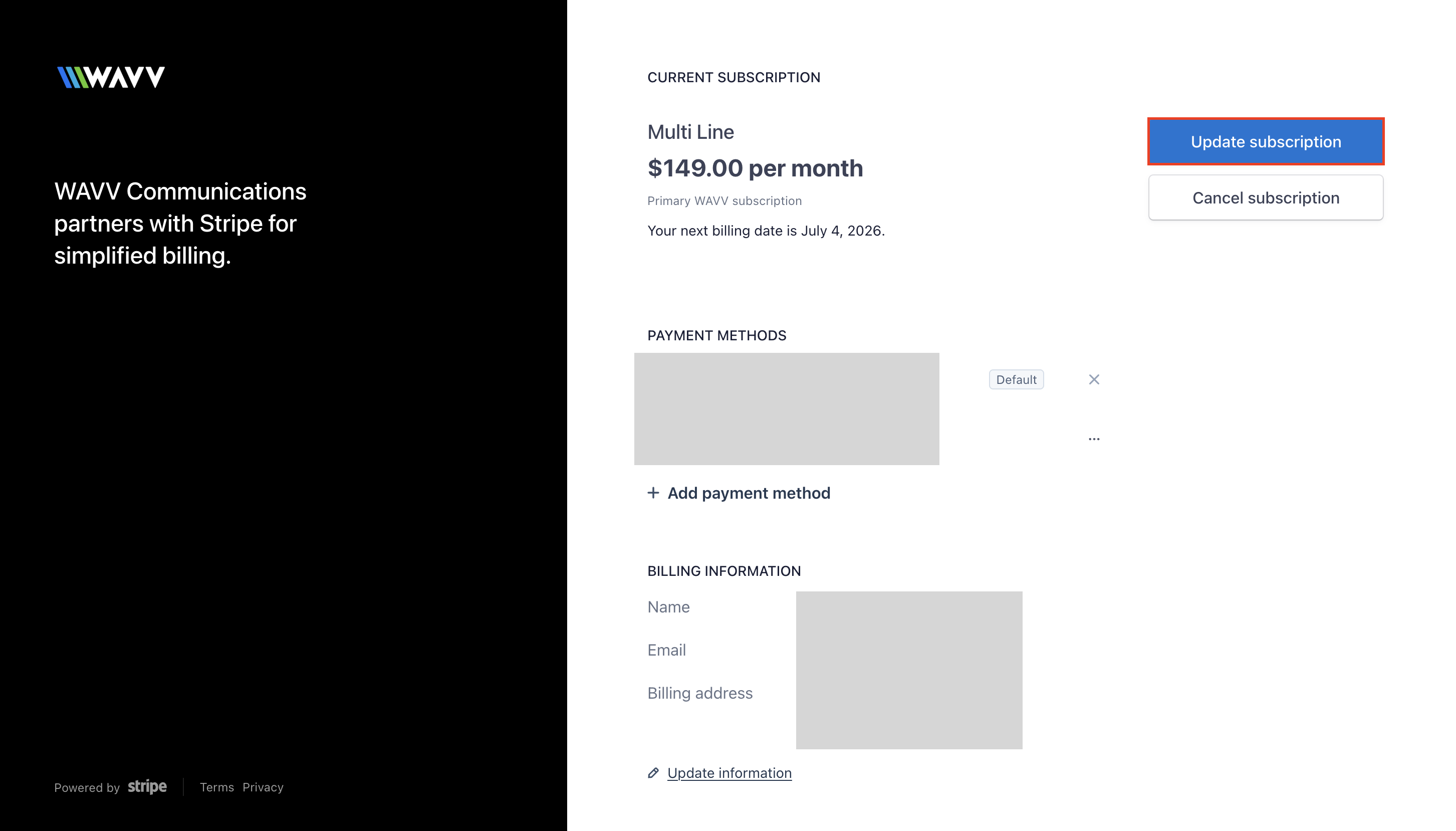
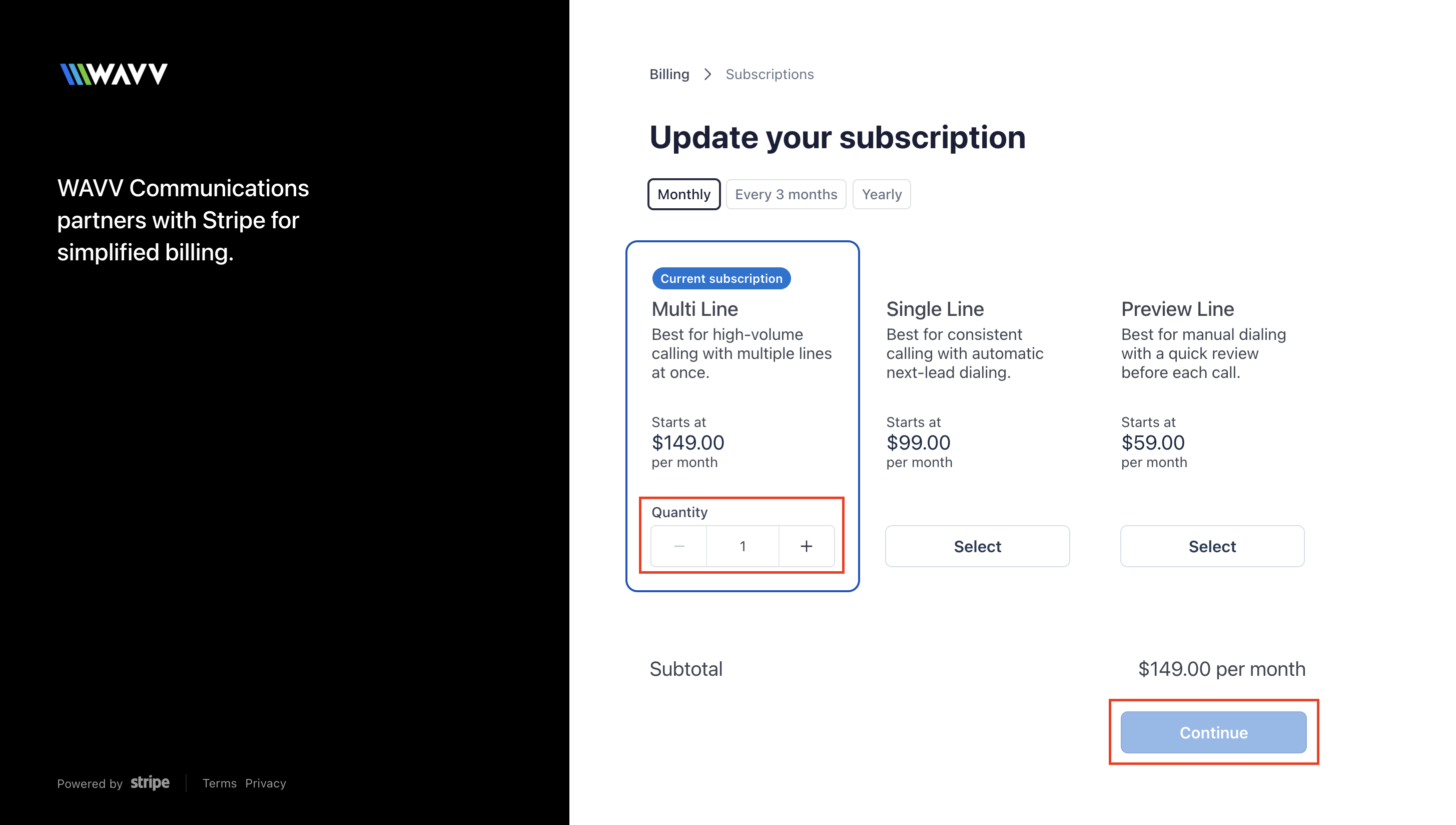
7. Your subscription summary appears. Click Update Subscription, set how many seats to add, then click Continue.
8. Click Invite Team Members.
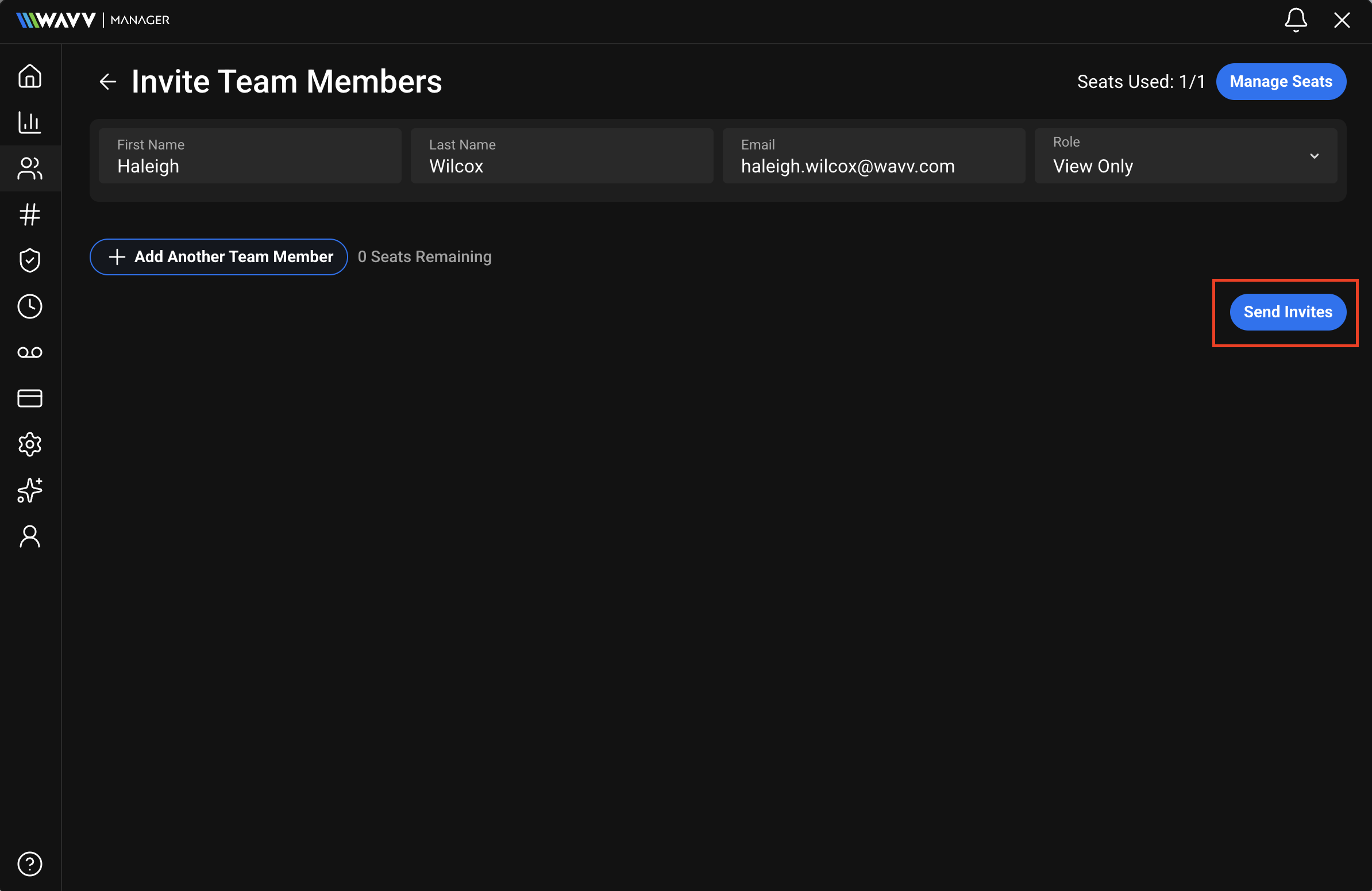
9. Enter the person’s first name, last name and email, then choose their Role.
10. Click Send Invites. WAVV emails them an activation code.
11. Back on Team Management, the new member shows with an Invite status until they sign in.
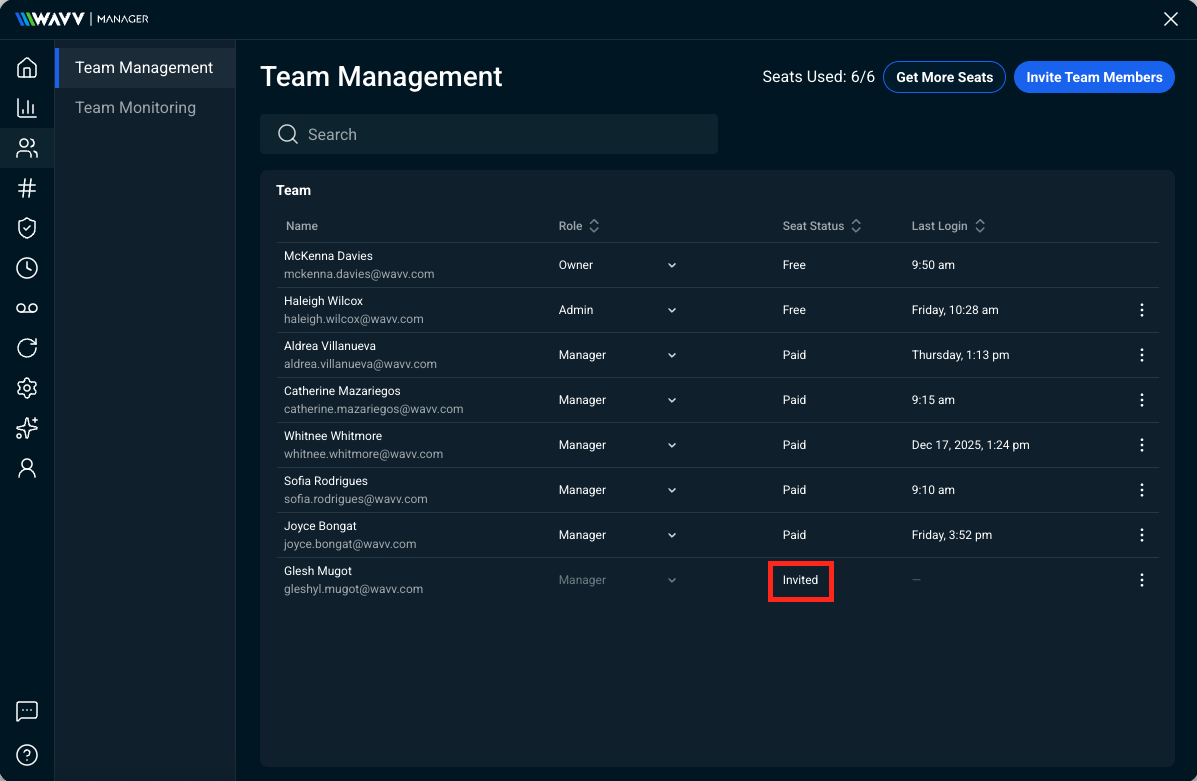
Repeat for each person. To help them sign in, send them How to Use a WAVV Activation Code.
Remove a team member
Use this when someone leaves your team, or when you want to give their dialer seat to someone else.
1. Click Team in WAVV’s left menu.
2. On Team Management, click the three dots next to the person, then choose Remove Team Member.
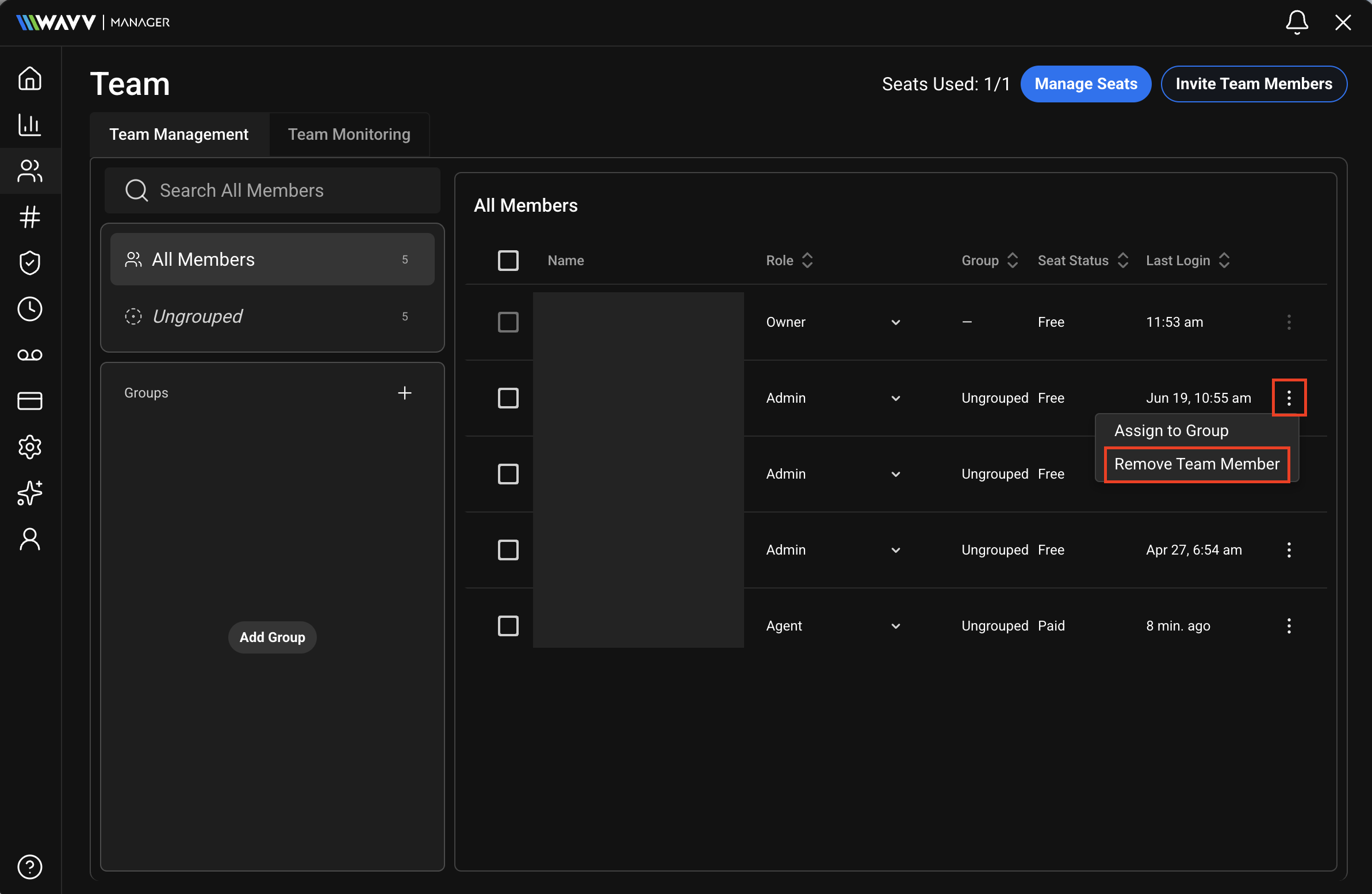
Removing the team member lets you give the seat to someone else. If you click “Remove User Seat,” you’ll have one less seat on your subscription and can’t give that dialer seat to someone else. To learn more, click here.
3. Click Remove to confirm.
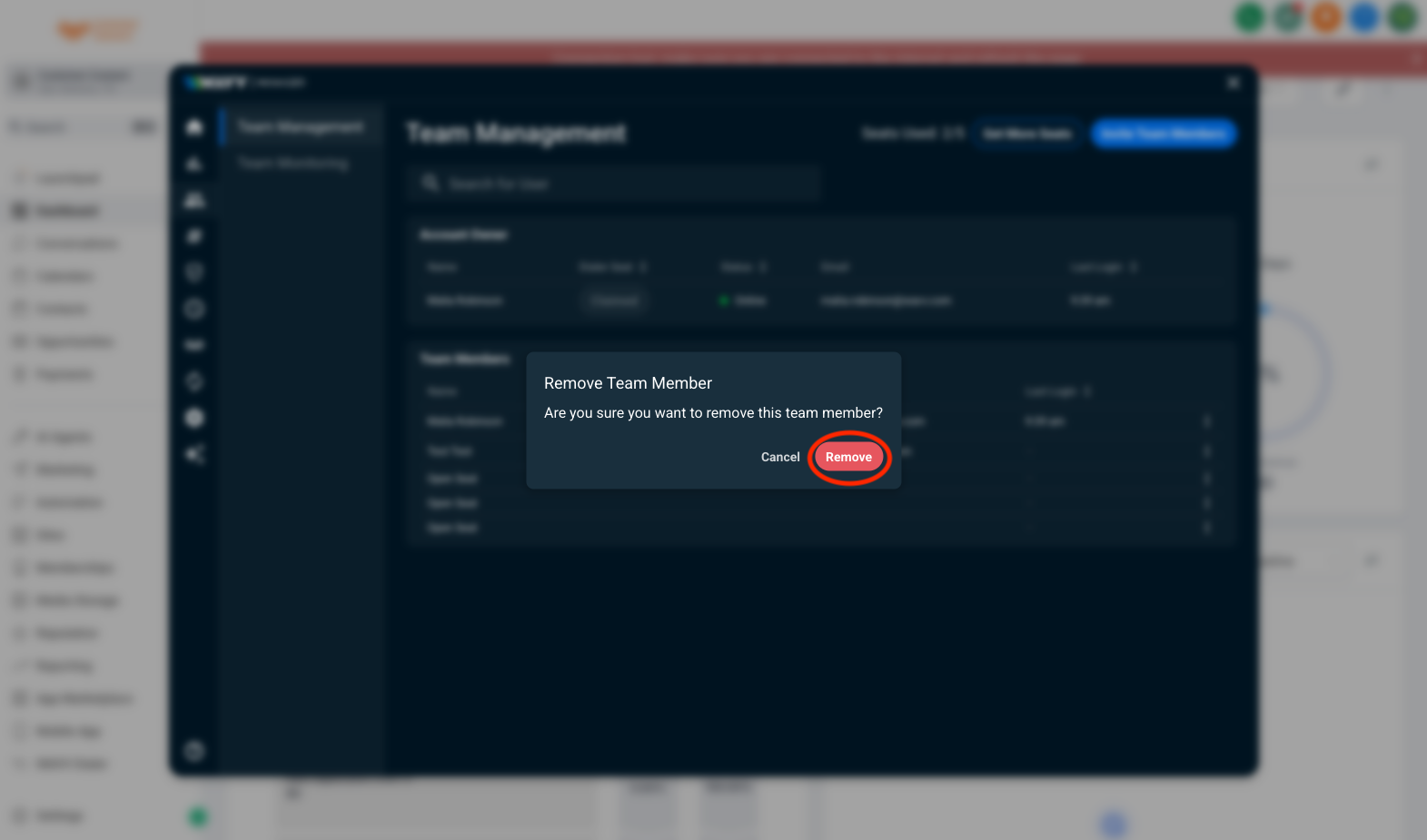
Their seat is now open. Click Invite Team Members to give it to someone else.
How this connects: Remove Team Member takes the person off your team but keeps the seat on your subscription. Remove User Seat takes the seat off your subscription, so you’ll have one less seat to assign.
Still stuck?
Chat with WAVV Support using the chat icon in the bottom-right corner of the Help Center.
Related: Understanding Team Roles · How to Transfer Ownership of Your WAVV Team
Next step: Set up your Phone Numbers
Frequently asked questions
Does every person on my team need a paid dialer seat?
Only people who make calls. Managers and Agents use a paid dialer seat. Admins and View Only users are free. The Owner’s seat is optional: pick Owner + Manager only if the owner will dial.
What’s the difference between Remove Team Member and Remove User Seat?
Remove Team Member takes the person off your team and keeps the seat, so you can invite someone new. Remove User Seat takes the seat off your subscription, so you’ll have one less seat. See Understanding WAVV Dialer Seats.
How do I give someone’s seat to a new person?
Remove the old team member, then click Invite Team Members and invite the new person into the open seat.
I don’t have any open seats. How do I add more?
On Team Management, click Manage Seats, then Update Subscription. Choose how many seats to add and click Continue.
My new team member’s status still says “Invite.”
They haven’t signed in yet. Ask them to check their email (and spam folder) for the activation code, then follow How to Use a WAVV Activation Code.
Can a Manager or Admin change a rep’s personal settings or listen to their voicemails?
No. Each person sets up their own settings. Owners, Admins and Managers can edit team settings and see team voicemails, but not individual settings or voicemails.
How do I hand the whole team to someone else?
That’s a transfer of ownership, not an invite. See How to Transfer Ownership of Your WAVV Team.