The phone numbers listed under the “Numbers” tab in your WAVV settings are the pool your dialer pulls from when making calls.
Let’s get started!
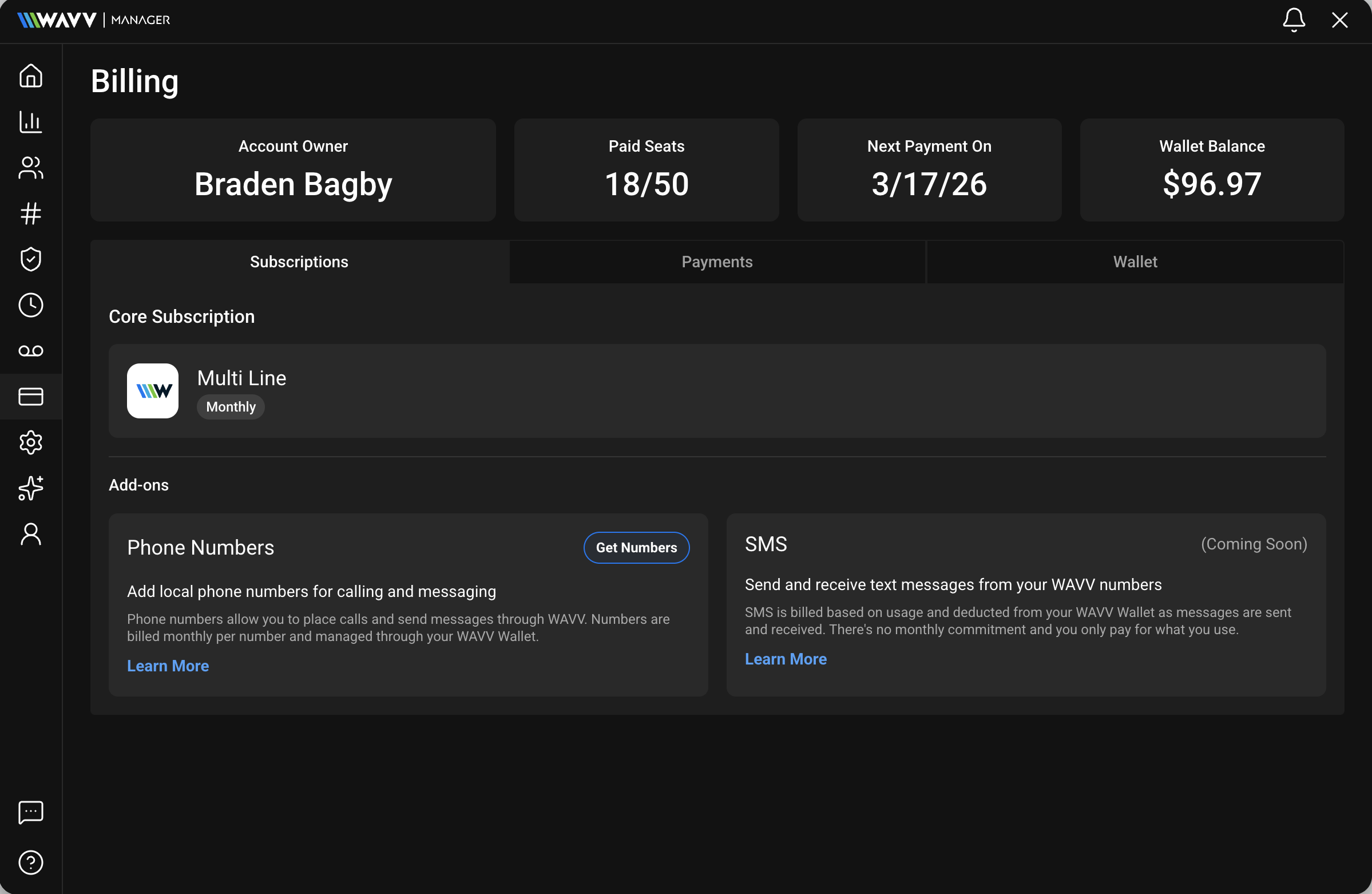
Step 1: Go to the Billing Tab
If you haven't already, select "Get Numbers" under the Phone Numbers add-on.
Phone numbers are $1/month per number. Your Wallet Balance will cover these.
Step 2: Add Numbers to WAVV
You can add numbers to WAVV in two ways:
Option 1: Add Personal Numbers
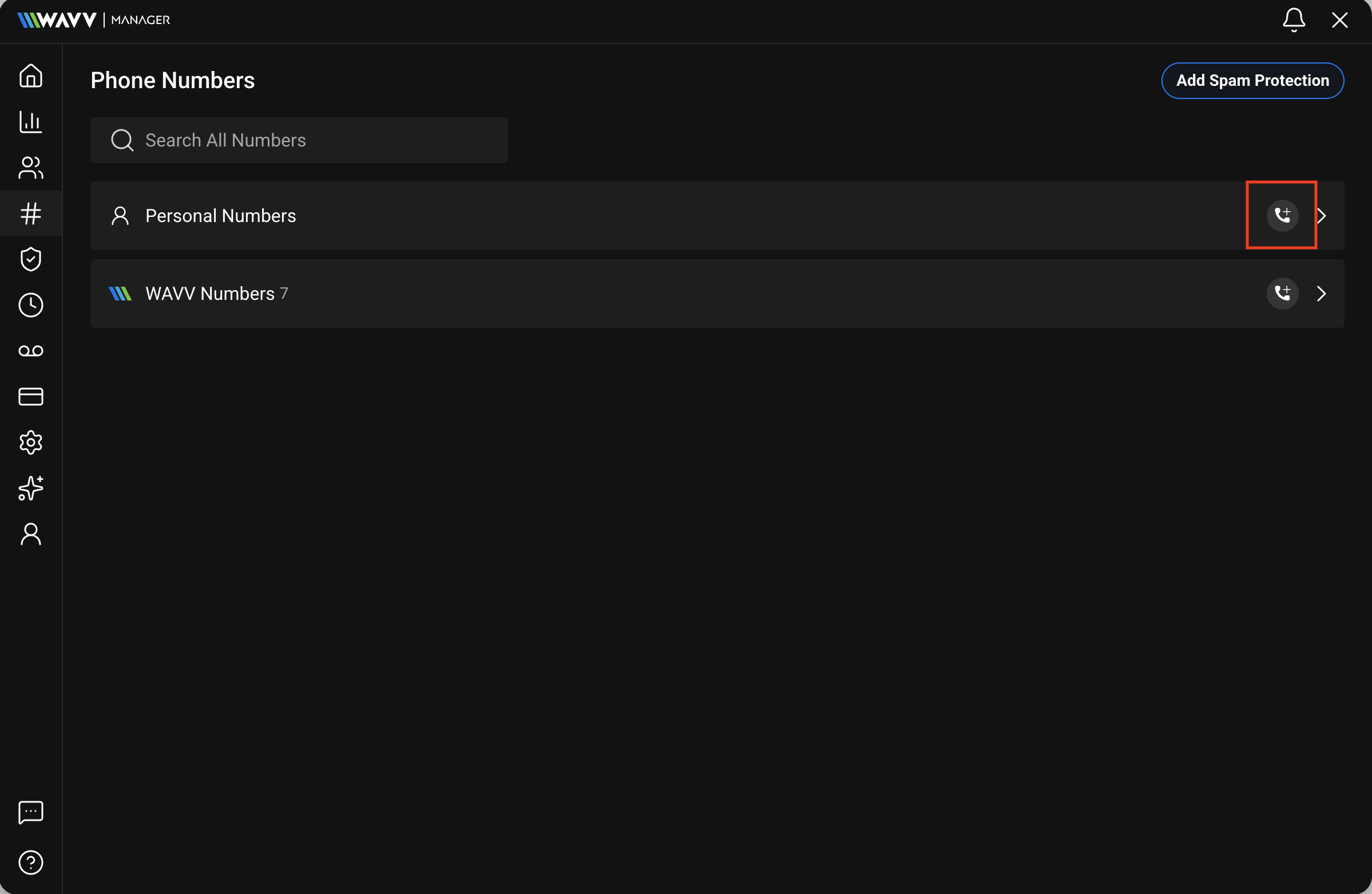
Enter the phone number and add a nickname if you'd like!
You can also choose if you'd like the number to be shared with your team.
Choose if you'd like to verify the number through call or text.
* Please note: you MUST purchase at least 1 WAVV number to be able to make calls from a personal number.
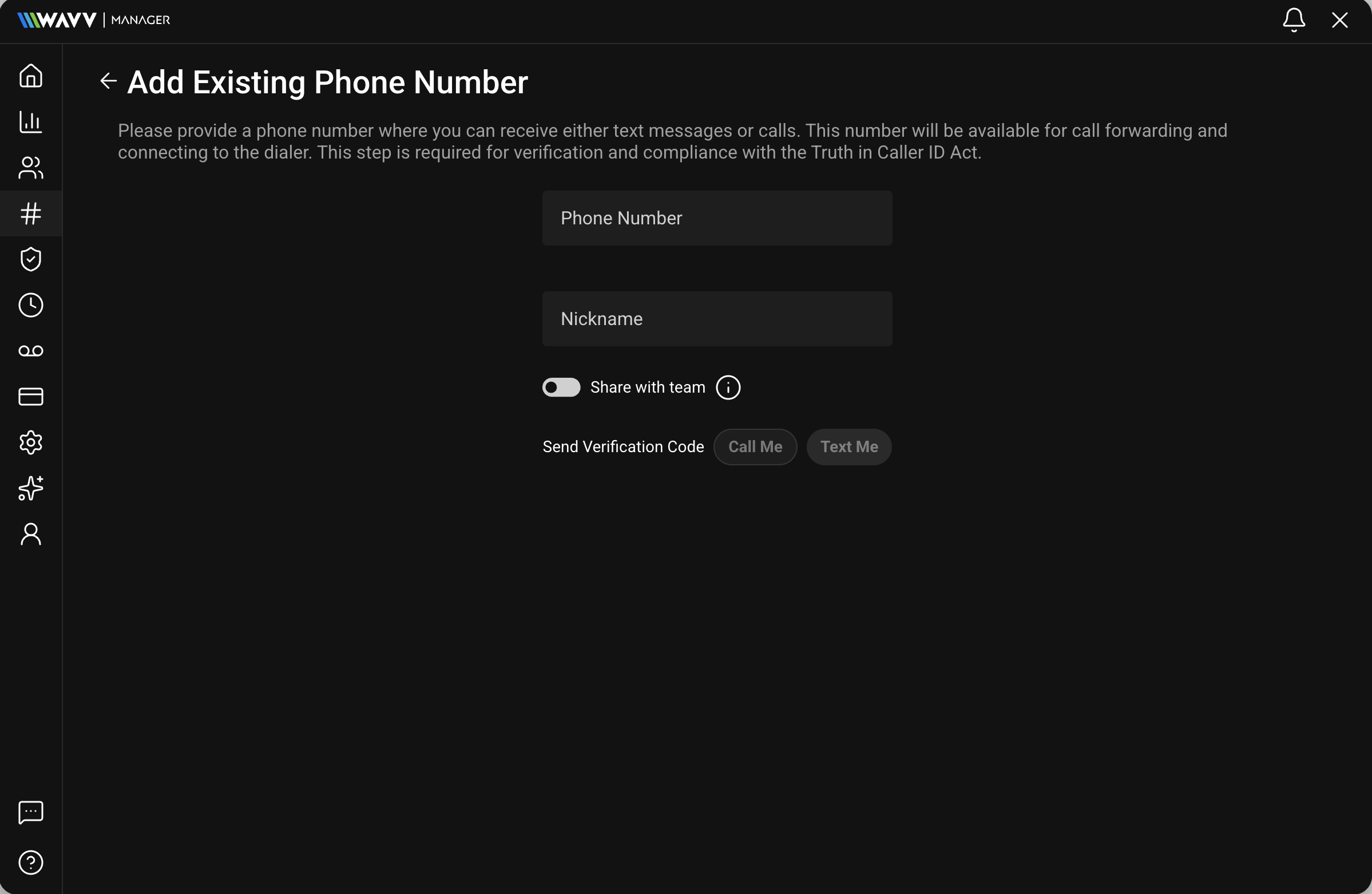
Option 2: Claim WAVV Numbers
Click to add WAVV Numbers:
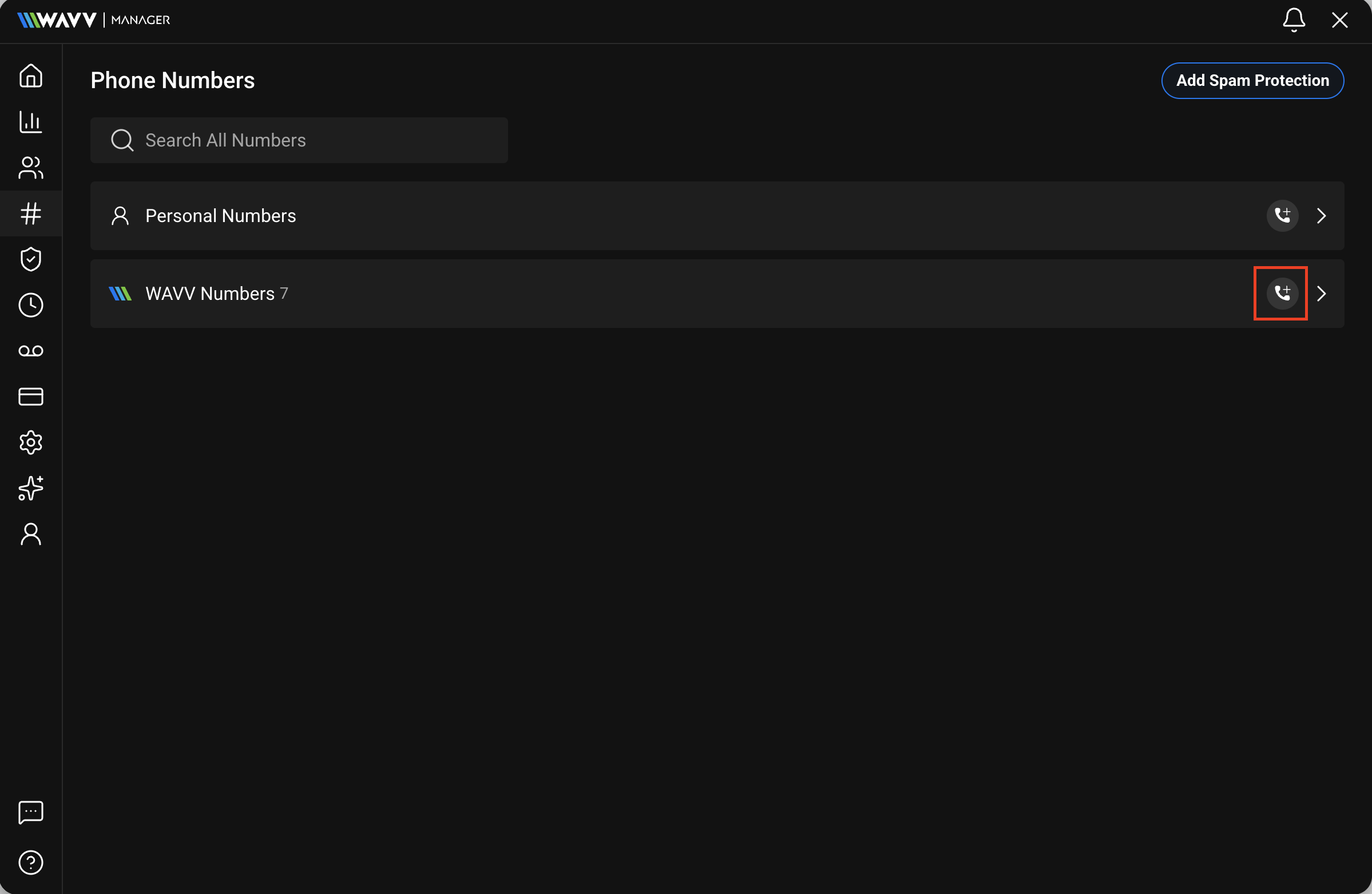
2. Search for available area codes.
💡 Tip: If you don’t see your preferred area code, it might be temporarily unavailable (especially in busy areas). However, WAVV will always show the closest available numbers. Check back later—new numbers are released regularly!
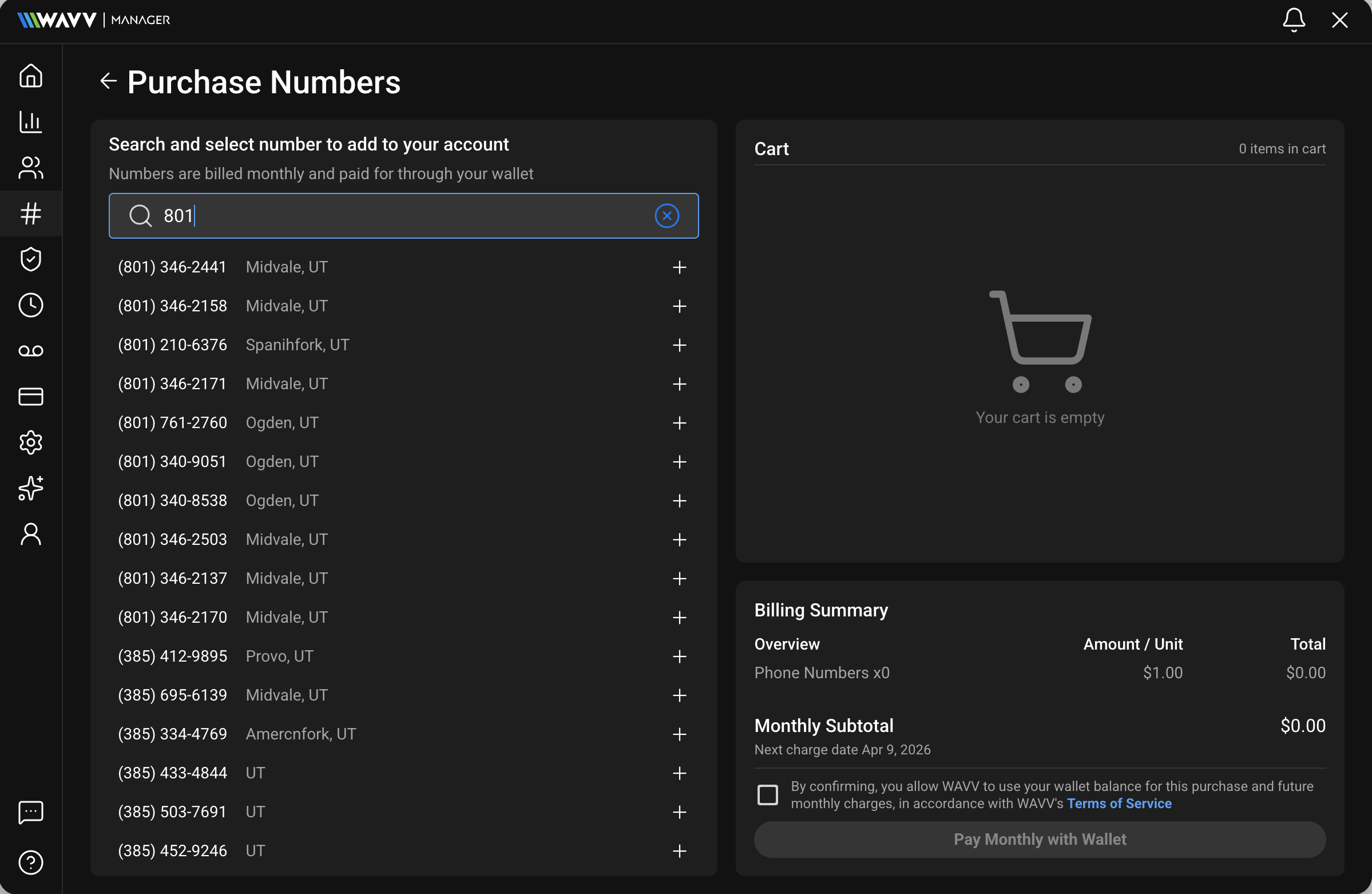
3. Select the number(s) you'd like to claim.
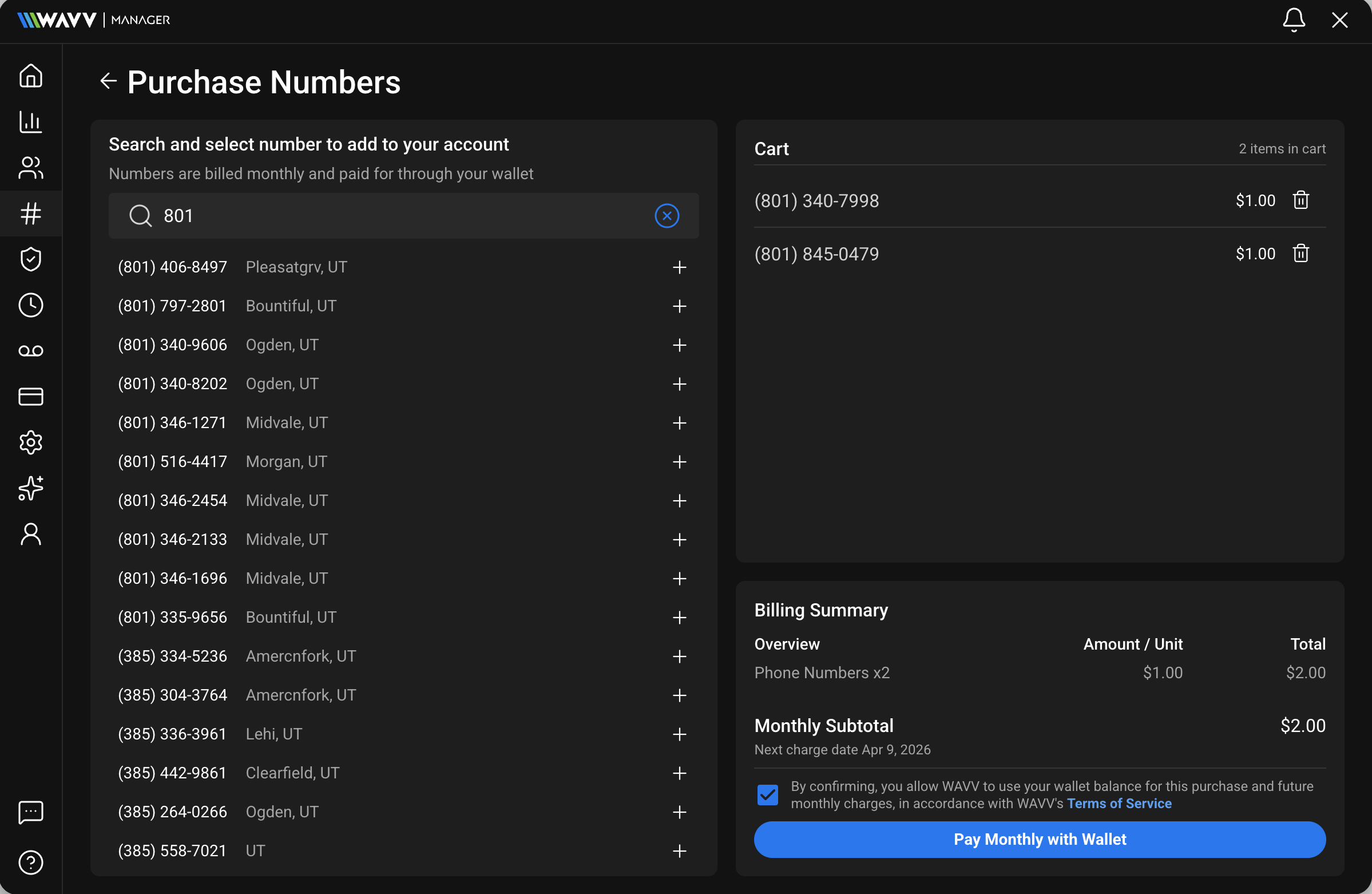
The Billing Summary will update accordingly. Keep in mind, phone numbers are paid for using your WAVV Wallet, so you will not be charged for them separately, but money will be pulled from your Wallet. You'll be able to see the next time you'll be charged for a Wallet Recharge beneath "Monthly Subtotal."
4. Click "Pay Monthly with Wallet"
5. The numbers will show up in your Numbers tab:
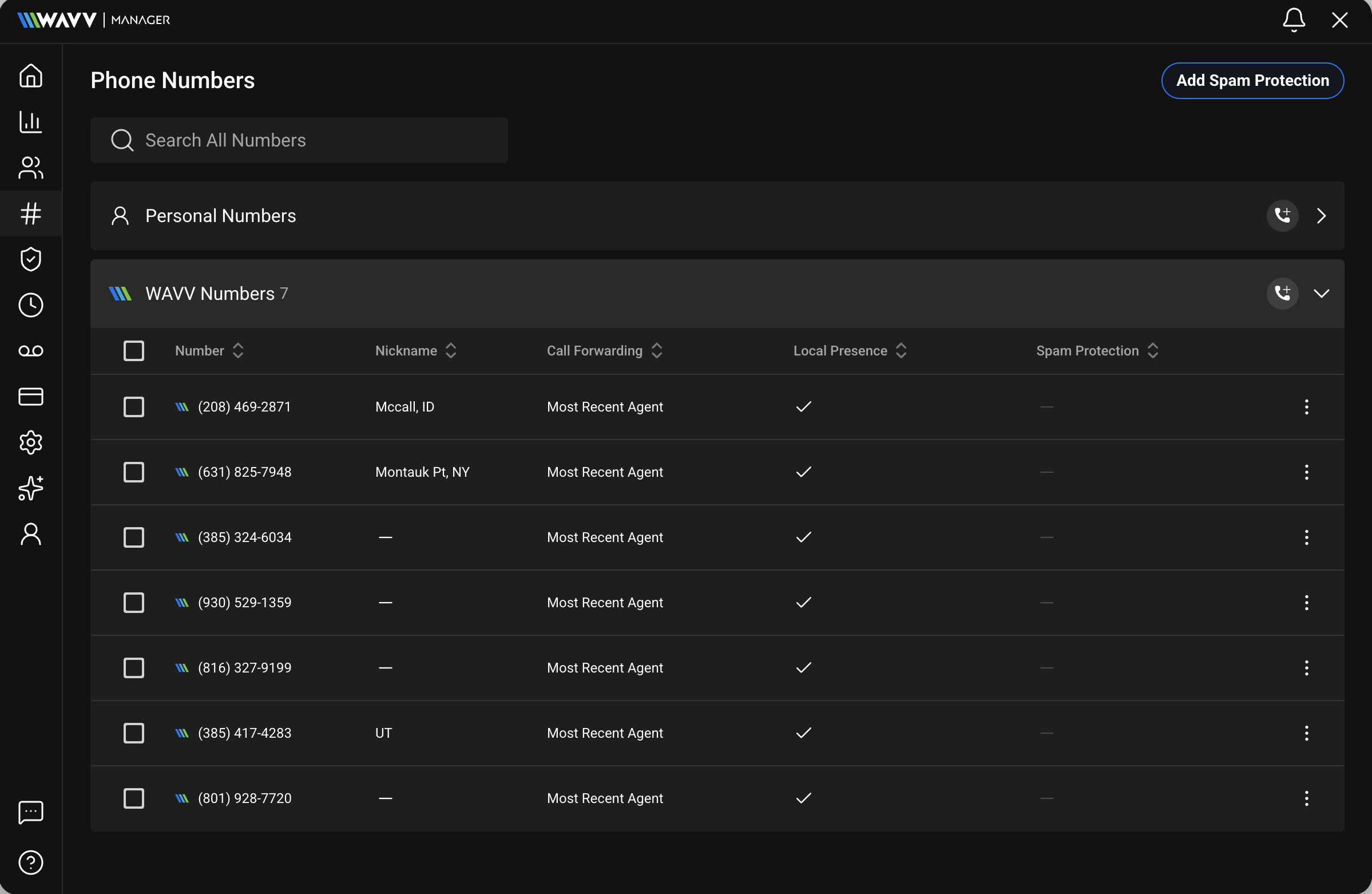
Removing Phone Numbers
If you'd like to get rid of your WAVV number you can remove the number from your account by going to the Phone Numbers tab.
From here, you will click on the three dots on the far right and click on "Remove Number."
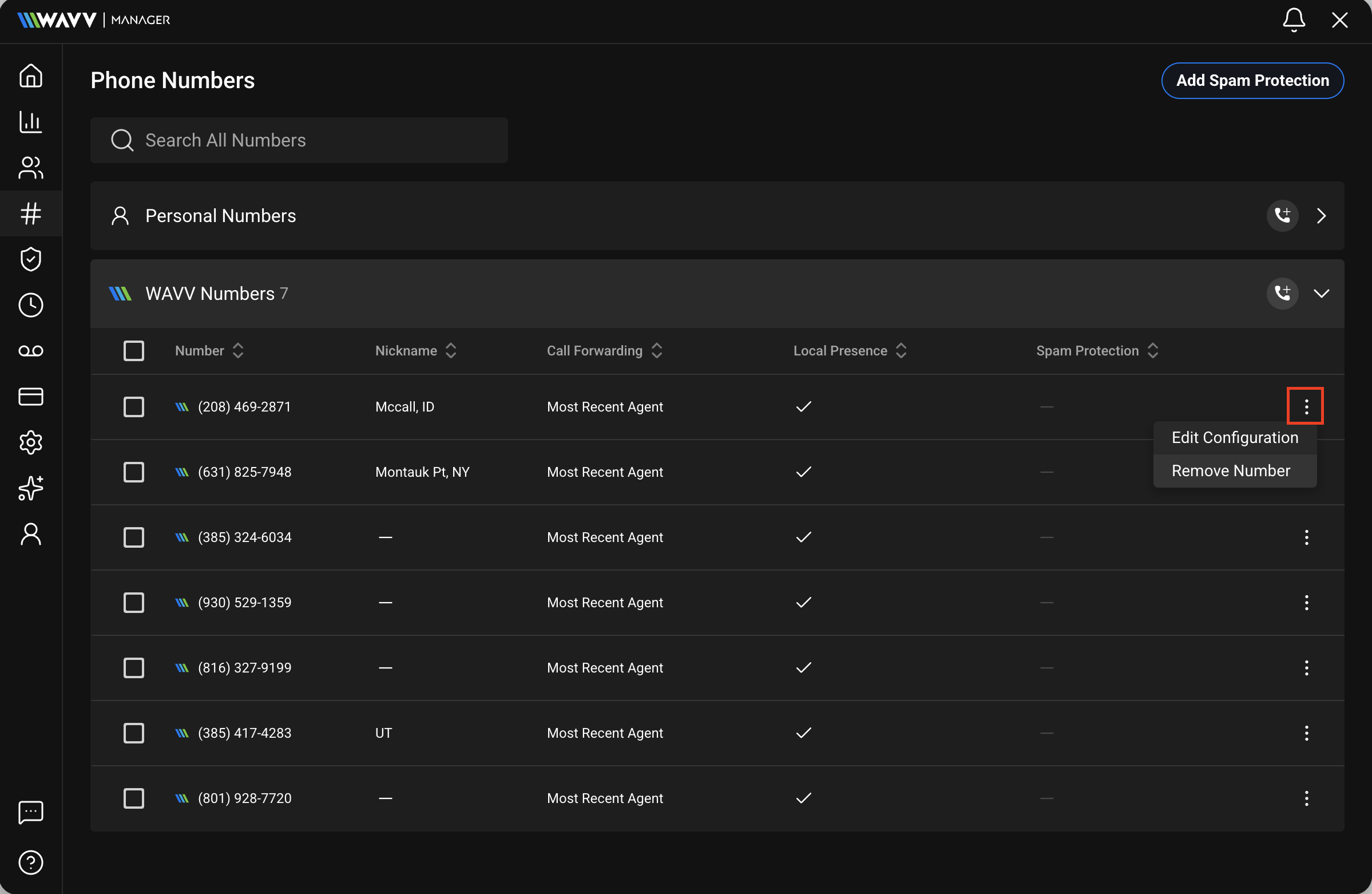
This will put the number in "pending cancellation" and it will be removed at the end of your billing cycle, after which the number will be removed fully.
Personal numbers can also be removed by following the same steps, but they will immediately be dropped, and new ones can be added at any time.
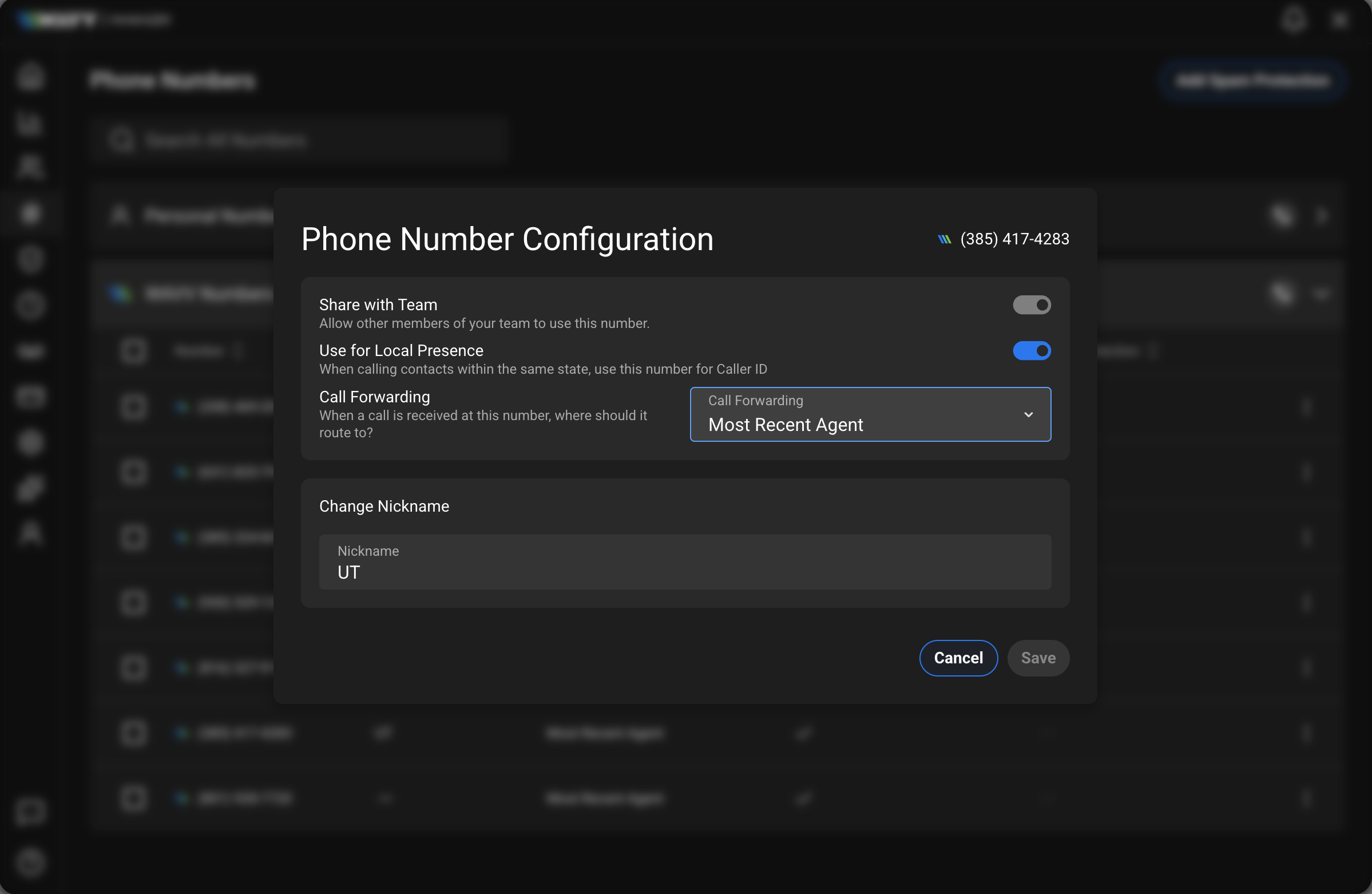
Nickname
This helps you quickly identify your number.
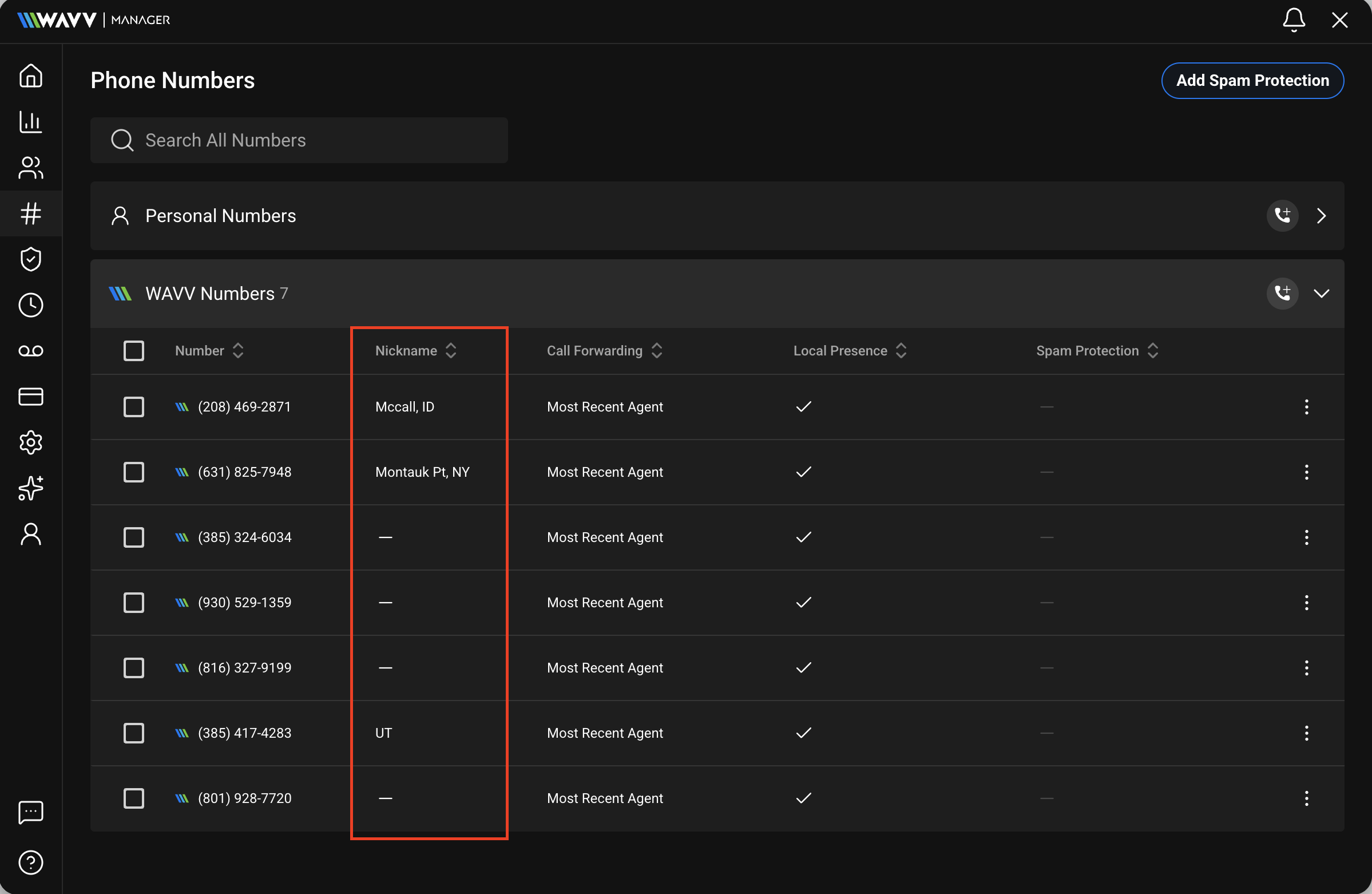
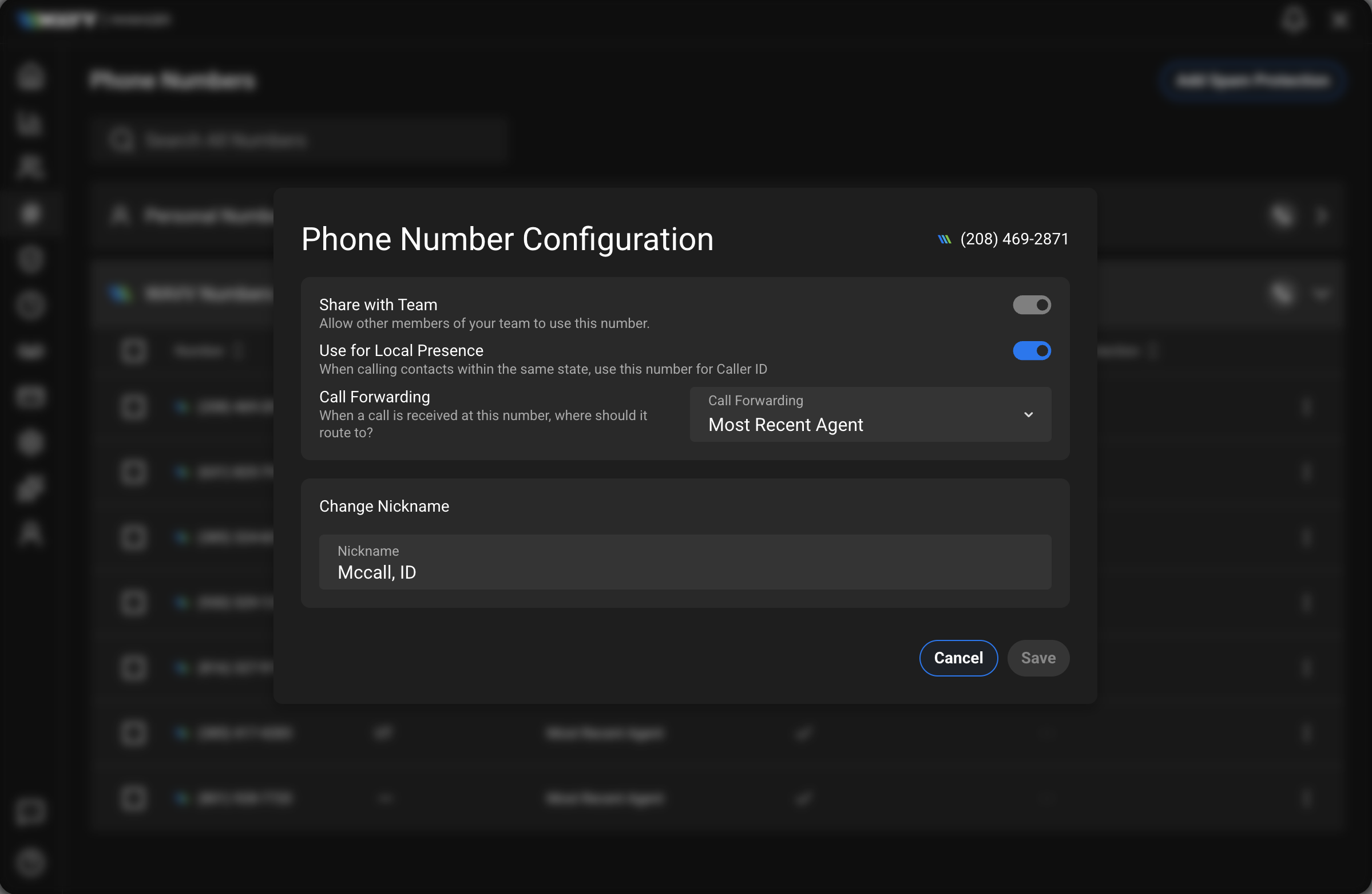
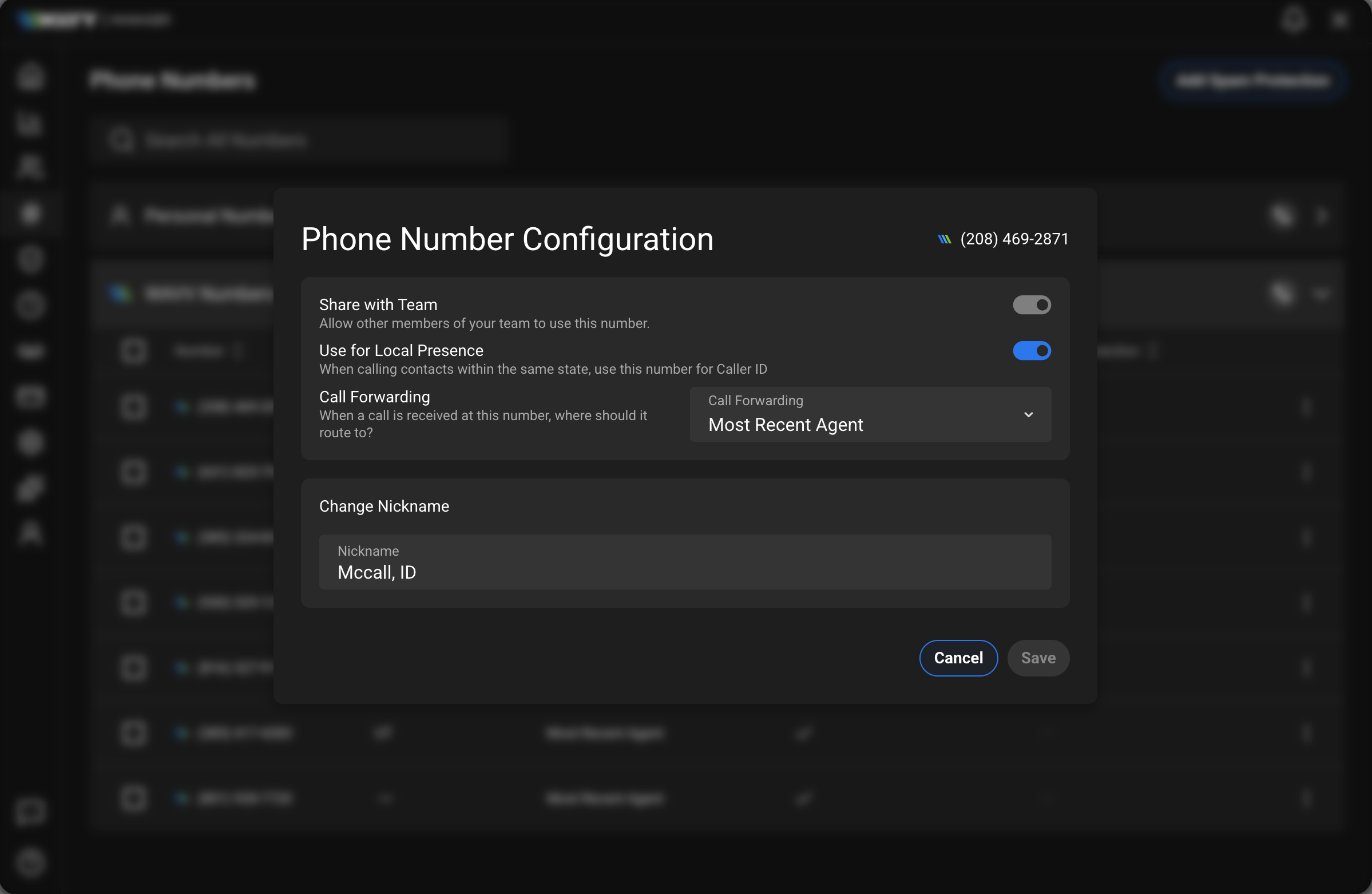
You can rename them anytime by clicking on the number to open "Phone Number Configuration."
Call Forwarding
Set where incoming calls should be forwarded when someone dials that number.
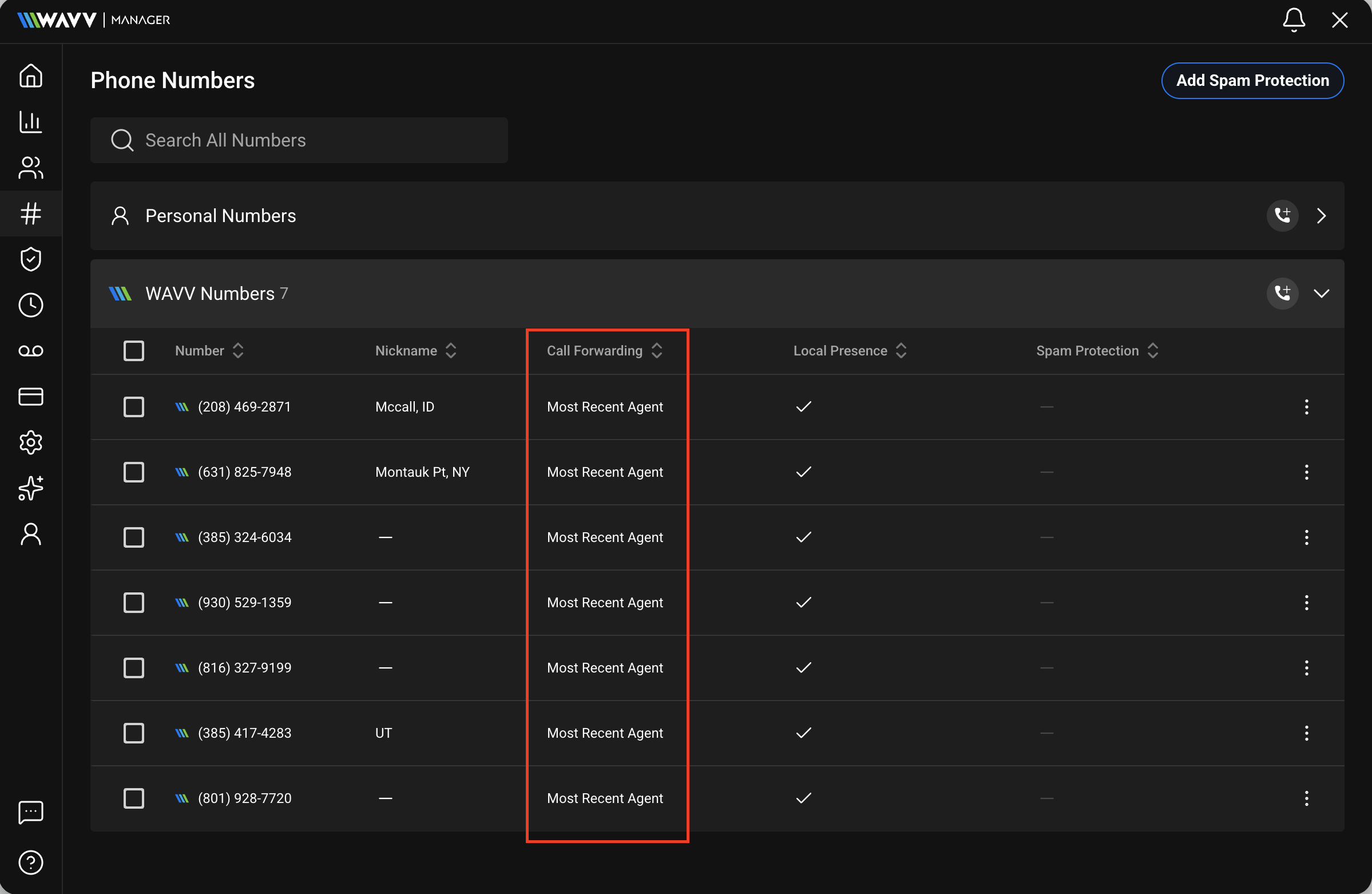
Click the number to edit the Phone Number configuration and call forwarding for incoming calls.
Local Presence
The checkmark shows whether a number is included in your local presence pool. WAVV will match area codes when dialing to help increase your answer rates. For more information on local presence check out this article.
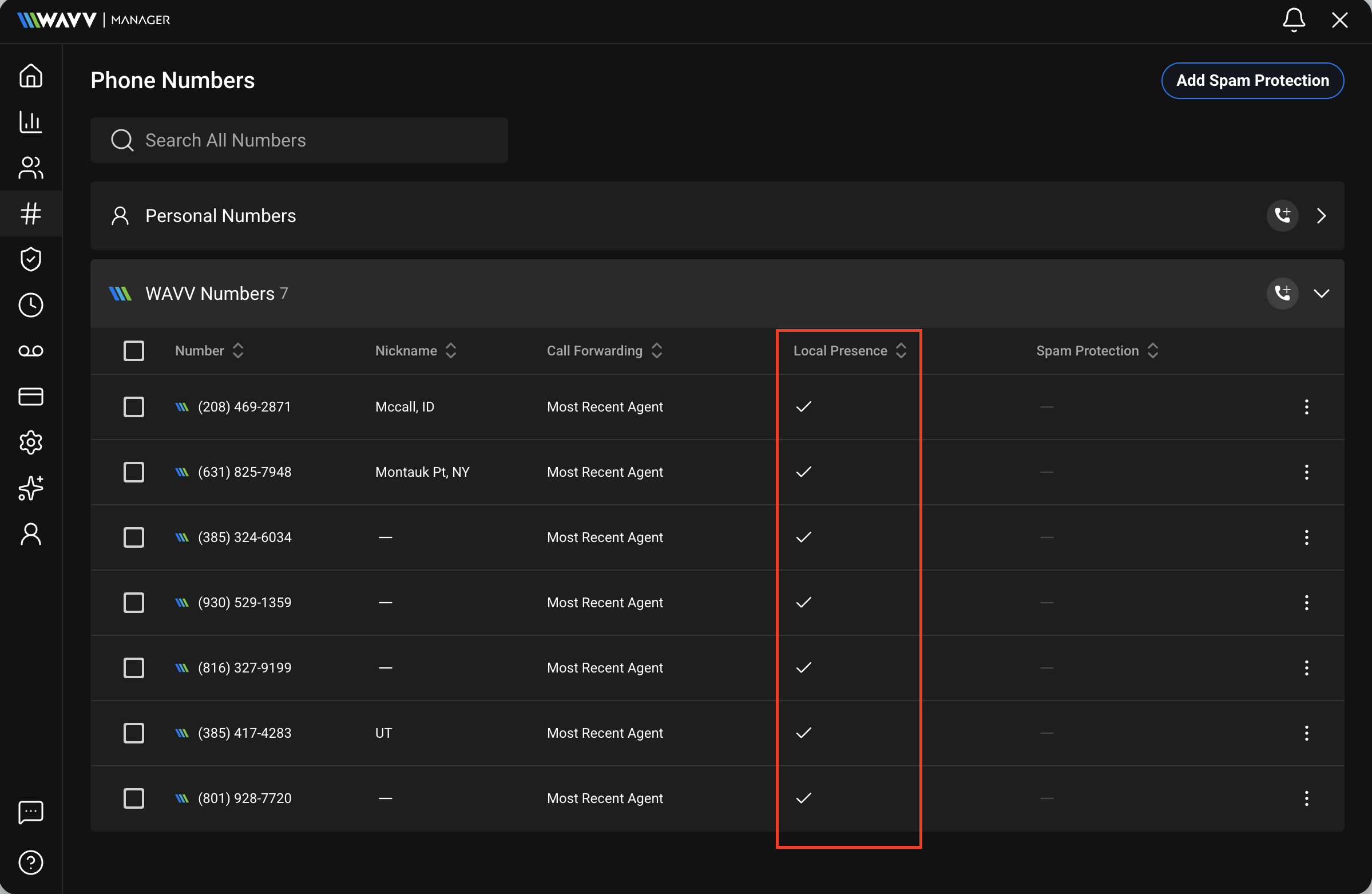
Edit Configuration
Click the three dots at the end of the row to update your settings—or click directly on the phone number row to open the settings panel.