
WAVV gives you two ways to connect audio for your calls—either through your computer or through your phone. You can choose whichever option works best for you.
Option 1: Use Your Computer (Most Popular)
This is the most common setup. You’ll use your computer’s microphone and speakers (or a headset) to talk and listen during calls.
WAVV allows you to select your microphone and speaker right in the app! To test the audio, click the blue "Test" button.
Great if:
You’re at your desk with a reliable internet connection
You want a simple, all-in-one experience
You’re using a USB or Bluetooth headset
Option 2: Use Your Phone
WAVV can connect the call's audio to your regular phone line instead of your computer. You’ll hear and speak through your phone, while still controlling the call from your screen.
To do this, select either "Call Me" or "Dial In."
Phone - Call Me
After selecting contacts to call, and clicking the WAVV Dialer, WAVV will call your cell phone:

Answer the call to connect!
Phone - Dial In
After selecting contacts to call, and clicking the WAVV Dialer, you'll be prompted to call a number to connect your audio:

Great if:
You’re having issues with browser audio
You’re on the go or need a backup
You prefer the sound quality of your mobile or office phone
How to Change Your Audio Source
You can do this when you first use WAVV and try to make calls. You'll be prompted with this pop-up:
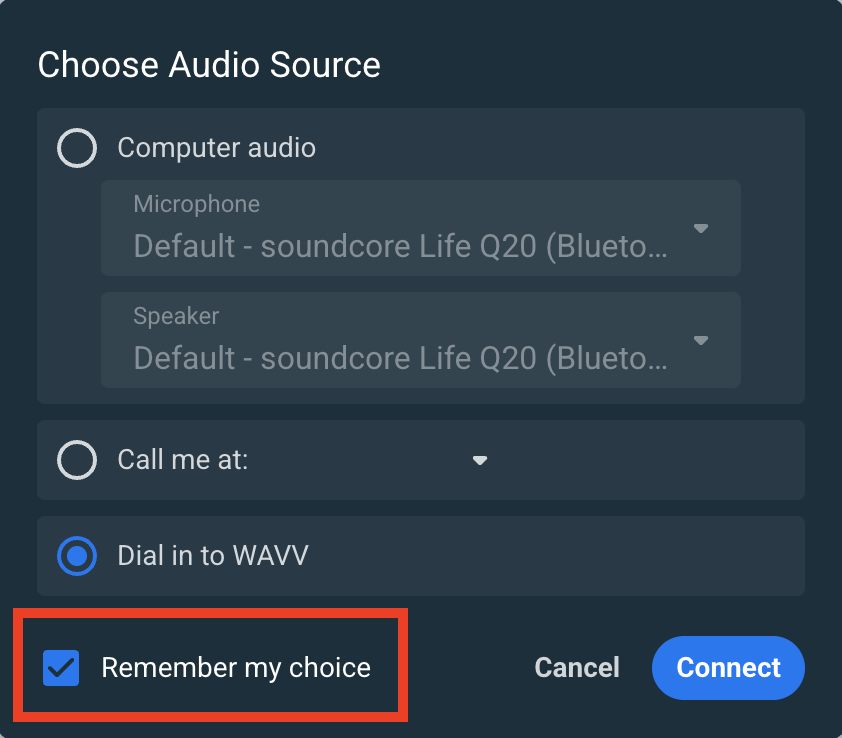
After selecting your desired audio source, select "Remember my choice" to avoid getting the pop up every time you call.
You can also change your audio anytime in your WAVV Dialer Manager.
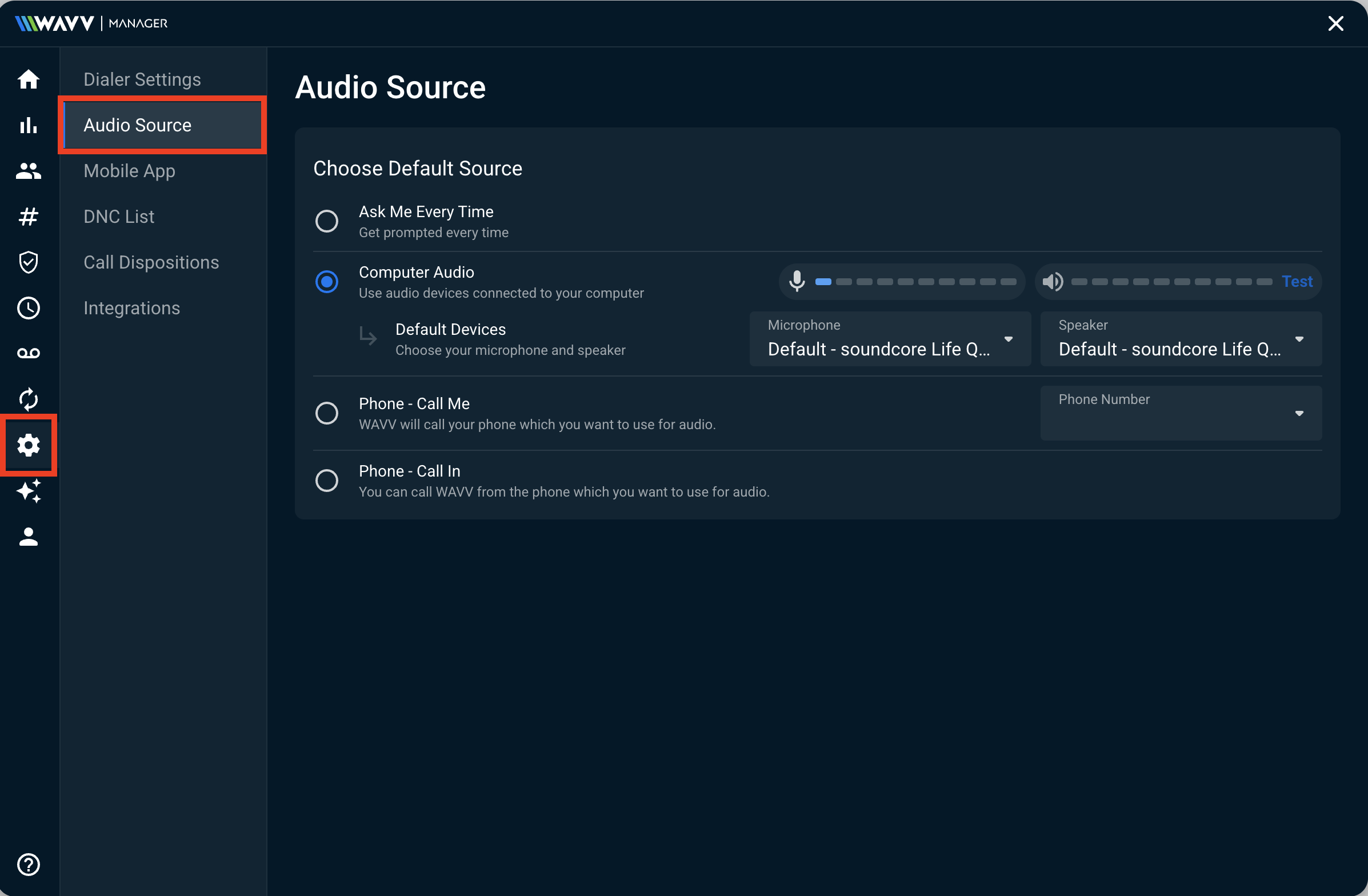
Go to Dialer Settings in WAVV Manager
Look for the Audio Source section
Choose your desired audio source
When changed here, your audio source will stay the same until you change it again.
Next Step: