
What are Call Scripts used for?
Provide reps with consistent messaging across teams or campaigns
Personalize calls with merge fields like
{First Name}Use best-performing scripts across team members for consistency
Display scripts during calls for easy reference in a new window
Key Features
- Create Script · Description: Add a title and body, insert dynamic fields via the dropdown
- Edit Script · Description: Modify the title/body of a saved script. Changes affect future use.
- Delete Script · Description: Permanently removes a script. Cannot delete if actively assigned to a campaign.
- Duplicate Script · Description: You can duplicate any existing script you’ve got for easy A/B testing and editing.
- Un-share Script · Description: Share with other users or teams. Shared users can view and use but not edit unless they have permission.
- View in Dialer · Description: Script can be accessed by mini-dialer and dynamically populate merge values for connected contact.
- Pop-Out View · Description: Users can open the script in a new window for multitasking or dual-monitor use.
How to Create/Edit a Call Script
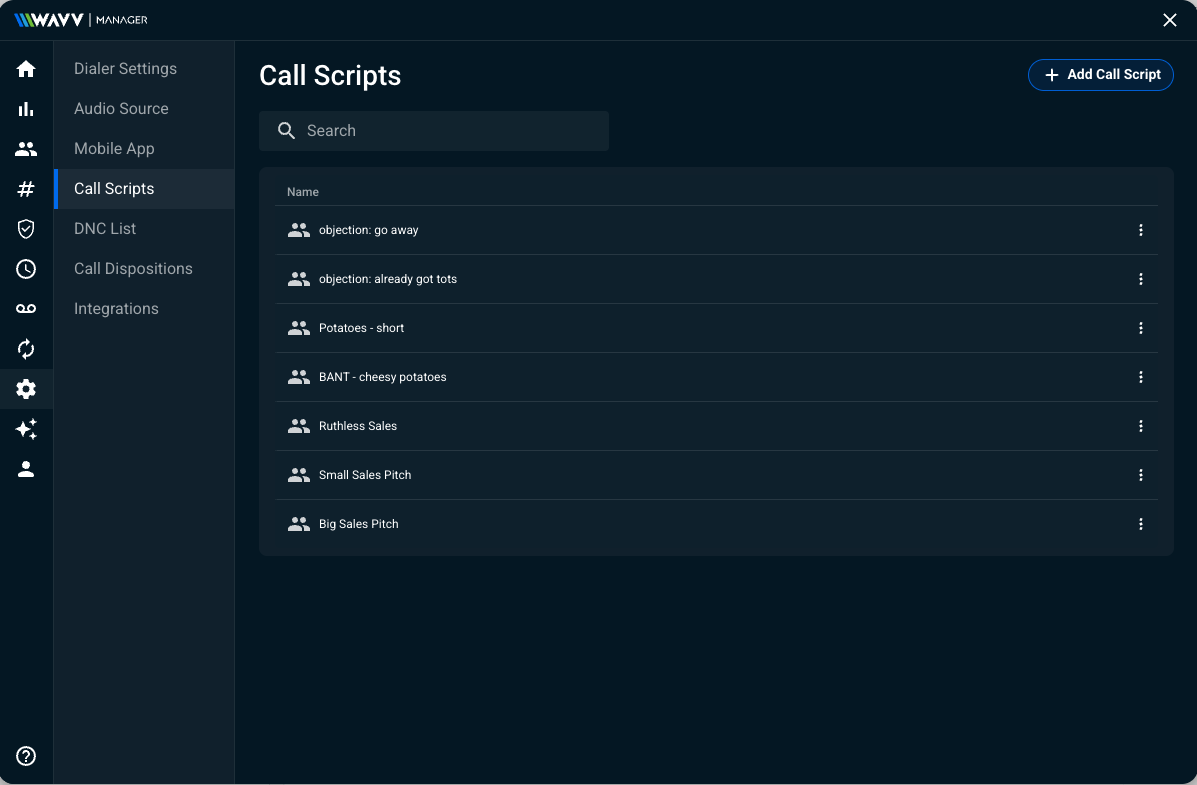
To create or edit a call script, a user will need to go to WAVV Manager > Settings > Call Scripts. From there you will click on the “+ Add Call Script” button.
Now, you can give your script a name, and begin drafting your script in the large body field.
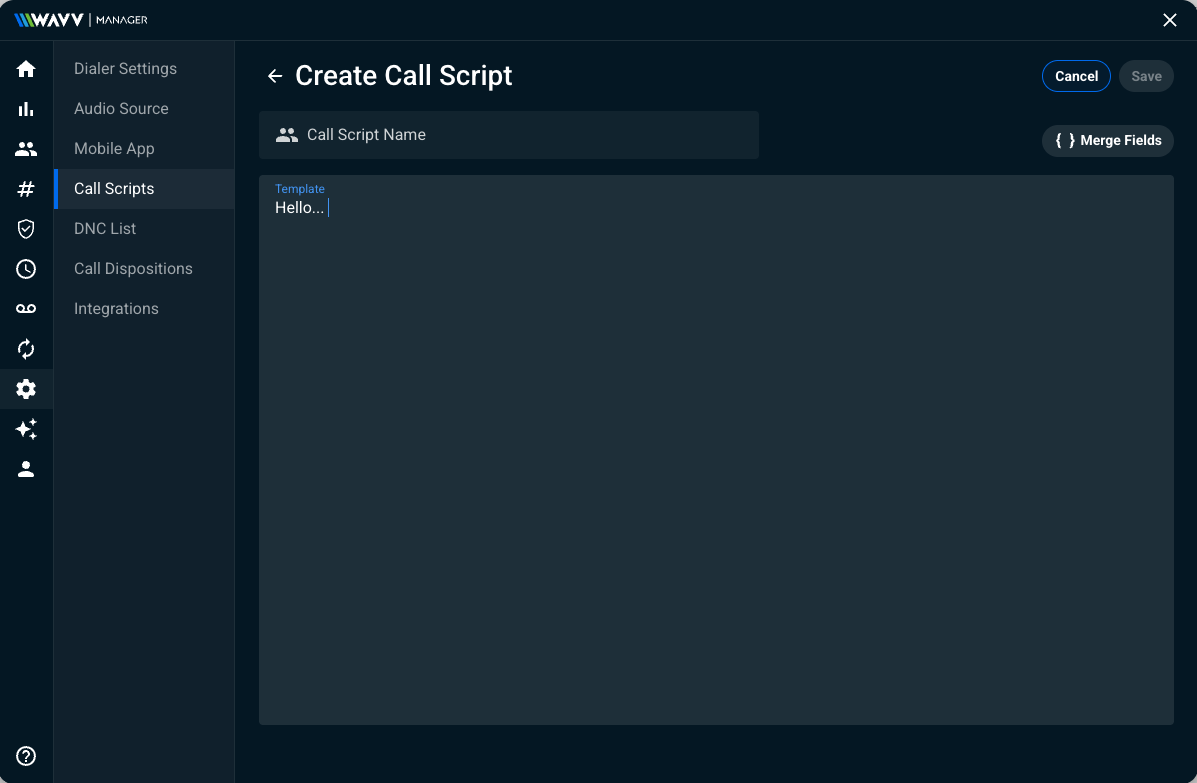
When you’ve completed your script, you can click the “Save” button and it will now be available to your whole team. You can make it private by clicking on the kebab menu within the edit screen and selecting “Unshare with team”. You’ll see on the Call Scripts settings screen that the updated call script now shows a single user icon next to the title indicating this is private to you and won’t be shared with the team.
You can search for not only titles from the settings screen, but also any content within the call script to quickly find and make changes to what you’re looking for.
Personalizing with Merge Fields
You can make your call scripts dynamic by adding in merge fields. These will update your call script to include meta data about the contact you are on the phone with. For example, when I am editing the call script, if I click on the “{ } Merge fields” button and then click on “Full Name”, I’ll see that in my script it has inserted a {Full Name} merge field. When I view this script on a call, the merge field will be replaced with the full name of the contact, given I have that information available in my CRM.
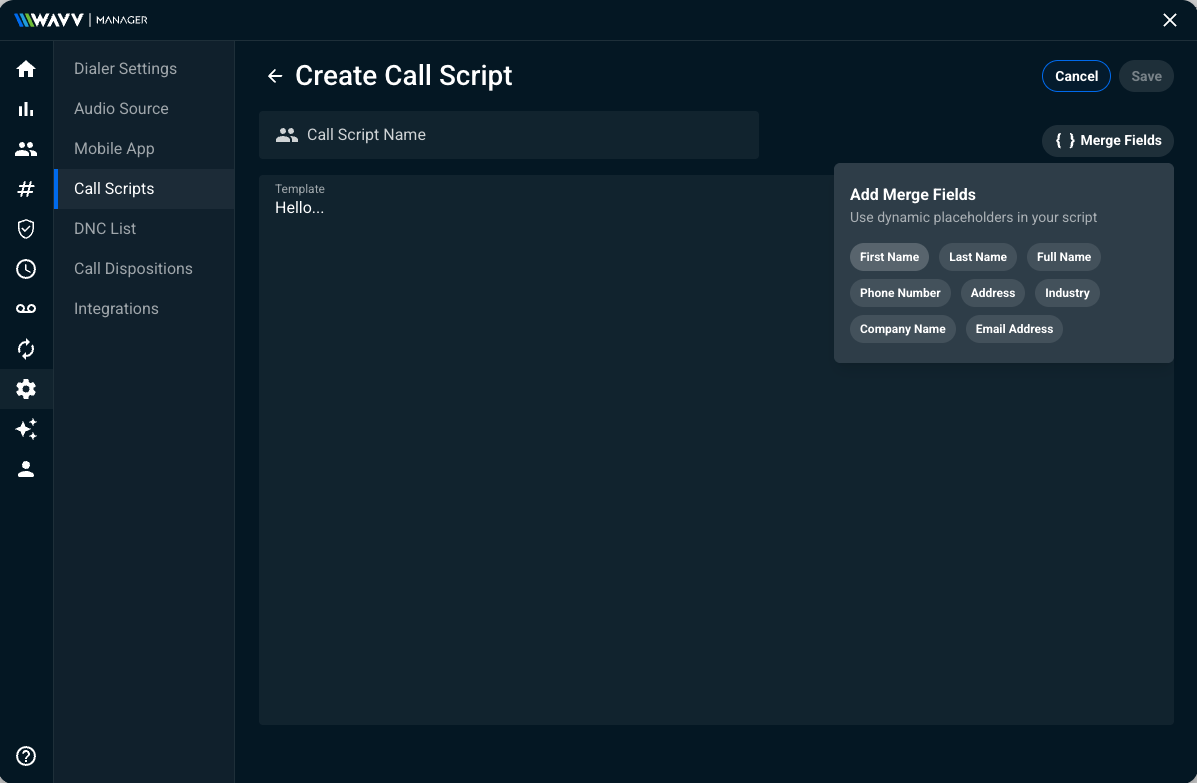
Other merge fields that are available are:
First Name
Last Name
Full Name
Phone Number
Address
Email Address
Industry
Company Name
Using a Call Script during a call
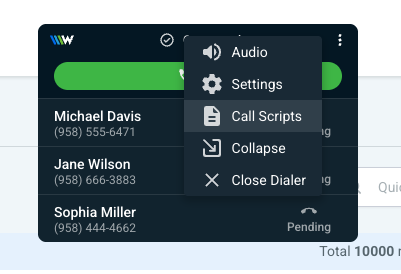
When you’re on a live call, you can open a call script by clicking on the kebab menu of the mini-dialer and selecting “Call Scripts”. This will open the call script threadlist in it’s docked format where you can view all of the available call scripts to you. Click on one to open it up, and when you’re connected with a live call, the data in the merge fields will update to represent the merge value for that contact. The next time you open up the dialer, the call script you used last will open up automatically.
While you’re connected, you can adjust the font size to make the script larger or smaller. You may also notice that the docked call script is a bit narrow, so you can expand it to a new window that you’ll be able to resize and move to another monitor or outside of the window area so you can focus on your dialer and CRM, but use the call script for reference.
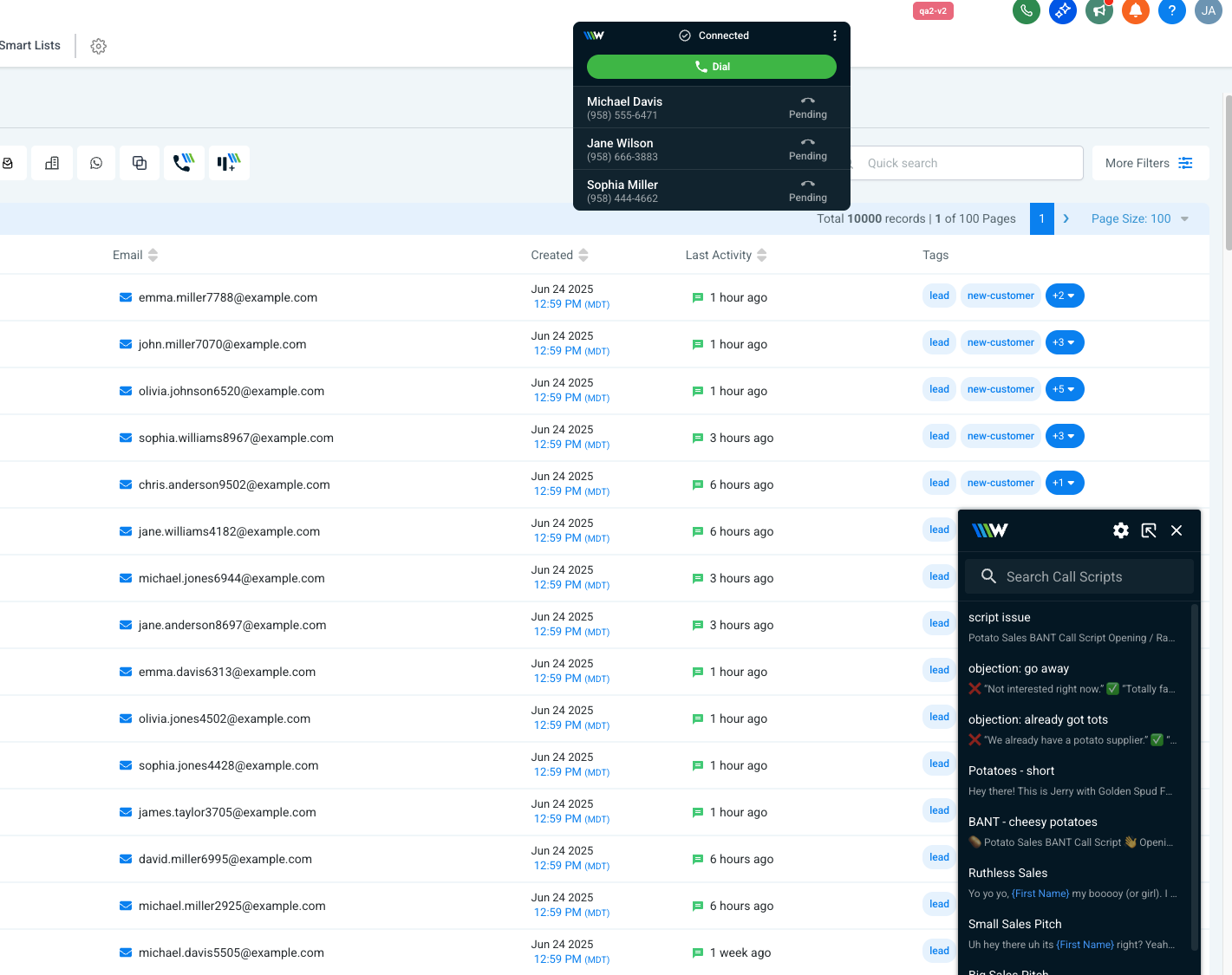
You may also minimize the docked call script when it’s not in use by clicking the header and it can be expanded by clicking on it again.