
If you've switched to a new CRM, you can usually bring your WAVV account with you. Your settings, phone numbers and spam protection move to the new CRM, and you keep signing in with the same WAVV email. A WAVV account works with one CRM at a time, so once you move, your old CRM will no longer open WAVV.
Moving to HubSpot? These steps don't apply. HubSpot needs its own WAVV account and phone number, and your current account, numbers and call history can't carry over. Download your call history first, then contact support to cancel your current subscription so you can start fresh in HubSpot. See WAVV for HubSpot: FAQs and WAVV for HubSpot: Setup Guide.
Before you start
- Know your WAVV login email. You'll sign in with the same email you use for WAVV today.
- Have access to your new CRM email inbox. If WAVV asks you to confirm the move, it sends a 6-digit code there.
- Note your call campaigns. Previous call campaigns don't move because they belong to your old CRM account. You'll set them up again in the new CRM.
How it works
- Log in to your new CRM.
- Install the WAVV app. If WAVV isn't in your new CRM's side menu yet, install it from the marketplace. See How to Install WAVV.
- Open WAVV from the left side menu.
- Sign in with your existing WAVV email under Already have an account? (shown below).
- If you see Account Mismatch, click Use This CRM Account with WAVV. Enter the 6-digit code sent to your new CRM email, click Verify, then Continue to WAVV.
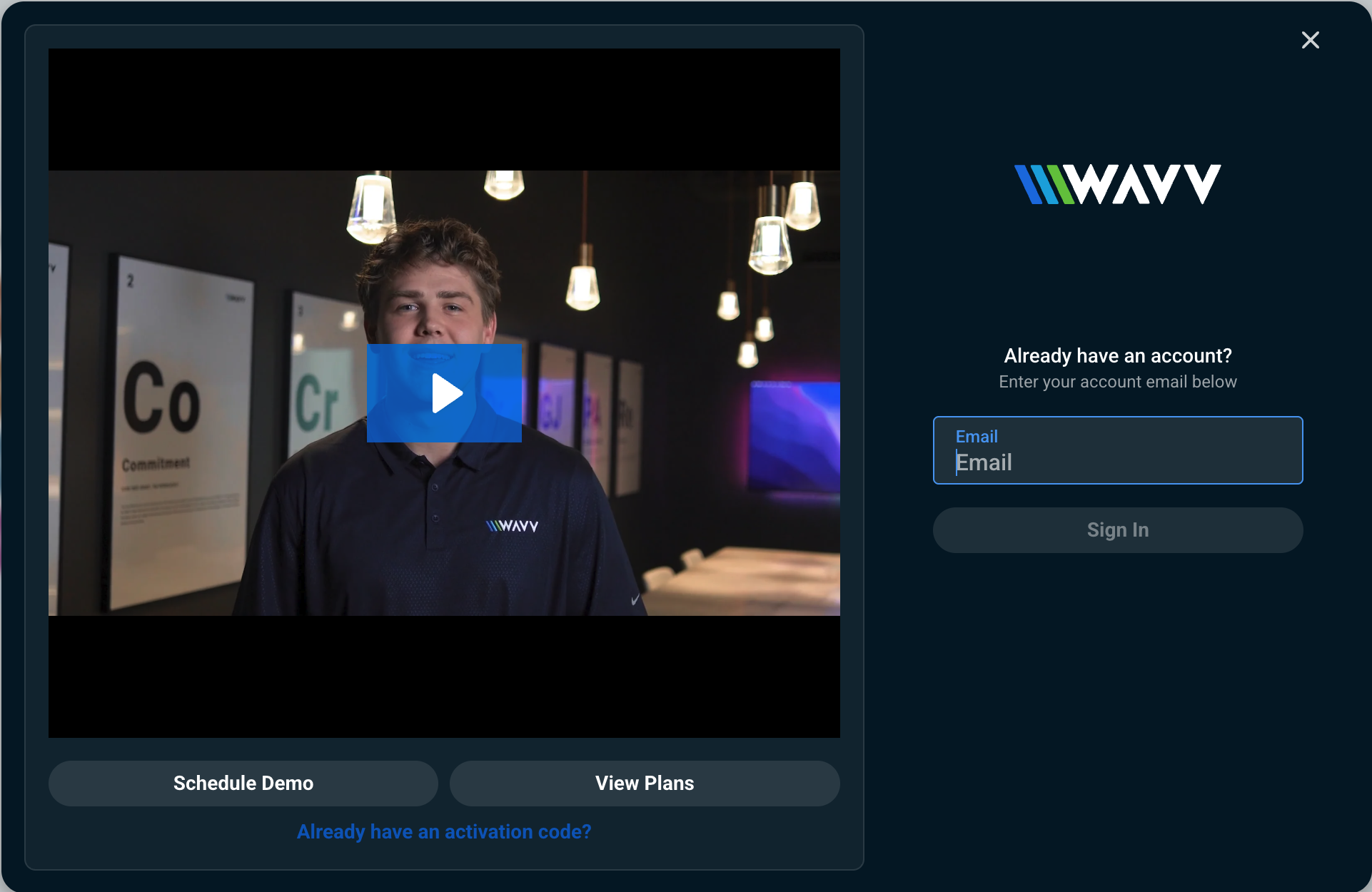
You're all set. WAVV now opens from your new CRM.
What moves with you
| Item | Most CRMs | Moving to HubSpot |
| WAVV account and login | Moves with you | New WAVV account needed |
| Phone numbers and spam protection | Move with you | Don't carry over. You'll get a new number. |
| Settings | Move with you | Set up again in HubSpot |
| Call history | Moves with you | Not available once your old subscription is canceled. Download it first. |
| Previous call campaigns | Don't move | Don't move |
Frequently asked questions
I'm moving to HubSpot. Can my WAVV account and number come with me?
No. HubSpot needs its own WAVV account and phone number. Download your call history, then contact support and we'll help you cancel your current subscription so you can start fresh in HubSpot.
Will my phone numbers and settings come with me?
Yes, for every CRM except HubSpot. Your settings, phone numbers and spam protection move to your new CRM.
What happens to my call campaigns?
Previous call campaigns stay with your old CRM account and don't move. Set them up again in your new CRM.
Can I use WAVV in my old and new CRM at the same time?
No. A WAVV account works with one CRM at a time. Once you move, your old CRM will no longer open WAVV.
I see an Account Mismatch screen.
That's WAVV checking before it moves your account. Click Use This CRM Account with WAVV and enter the code sent to your new CRM email. See Account Mismatch: Which Button Should I Click? (Situation 3).
I never got the code.
The code goes to your new CRM email. Check spam, then click Resend Email (available every 60 seconds). The code works for 24 hours.
I'm handing my WAVV team to someone else, not changing CRMs.
That's a different process. See How to Transfer Ownership of Your WAVV Team.
Related: Account Mismatch screen: linking your WAVV account to your CRM · WAVV for HubSpot: FAQs