
You may notice that removing a team member does not change the number of seats on your subscription.
Follow the process below to downgrade and remove dialer seats from your account.
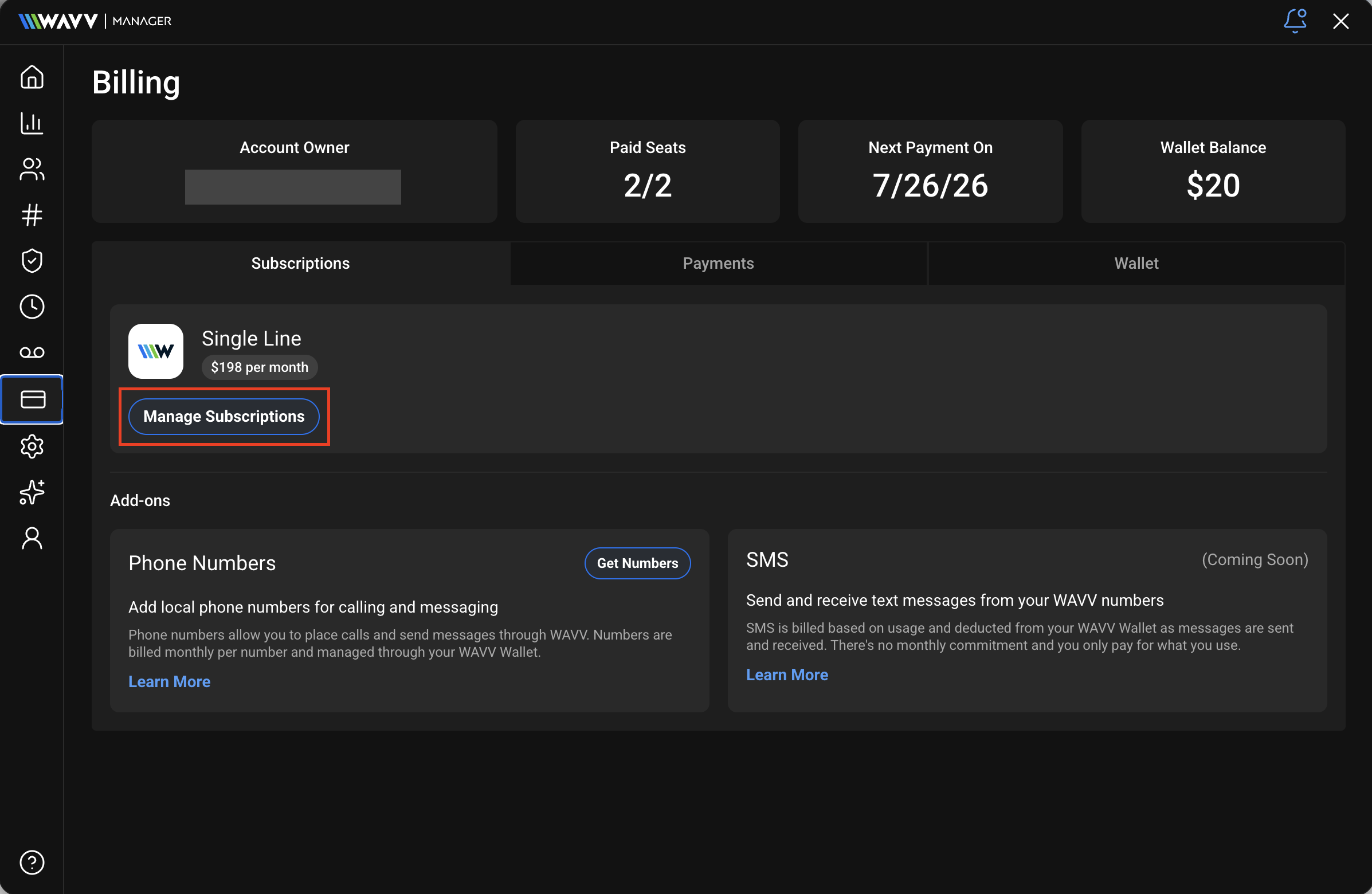
On the Billing tab, locate your Dialer Subscription and click Manage Subscriptions.
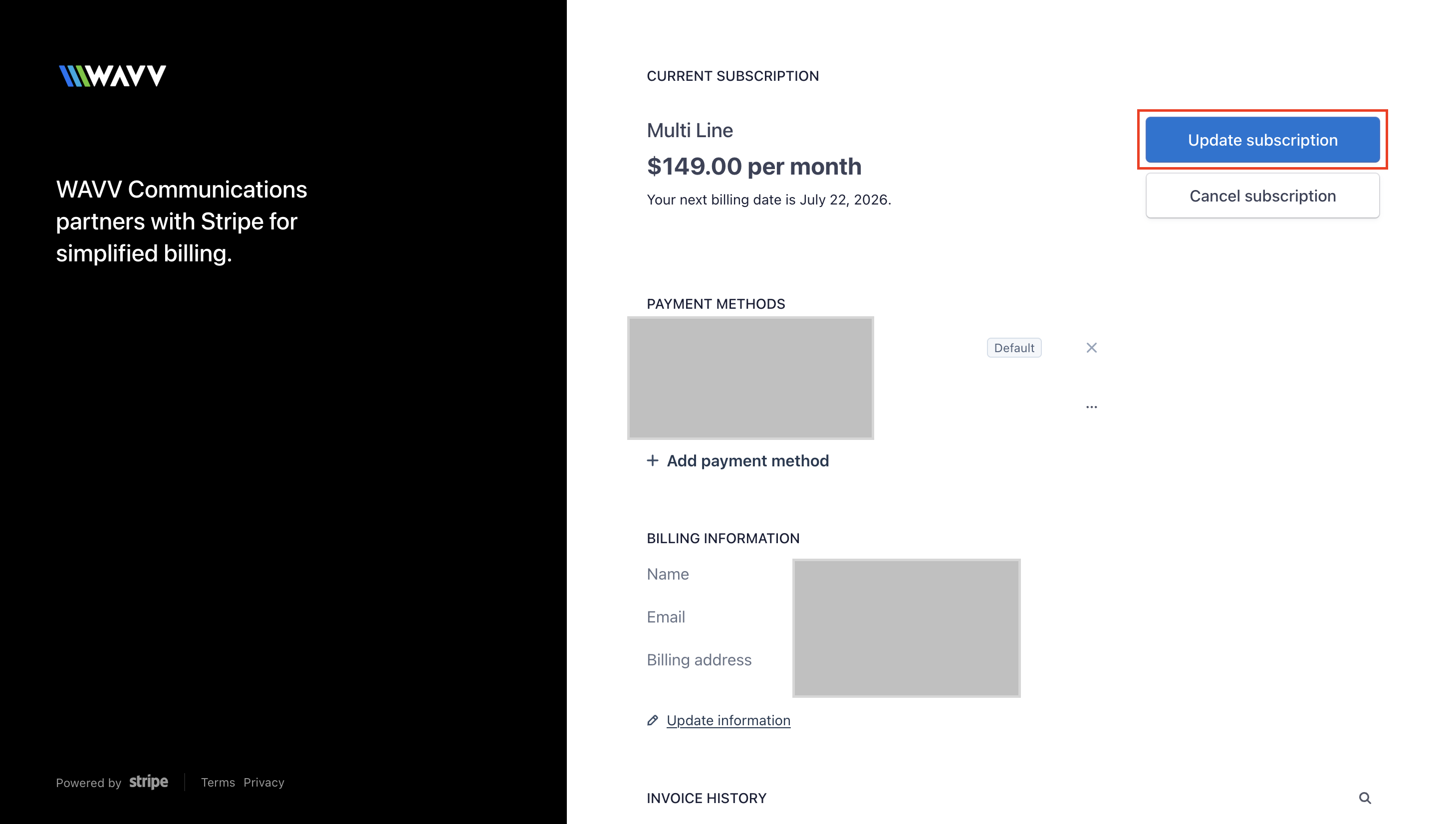
2. This will open a page displaying your current subscription details and billing information. Select Update Subscription to make changes to your plan.
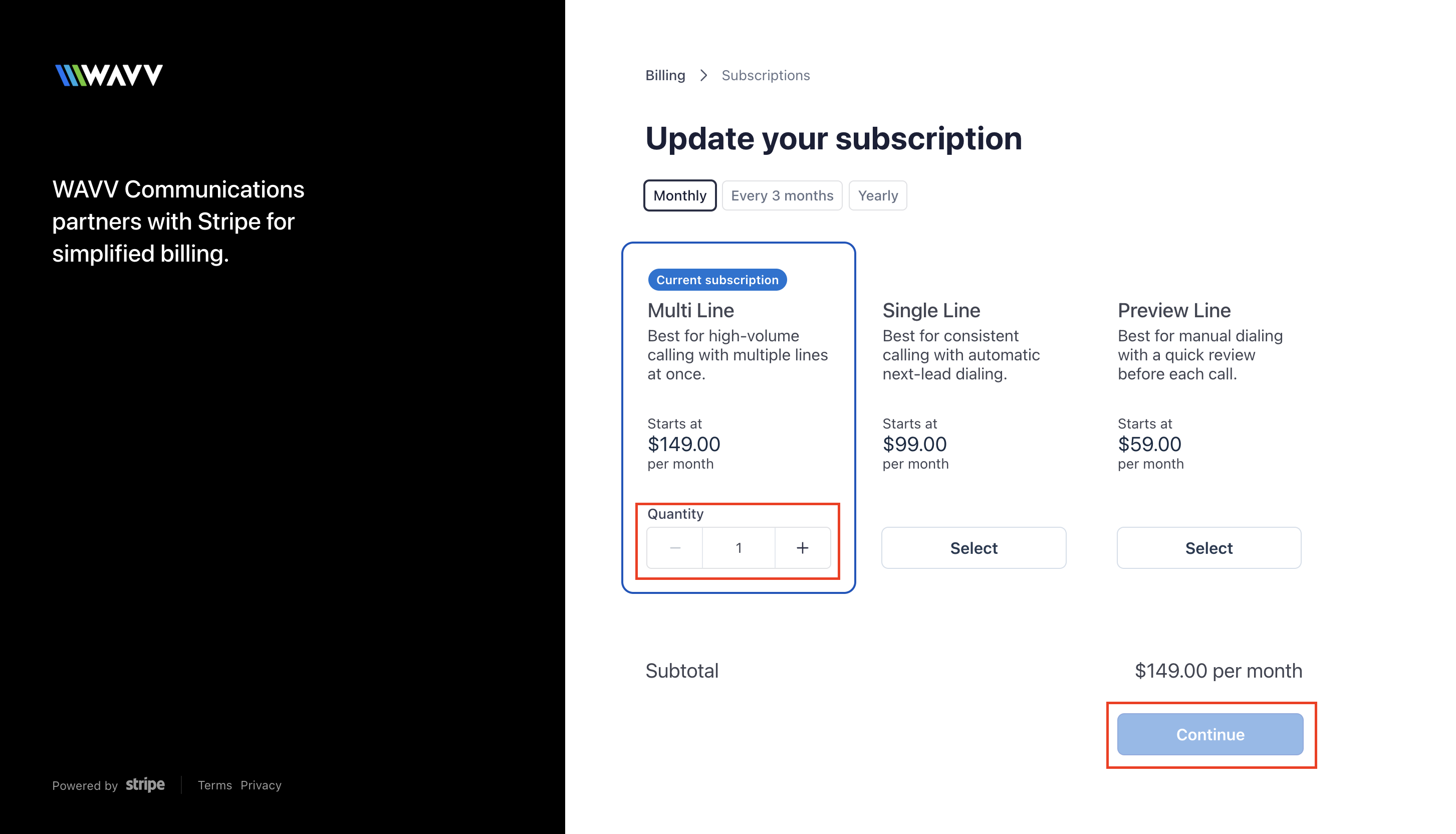
3. From here, you can adjust the quantity of seats on your subscription. Once you've made your changes, select Continue to save them. Once you've scheduled the change to your plan you can expect the dialer seat to drop off at the end of your billing cycle.
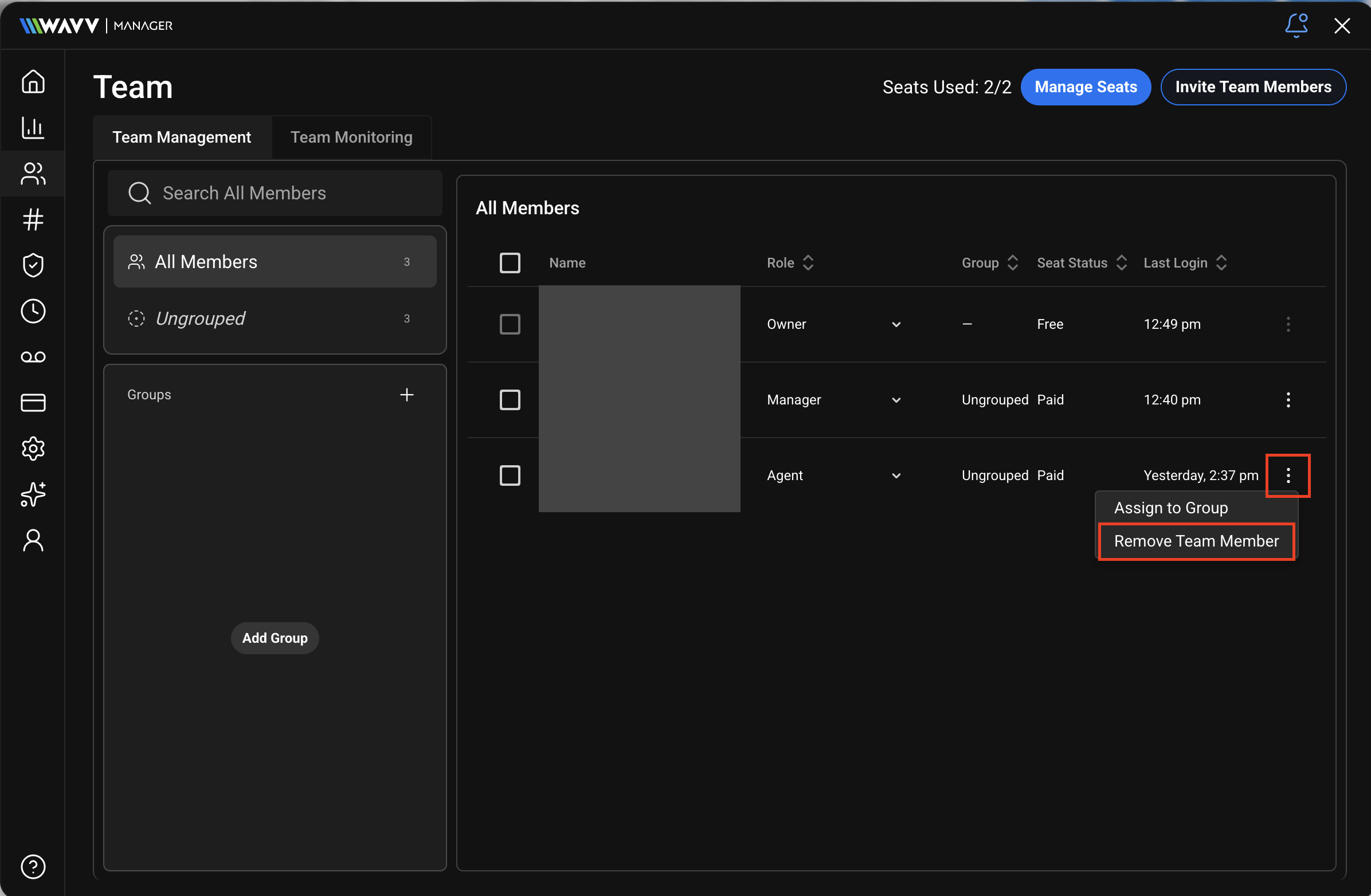
4. You can remove a user at any time and do not need to wait for the seat to be removed from your subscription. To do so, navigate to the Team tab, click the three dots next to the user you would like to remove, and select Remove Team Member.
IMPORTANT: After following these steps, your downgrade and seat removal will not happen instantly. This downgrade and seat adjustment will take effect when your dialer subscription renews.