
In order to make calls with WAVV, you must have a PAID dialer seat. This article will go through how to claim a dialer seat, how to see the number of seats you have, and how to remove dialer seats from your subscription.
How to Claim a Dialer Seat
If you are the account owner, and you're planning on making calls, you can claim a dialer seat for yourself.
To do this, change your role to "Owner + Manager."
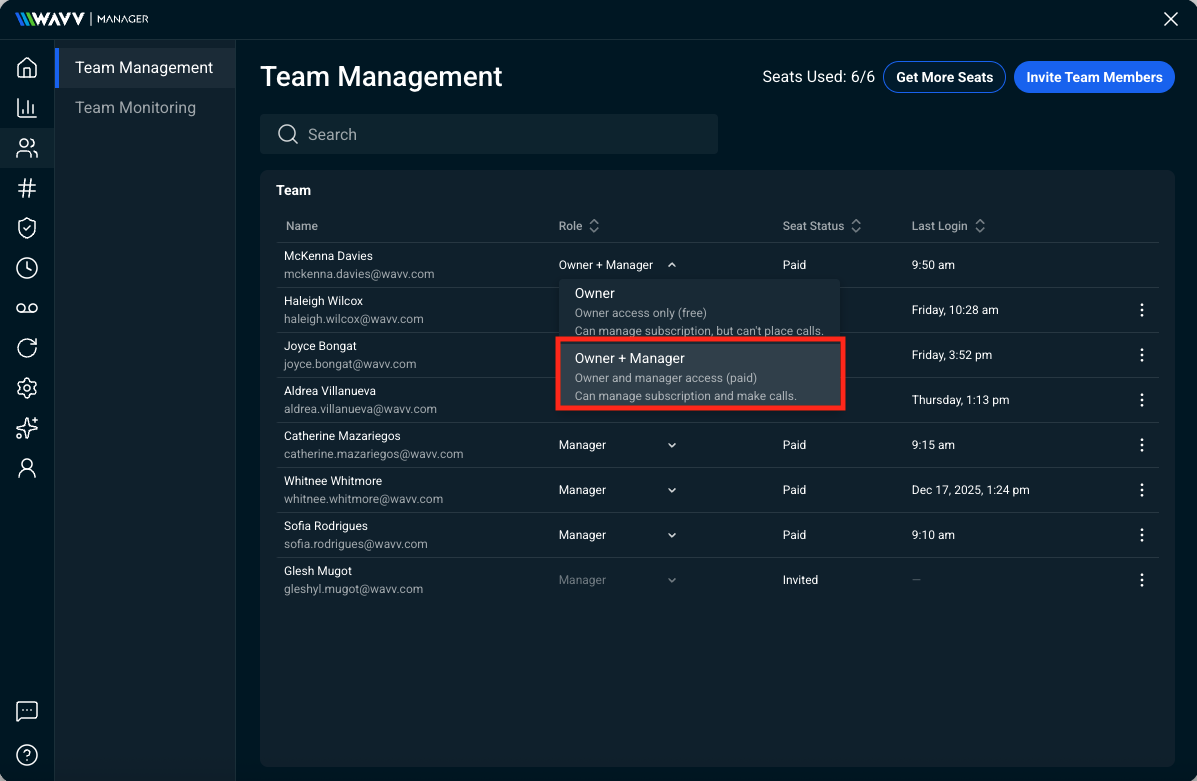
To give a team member a dialer seat, click "Invite Team Member" and give them a role of either: Agent or Manager (these two roles include a paid dialer seat).
For more information on team member roles, check out this article.
How Many Seats Do I Have?
To see the number of paid seats you have, you can check in the top right corner of your Team tab:
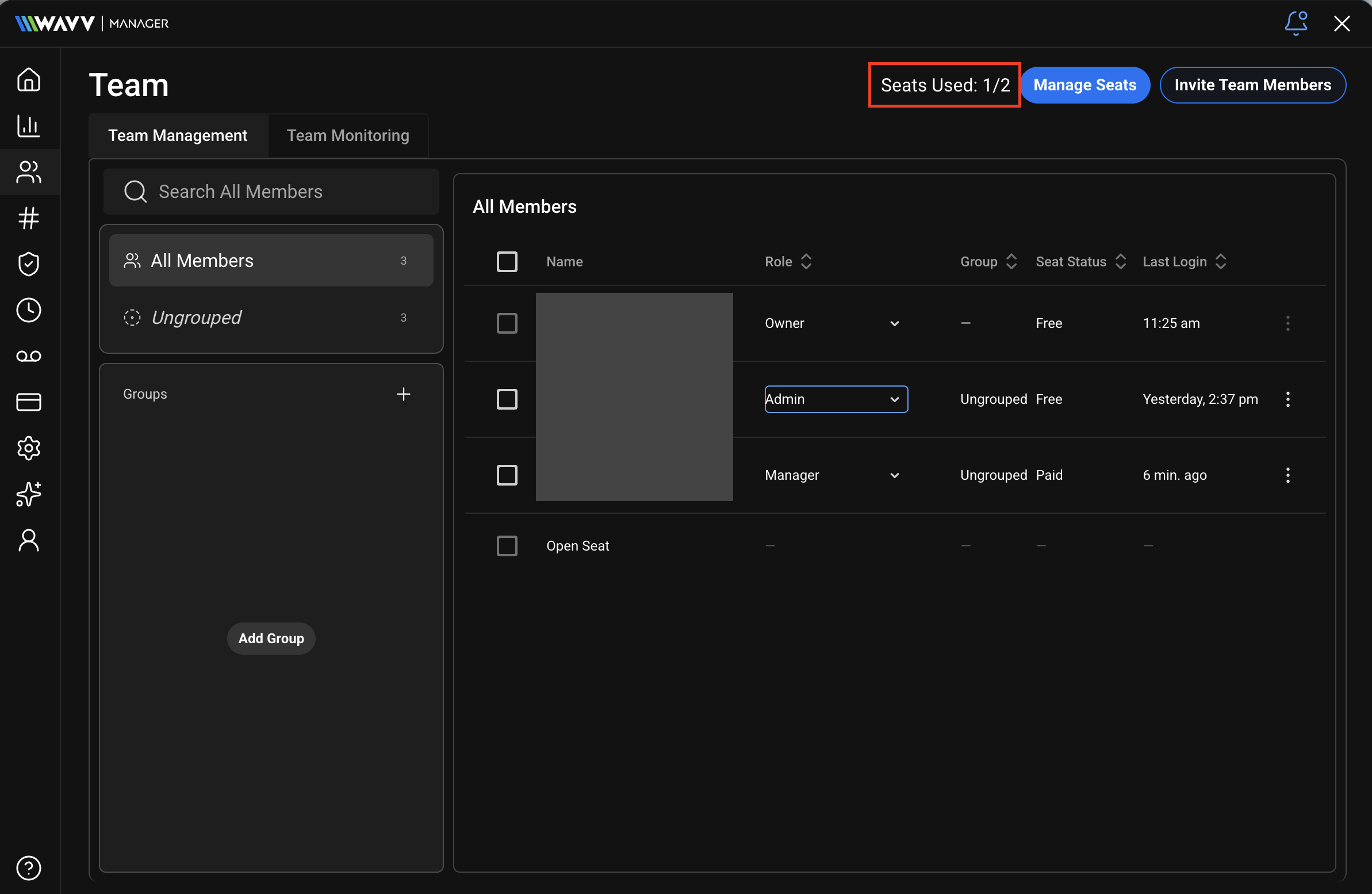
This will indicate how many seats you have purchased and how many seats you've used. Keep in mind, if you set a seat to "pending cancellation," it will still show in "Seats Used" until it drops off at the end of the billing cycle. (More on canceling seats later in the article)
If you want more seats, simply click "Manage Seats" in the top right corner.
You can also check how many seats you have in your Billing tab:
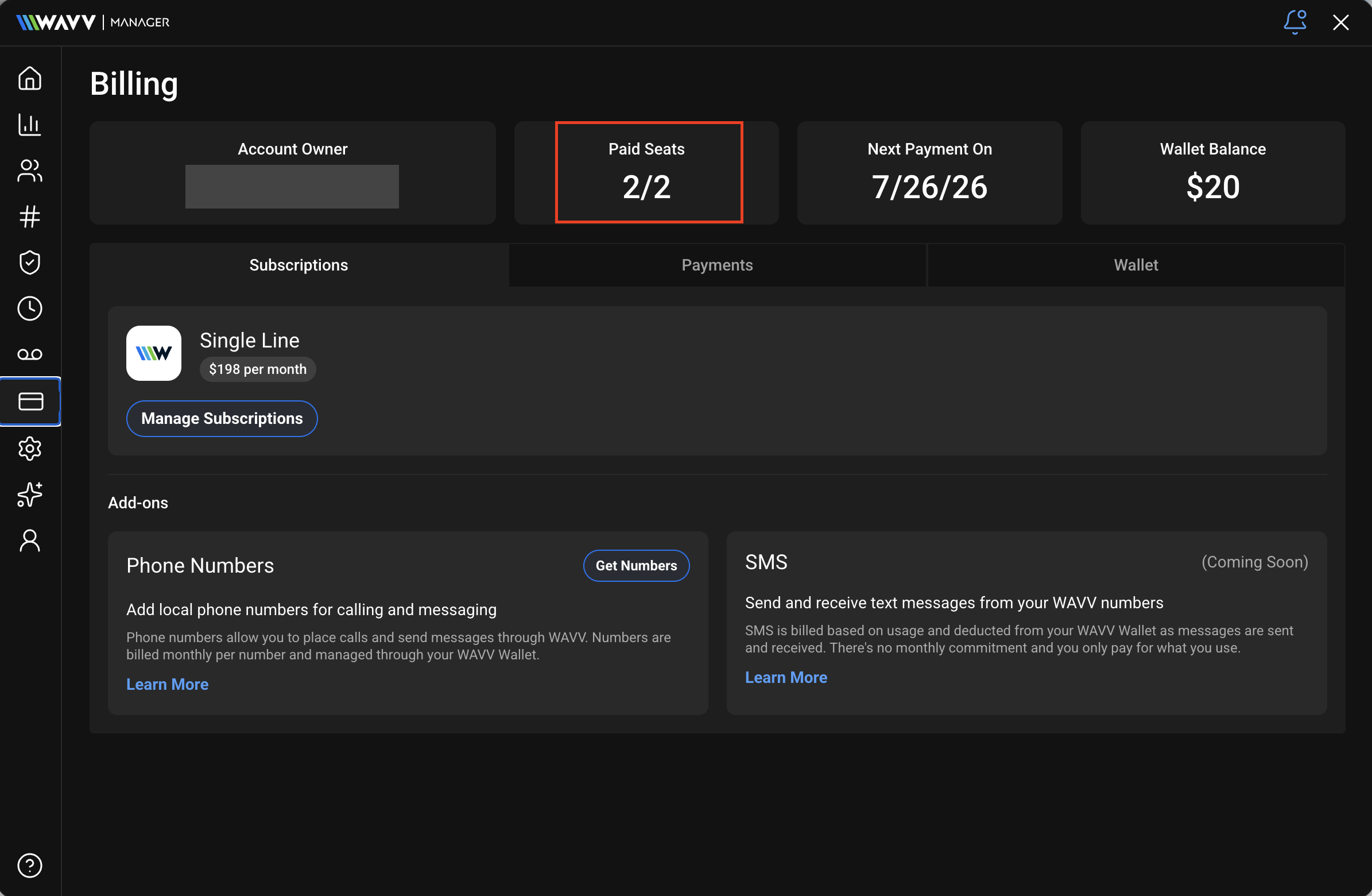
In this view, the quantity will reflect your CURRENT billing cycle.
How to Remove Dialer Seats from Your Subscription
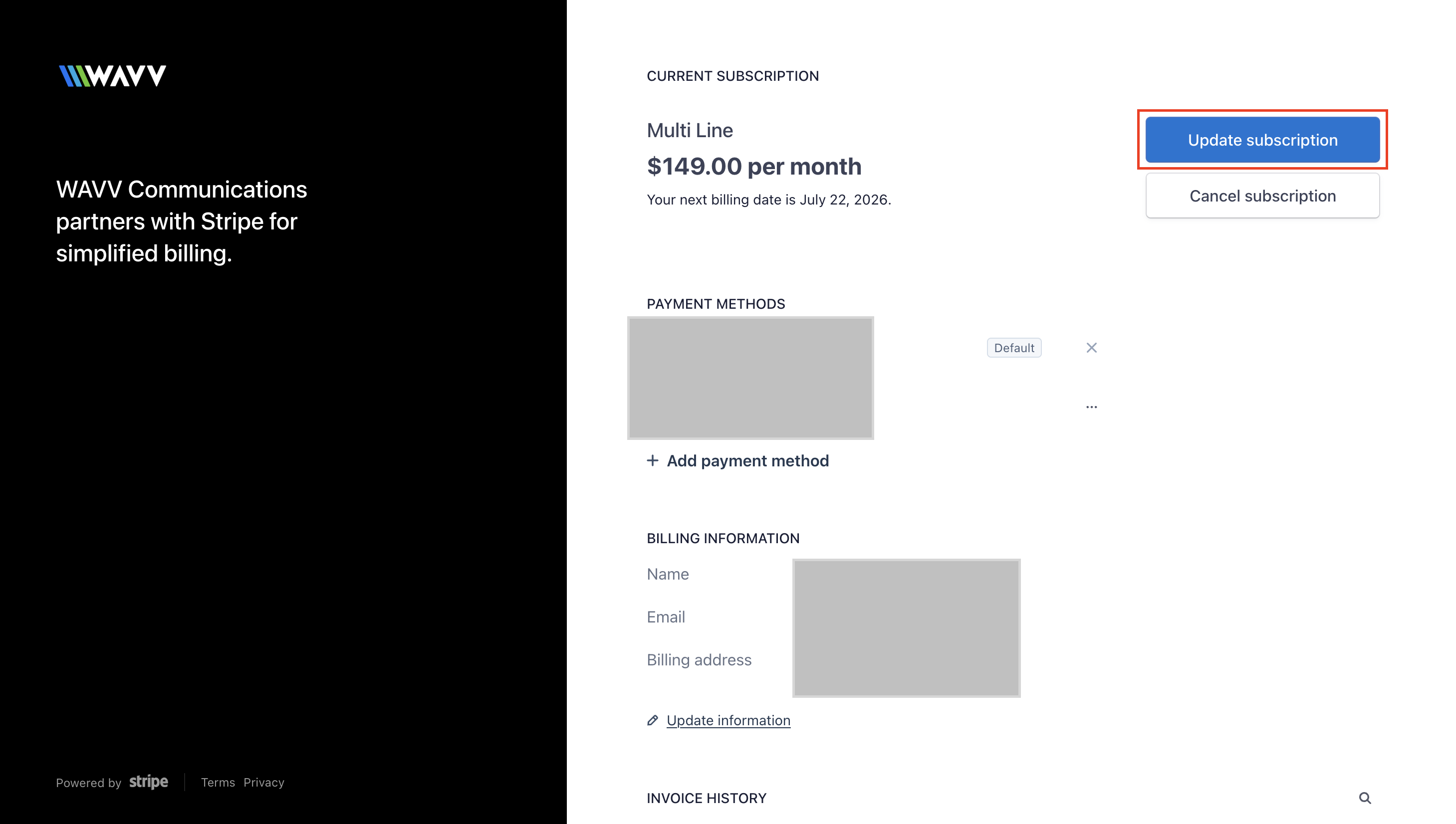
If you'd like to remove dialer seats from your plan, navigate to the Billing tab and select Manage Subscriptions.
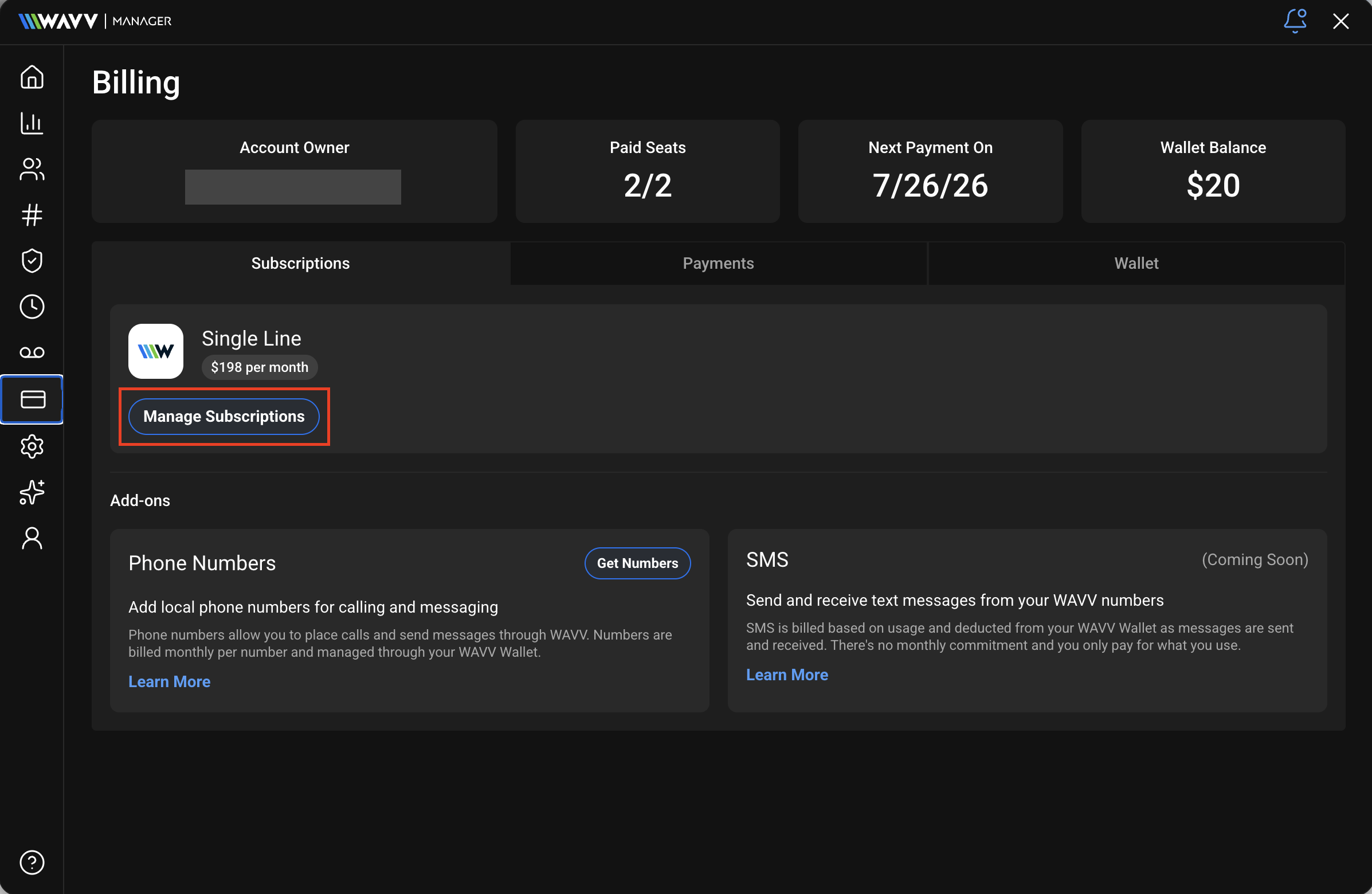
This will take you to a page displaying your current subscription and payment details. Click the blue Update Subscription button to make changes to your plan.
From there, you can adjust the quantity of seats on your subscription and select Continue to save your changes. Any seats removed from the subscription will remain active until the end of the current billing cycle, and the changes will take effect at your next renewal.
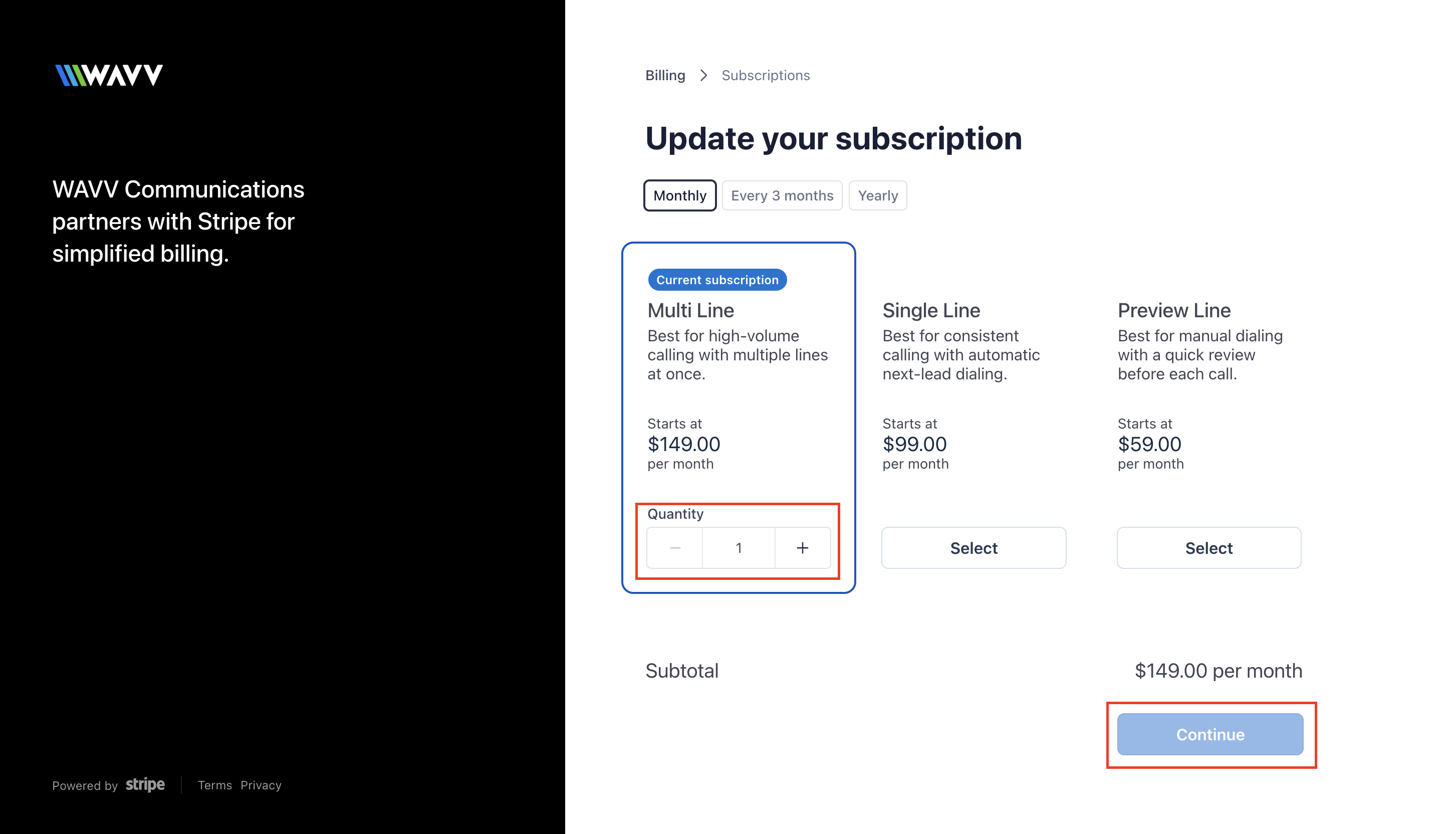
IMPORTANT NOTE: This will put the seat in "pending cancellation" status until the end of your billing cycle. When your subscription renews, the seat will be deleted.
If you want to keep the seat but remove the team member, click the three dots to the right of the team member you’d like to remove, then select Remove Team Member.