
Smart Rotation Overview
Smart Rotation is an automated phone number management feature designed to help you maintain healthier outbound calling numbers. Instead of relying on a single phone number, Smart Rotation intelligently distributes calls across a group of numbers to help reduce carrier rejections due to spam classification and maintain better connection rates.
As your numbers are used, Smart Rotation continuously monitors their health and automatically rests or replaces them as needed. This helps keep your outbound calling running smoothly with minimal manual effort.
Before you can use Smart Rotation, you'll need to create a Number Group. CLICK HERE for more information on how to set up Number Groups. Smart Rotation is configured at the Number Group level.
Who Can Use Smart Rotation?
Smart Rotation is available on all WAVV subscription plans.
To use Smart Rotation, you'll need:
Spam Protection enabled
A Number Group created
User Permissions
Depending on your role, you'll have access to different Smart Rotation features.
Billing Owners
Create and manage your WAVV Wallet
Managers
Create Number Groups
Configure Smart Rotation
Assign a Number Group as a Caller ID
Purchase phone numbers
Dialers
Make calls and send messages using Smart Rotation
How Smart Rotation Works
Smart Rotation helps keep your phone numbers healthy so you can focus on reaching prospects instead of managing phone numbers.
As you place outbound calls, Smart Rotation automatically:
Warms up new phone numbers
Distributes calls across the numbers in your Number Group
Monitors each number's health
Rests numbers that may be at risk of carrier rejections due to spam classification
Purchases replacement numbers automatically (when configured), up to your monthly spending limit if you set one
Smart Rotation also supports Sticky Numbers. When a lead receives a positive disposition, future calls to that lead will automatically use the same phone number, creating a more consistent experience for your contacts.
Smart Rotation can be enabled on a new or existing Number Group. To get started, open your Number Group and select Setup Smart Rotation.
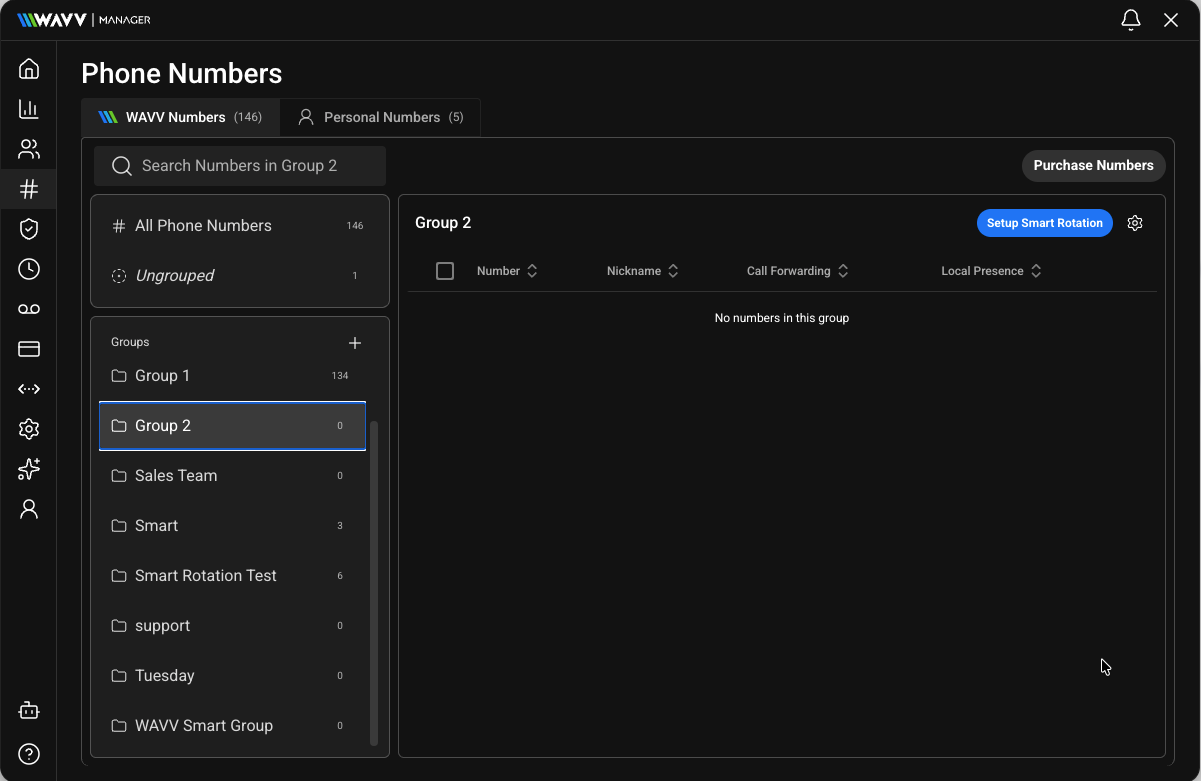
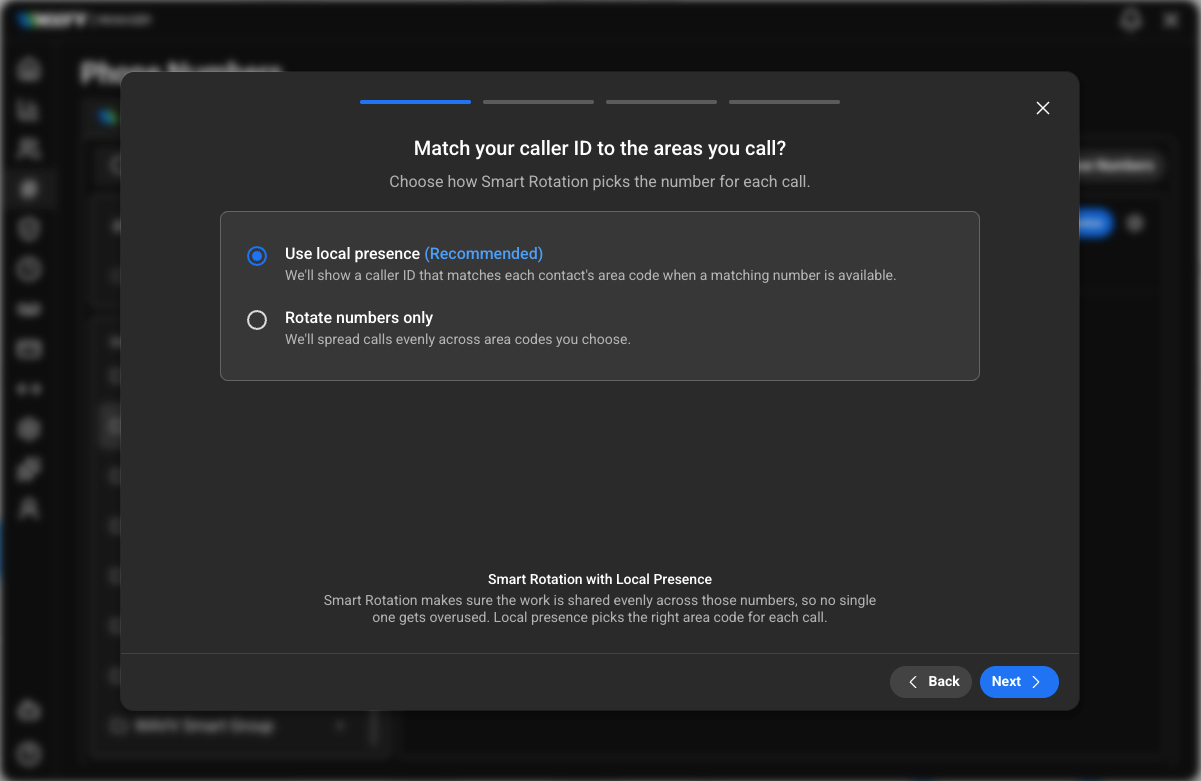
Next, choose whether you'd like to enable Local Presence or use Rotation Only.
Local Presence automatically adds phone numbers in new area codes as you begin calling those regions. When possible, calls are placed from a number that matches your recipient's area code, helping create a more local calling experience.
Rotation Only distributes calls across the phone numbers already in your Number Group to help keep them healthy. No new numbers are automatically purchased.
This option is ideal if you want full control over which phone numbers you use. For example, a clinic with 801 phone numbers may want to call customers nationwide while always displaying an 801 area code. Smart Rotation will balance call volume across those numbers to help maintain their health.
Smart Rotation Setup Options
You can configure Smart Rotation in one of four ways:
Local Presence with a new (empty) Number Group
Local Presence with an existing Number Group
Rotation Only with a new (empty) Number Group
Rotation Only with an existing Number Group
Local Presence with a New Number Group
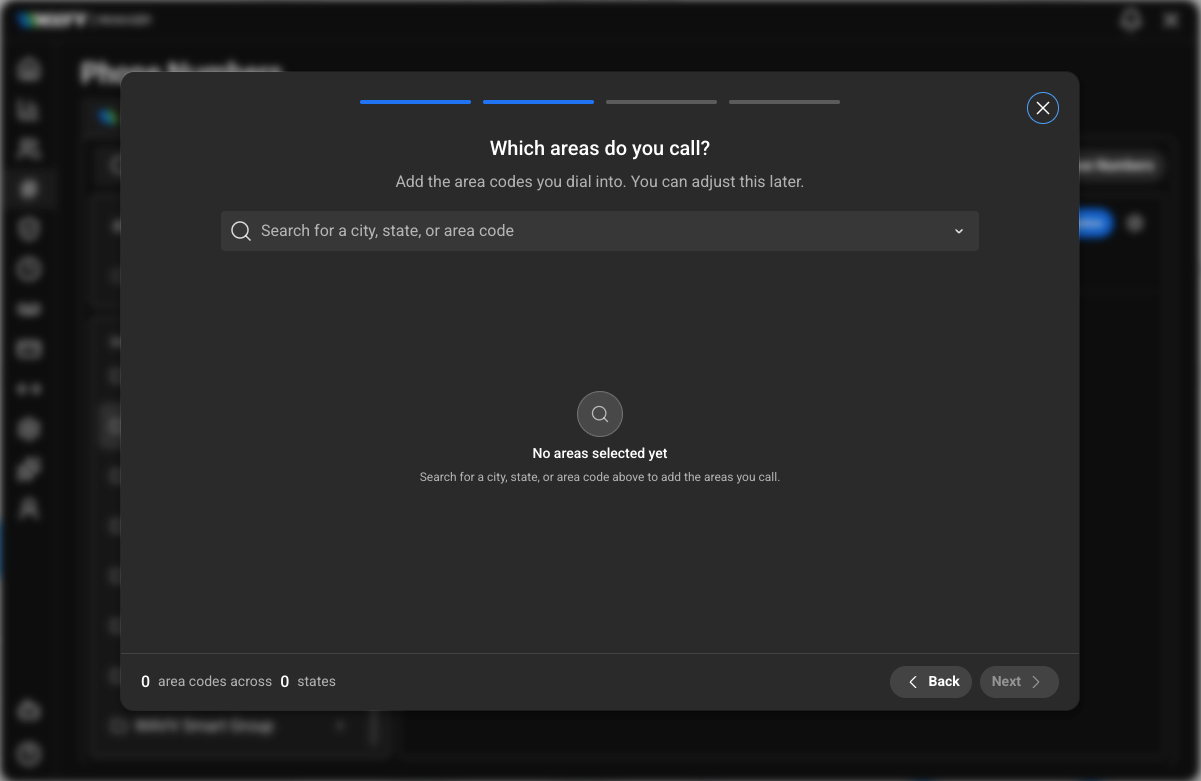
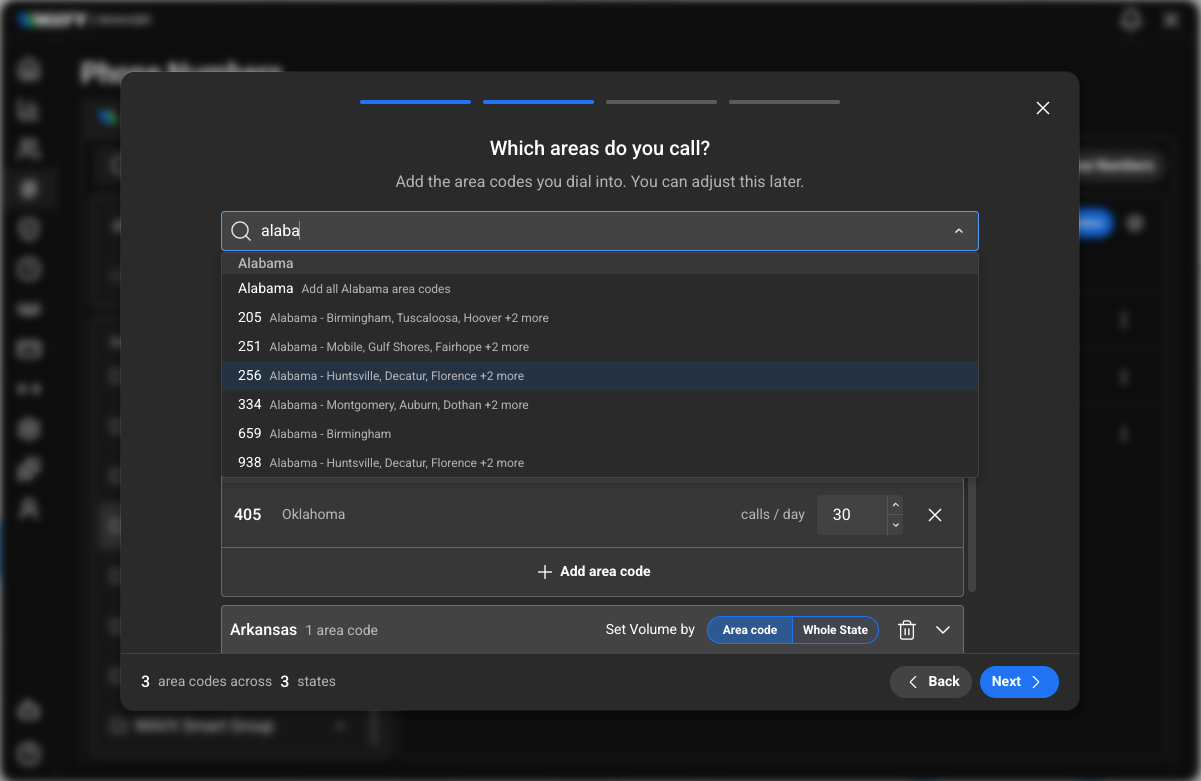
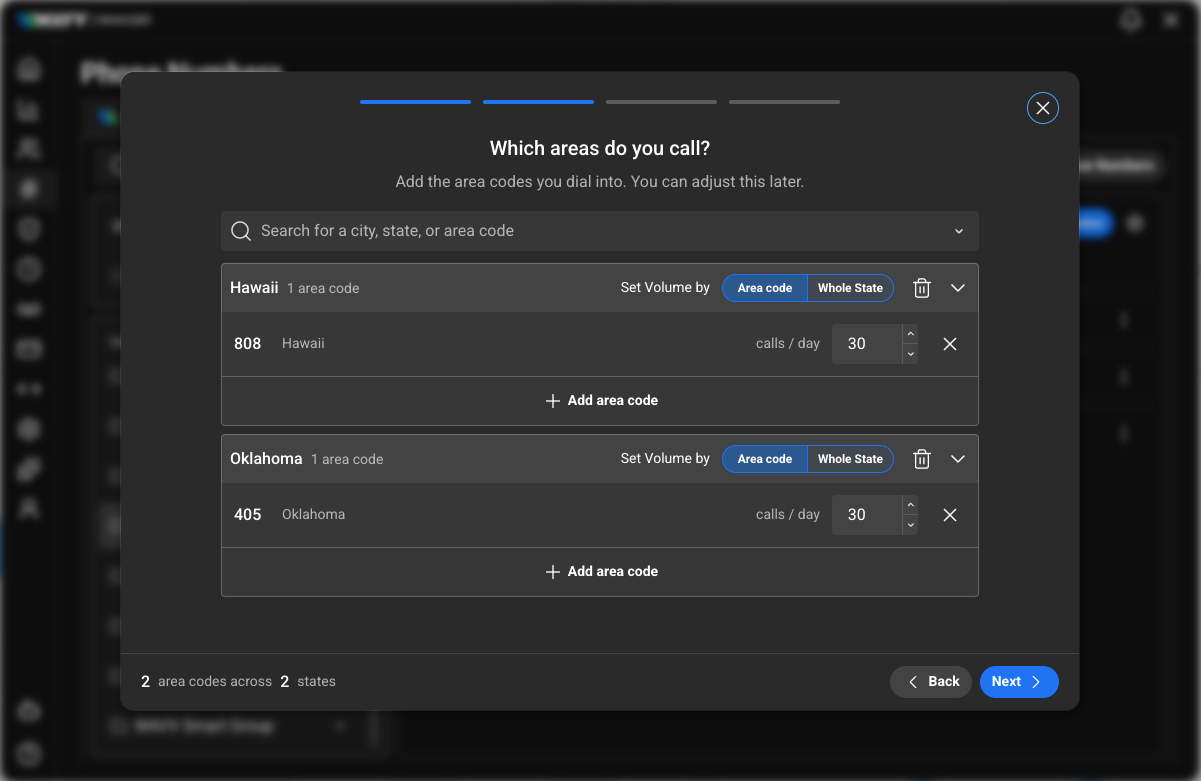
When setting up a new Number Group, start by selecting the states or area codes where you plan to make outbound calls. Then, estimate the approximate number of calls you'll place each day in those areas.
Local Presence with an Existing Number Group
If you're enabling Smart Rotation on an existing Number Group, your current area codes will be imported automatically. Smart Rotation will also estimate your daily call volume based on the phone numbers already in the group. You can adjust these settings at any time before completing setup.
Rotation Only with a New Number Group
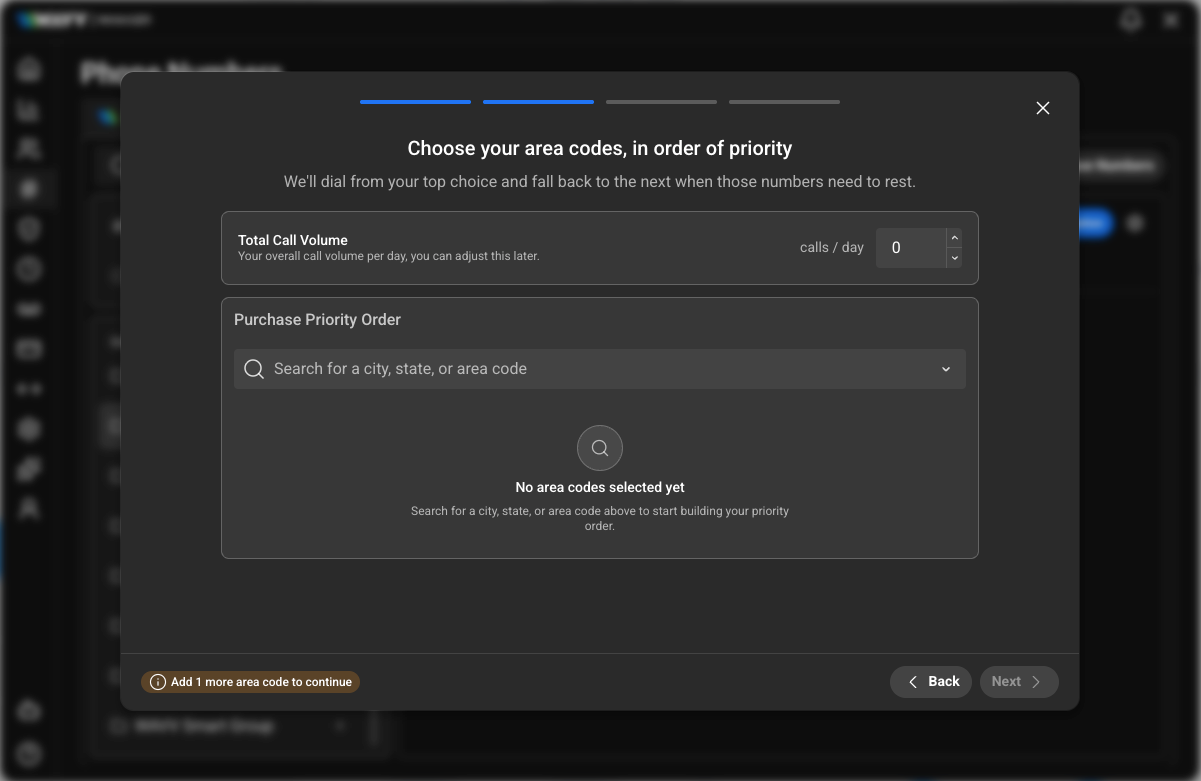
When creating a new Number Group with Rotation Only, enter your estimated daily call volume for the group, then create a priority list of area codes. A minimum of three area codes is required.
Rotation Only with an Existing Number Group
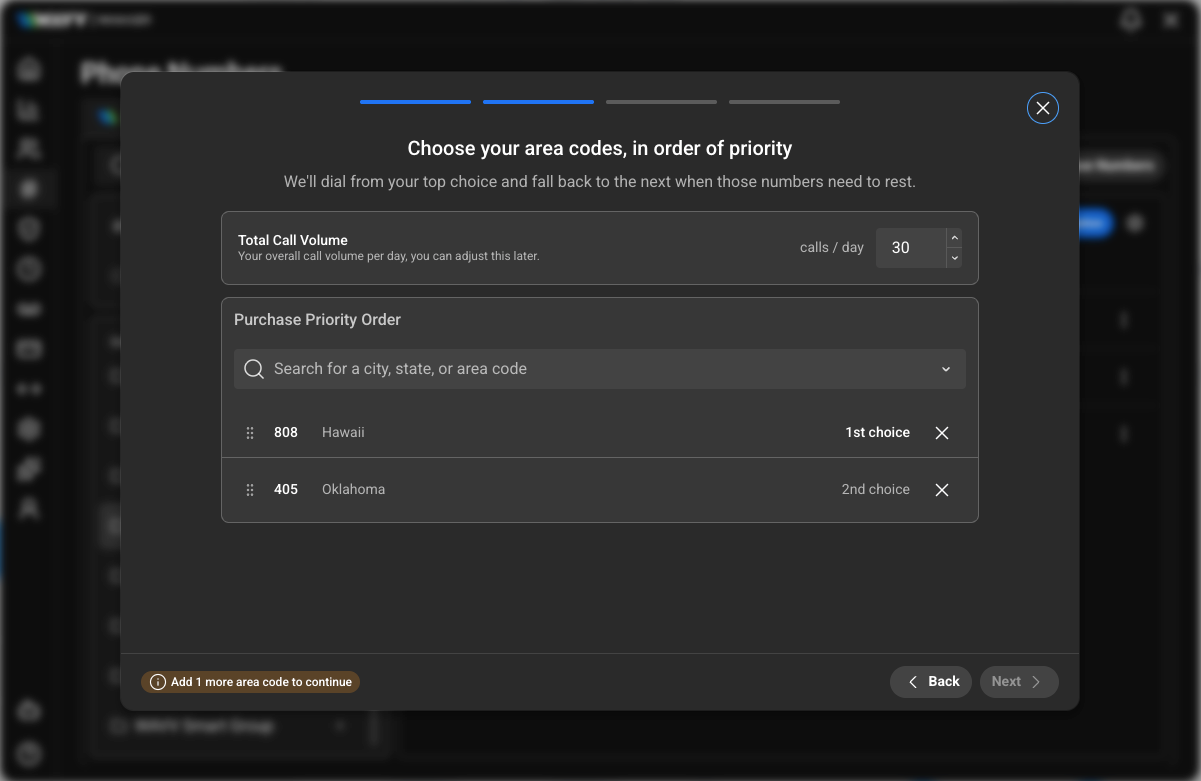
If you're enabling Rotation Only on an existing Number Group, Smart Rotation will automatically estimate your daily call volume and create a suggested priority list of area codes based on the phone numbers already in the group. You can review and adjust these settings before completing setup.
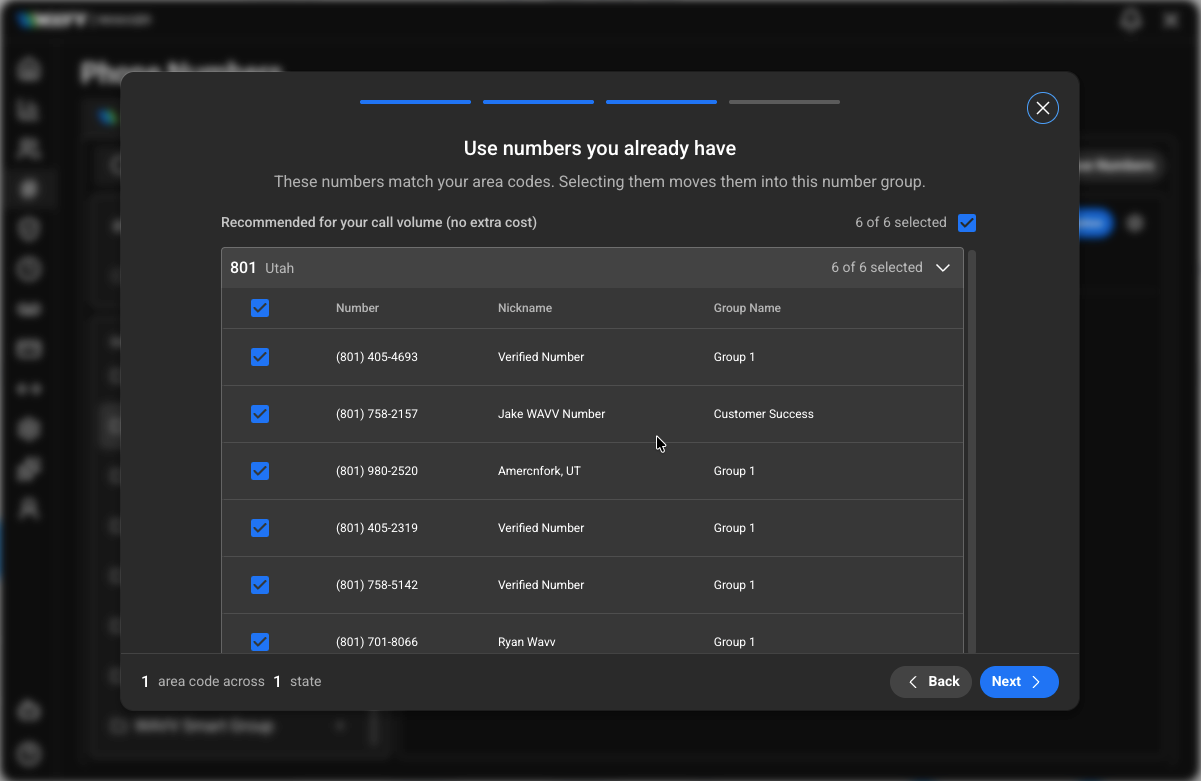
Regardless of which configuration of local presence and group status you have chosen, you will next see a screen that allows you to include existing owned numbers in the group. These numbers are pulled from the entire account, so it’s important to understand they can be pulled from other groups. This is indicated by the Group Name column in the screenshot below
Spending limit and fallback number: During setup, you can set a monthly spending limit for the group and choose a fallback number for calls to use when no Smart Rotation number is available. See Smart Rotation: Monthly Spending Limits and Fallback Numbers.
The final screen is a payment summary that shows how many new numbers will be purchased, your fallback number, and the group's monthly cost. Smart Rotation can buy new numbers on your behalf as call volume grows, so check the box to authorize charges to your wallet before you click Confirm.
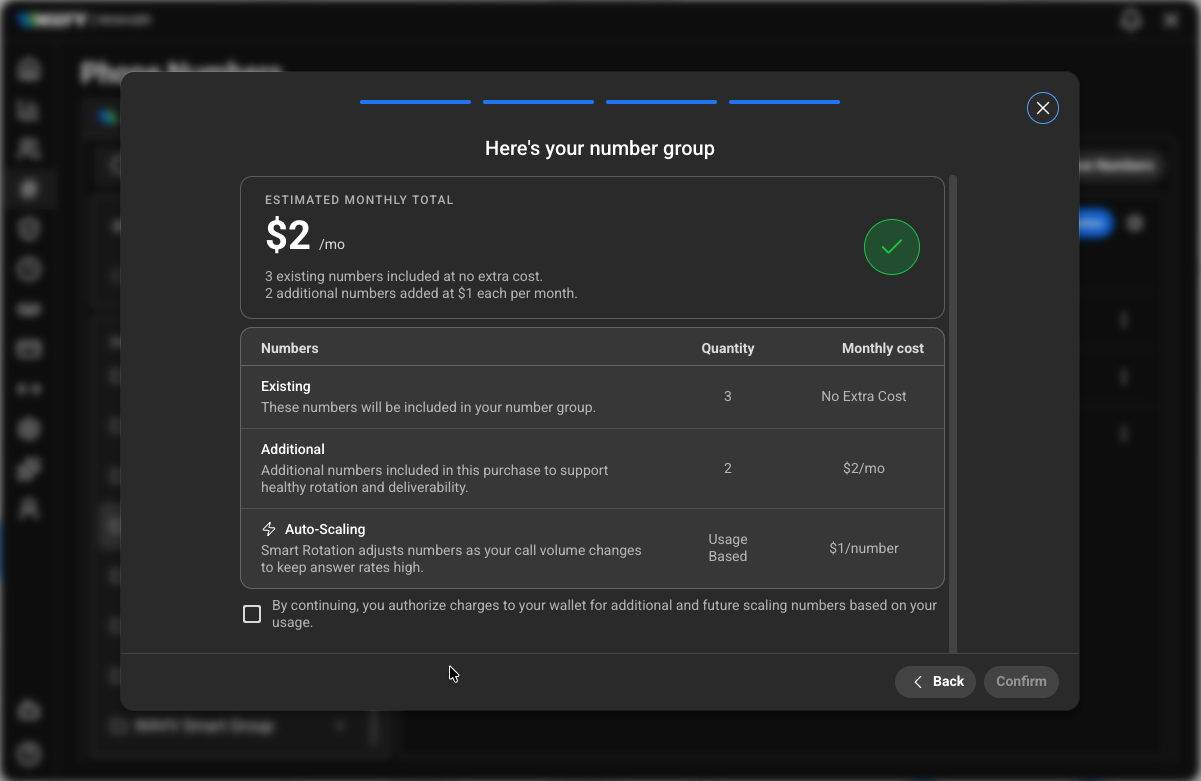
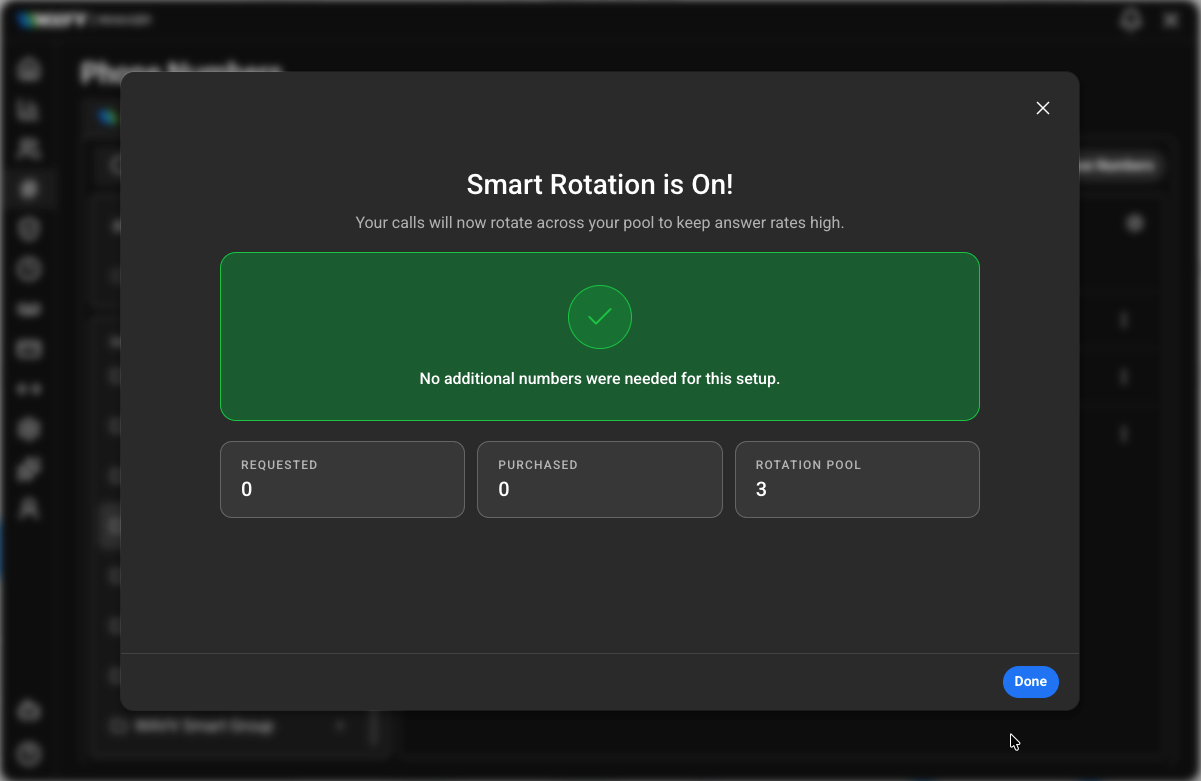
The final screen presents a break down of the actions taken to enable smart rotation
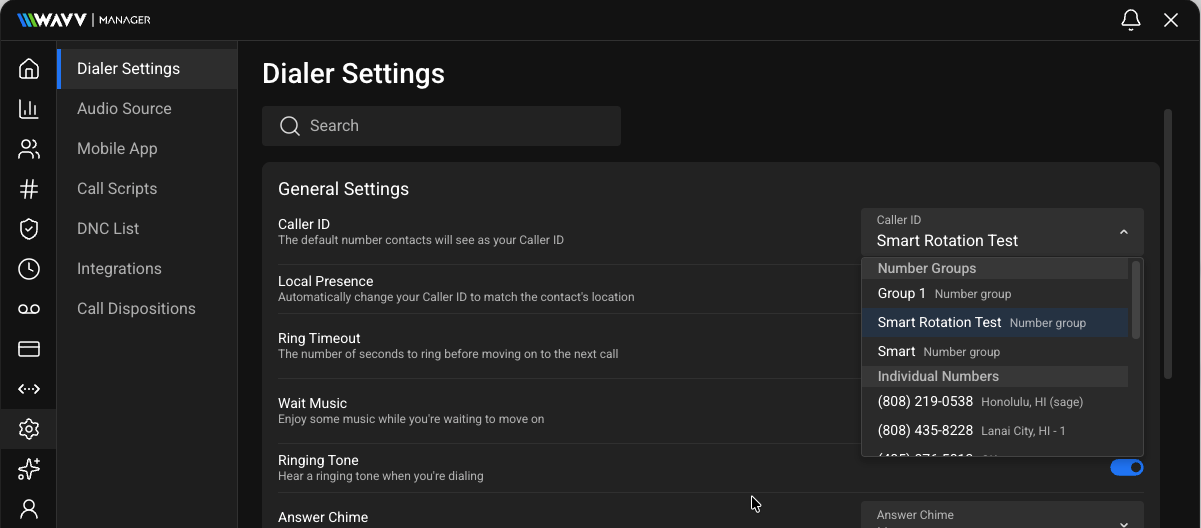
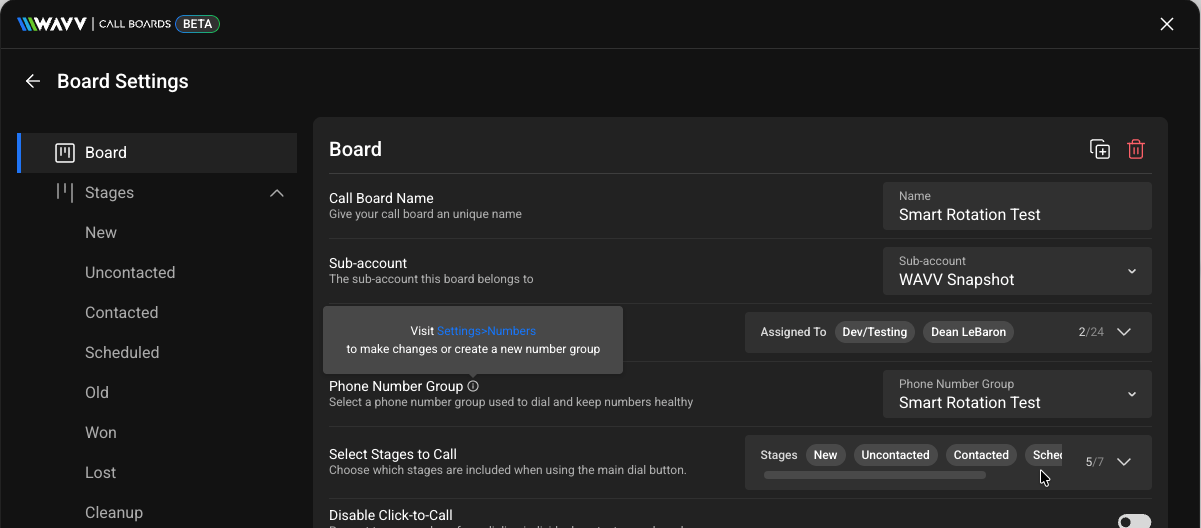
Enabling Smart Rotation for a Number Group does not automatically route your outbound calls through that group. To use Smart Rotation when dialing, you'll need to select the Number Group as your Caller ID in your dialer settings or choose it when configuring a Call Board.
Once your Number Group is in use, any lead with a positive disposition is assigned a Sticky Number. This ensures that future calls to that lead are made from the same phone number, even if other numbers in the group are being rotated or rested.
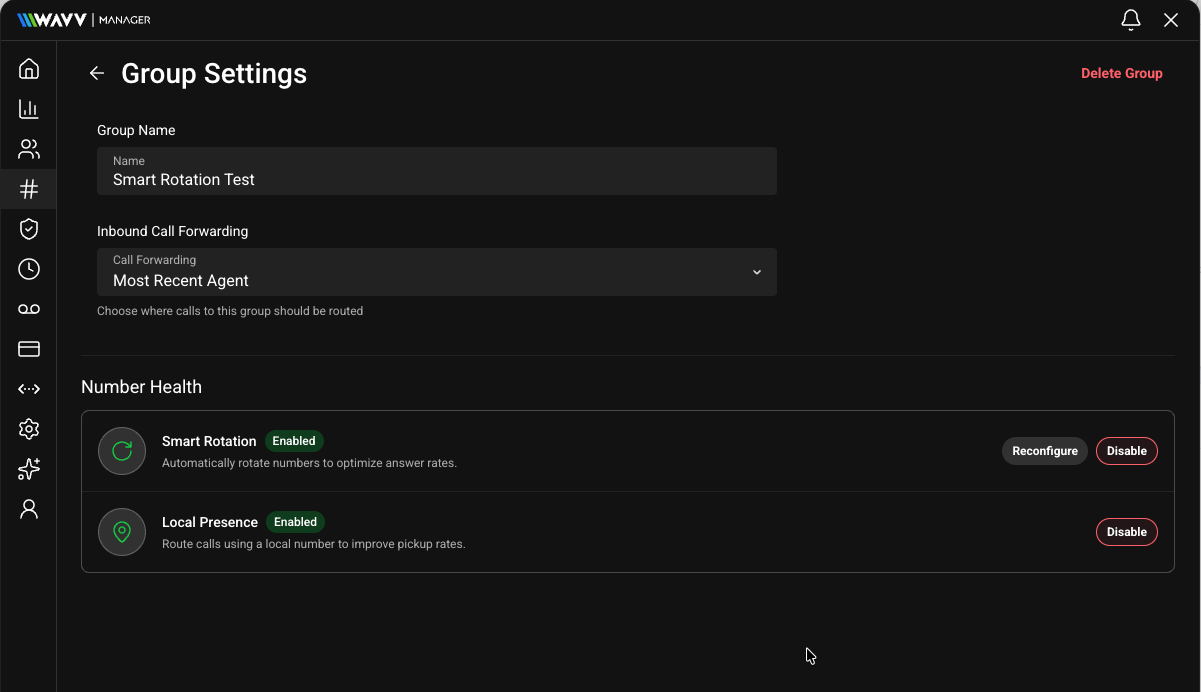
Smart Rotation can be reconfigured or disabled at any time from the Group Settings page.
Key concepts & terminology
- Healthy · What it means: A number can be used to make calls
- Local Presence · What it means: Caller Id attempts to use an area code that matches the recipients
- Number group · What it means: A collection or “group” of numbers that can be managed as a single unit by WAVV
- Resting · What it means: A number will not be selected to make calls until sufficient time passes. Happens with 2 or more SIP errors or when they reach their daily traffic limit (usually 50 calls/day)
- SIP error · What it means: Call failure codes used to indicate a number should be rested
- Smart Rotation · What it means: An algorithm that runs on a number group to ensure call health. This involves purchasing new numbers, resting numbers, etc.
- Spam Protection · What it means: Register in the trust hub for spam protection which will allow us to remediate numbers that are flagged and keep the number group healthy.
- Fallback number · What it means: The number calls go out from when no Smart Rotation number is available, such as when every number is resting or the group has reached its spending limit. It has no daily limit and doesn't rotate.
- Monthly spending limit · What it means: The most Smart Rotation can spend on numbers for a group each month. Renewals count toward it but are never blocked. Resets on the 1st at midnight UTC.
- Warming · What it means: Ramp-up period for new numbers before reaching full volume. Meaning a brand new number can make 10 calls a day, but warmed numbers can do more
Reporting
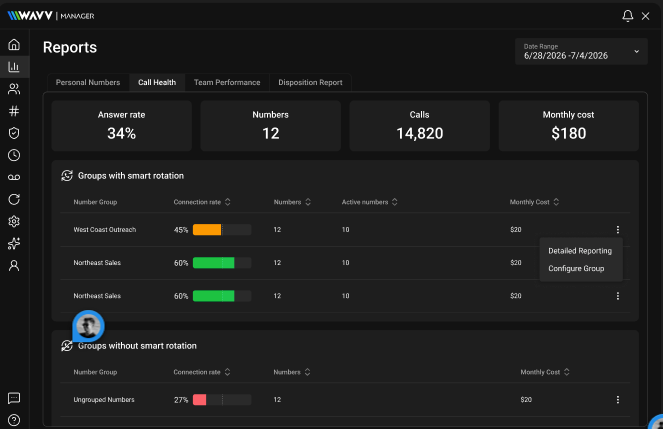
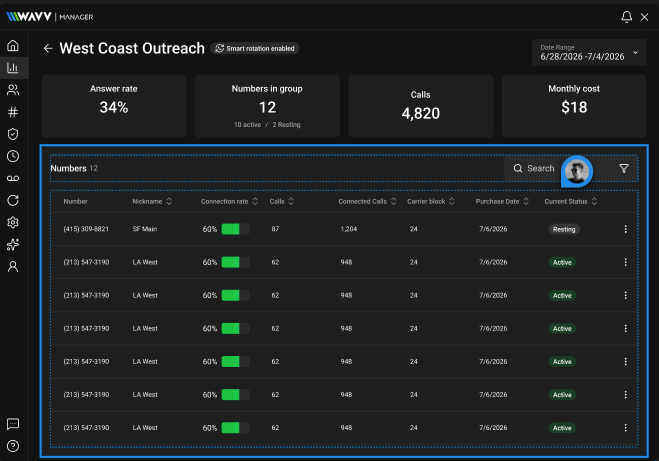
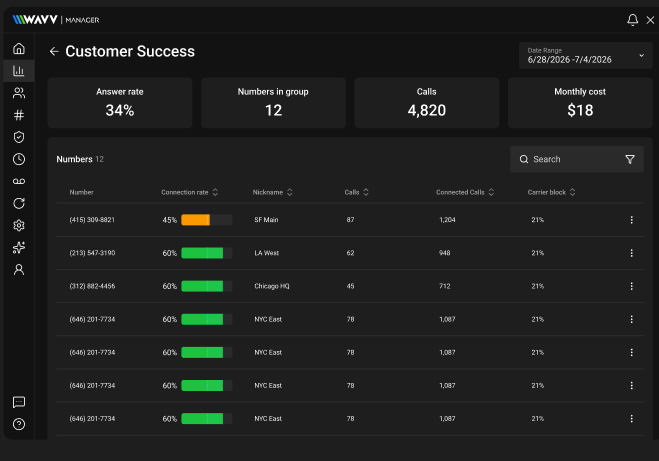
You can monitor the health of your Smart Rotation Number Groups in WAVV Manager by navigating to Reports > Call Health.
The Call Health dashboard provides insights such as:
Answer rate
Number count
Total calls
Monthly cost
You can also drill down into individual Number Groups and phone numbers to view more detailed performance metrics.
Settings & Configuration
Billing Owners and Managers can create Number Groups and enable Smart Rotation.
Before enabling Smart Rotation, make sure your WAVV Wallet has enough funds to purchase phone numbers as needed. If your wallet balance is too low, a Billing Owner can add funds or enable Auto Recharge.
To control how much Smart Rotation spends on numbers each month, set a monthly spending limit. Account owners get an alert at 80% and 100% of the limit. Learn how spending limits work.
To update an existing Smart Rotation Number Group, select the gear icon next to the group. From there, you can edit the Smart Rotation settings or delete the Number Group.
Who can configure Smart Rotation?
Owner
Admin
Manager
Frequently asked questions
Why couldn't Smart Rotation buy all the numbers I asked for?
Our provider doesn't always have numbers available in every area code. Smart Rotation keeps trying to buy numbers as needed to keep your group healthy.
My connection rate is still poor. What should I check?
Make sure Spam Protection is turned on, and try Local Presence. If the group has reached its monthly spending limit, calls go out from the fallback number, which connects less often. Raising the limit can help.
A number disappeared from rotation. Where did it go?
It's most likely resting. You can see each number's status in Reports > Call Health.
Can a resting number still take inbound calls and texts?
Yes. Resting numbers still receive inbound calls and texts. If they stop working, contact support.
How do I remove a number from my Number Group?
Right now, the only way is to delete the number. If the number is the group's fallback, choose a different fallback first.
I turned on Smart Rotation. Why aren't my calls using it?
Turning on Smart Rotation doesn't route your calls through the group. Select the Number Group as your Caller ID in your dialer settings, or choose it when you set up a Call Board.
Can I limit how much Smart Rotation spends?
Yes. Set a monthly spending limit when you set up or reconfigure Smart Rotation. See Smart Rotation: Monthly Spending Limits and Fallback Numbers.
What happens when my group reaches its spending limit?
Smart Rotation stops buying numbers for that group until next month, and calls go out from your fallback number, so dialing doesn't stop. Account owners get an in-app alert and a text at 80% and 100% of the limit.