
If you’re trying to send a text in WAVV Messenger and see:
Messaging Unavailable
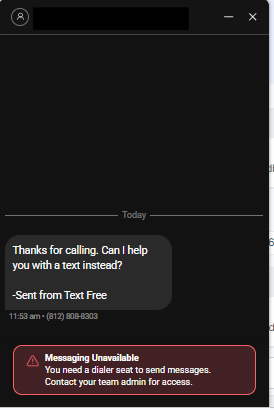
You need a dialer seat to send messages. Contact your team admin for access.
This means your WAVV account doesn’t currently have a dialer seat assigned to your user. The good news is that this is usually a quick fix!
What You May See
You may notice a red Messaging Unavailable banner where you would normally send a message.
This can happen even if you’re still able to make calls or access other areas of WAVV.
Why Is Messaging Unavailable?
Sending messages through WAVV requires an active paid dialer seat.
Some team roles automatically include a dialer seat, while others do not:
Agent — Includes a seat
Manager — Includes a seat
Owner + Manager — Includes a seat
Admin — Does not include a seat
Coach — Does not include a seat
View Only — Does not include a seat
If you have one of the roles that doesn't include a seat, you'll need your account owner or team admin to update your role or add an additional seat.
If You're the Account Owner
You can assign a seat to yourself:
Go to the Team tab in WAVV.
Find your name and click Add to Team, or change your role to Owner + Manager.
Once the seat is assigned, messaging should become available.
If You're a Team Member
Your team admin or account owner will need to make the change for you:
Go to the Team Management tab.
Find your name and click the three dots next to your name.
Change your role to Agent or Manager.
If there aren't any available seats, select Manage Seats in the top-right corner of the Team tab. You can also go to Billing > Manage Subscription to increase the number of seats.
Once the change has been saved, refresh WAVV Messenger and try sending your message again.
How to Check Your Seats
You can see your current seat usage in the top-right corner of the Team tab. This will show your Seats Used compared with your Seats Purchased.
Once a seat has been assigned to you, your seat count should update and the Messaging Unavailable message should disappear.
Avoiding This in the Future
If you're adding a new team member who needs to call or text through WAVV, assigning them the Agent or Manager role when they're added will ensure they have a dialer seat and can use messaging right away.