
Overview
Getting started with WAVV means connecting it to your CRM — whether you're setting it up just for yourself, for a team, or across an agency of sub-accounts. This guide walks through what to expect at each step.
Supported CRMs
Direct install: If you use GoHighLevel, WAVV installs right from your CRM's app marketplace.
Reseller CRMs: Wise Agent, RedX, MoxiWorks, LionDesk, and PropertyRadar don't install WAVV in-app — you'll purchase and install it through that CRM's own site instead.
Not listed? You'll be added to a waitlist for that CRM. In the meantime, you're welcome to connect a different CRM you use.
Setting Up WAVV for the First Time
Go to wavv.com and click Get Started.
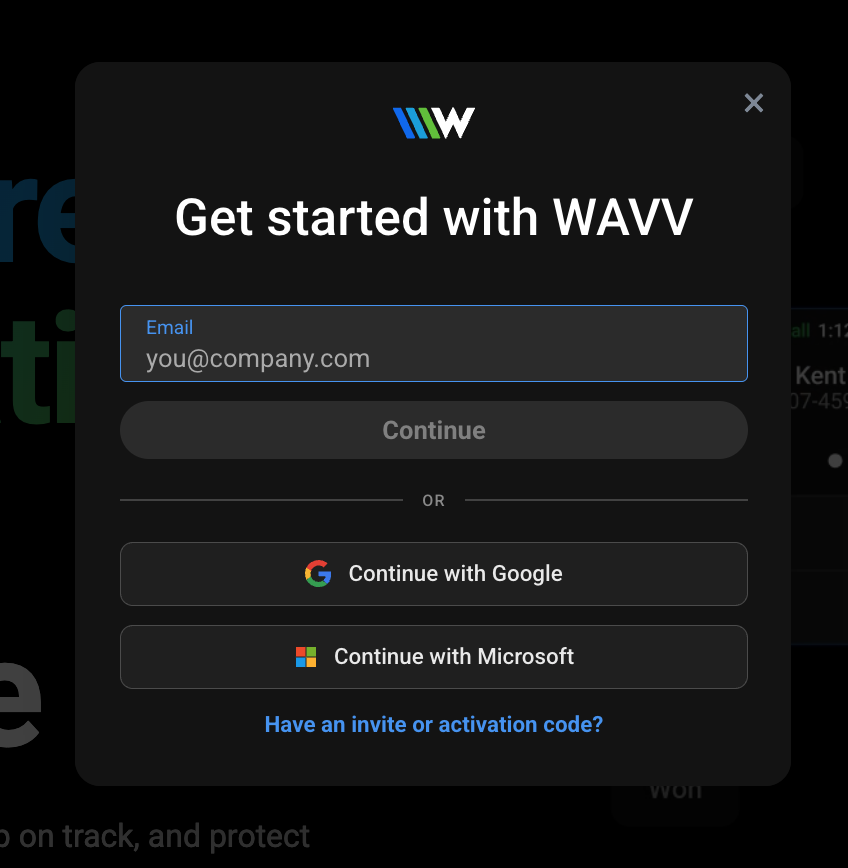
Create your account and tell us which CRM you use.
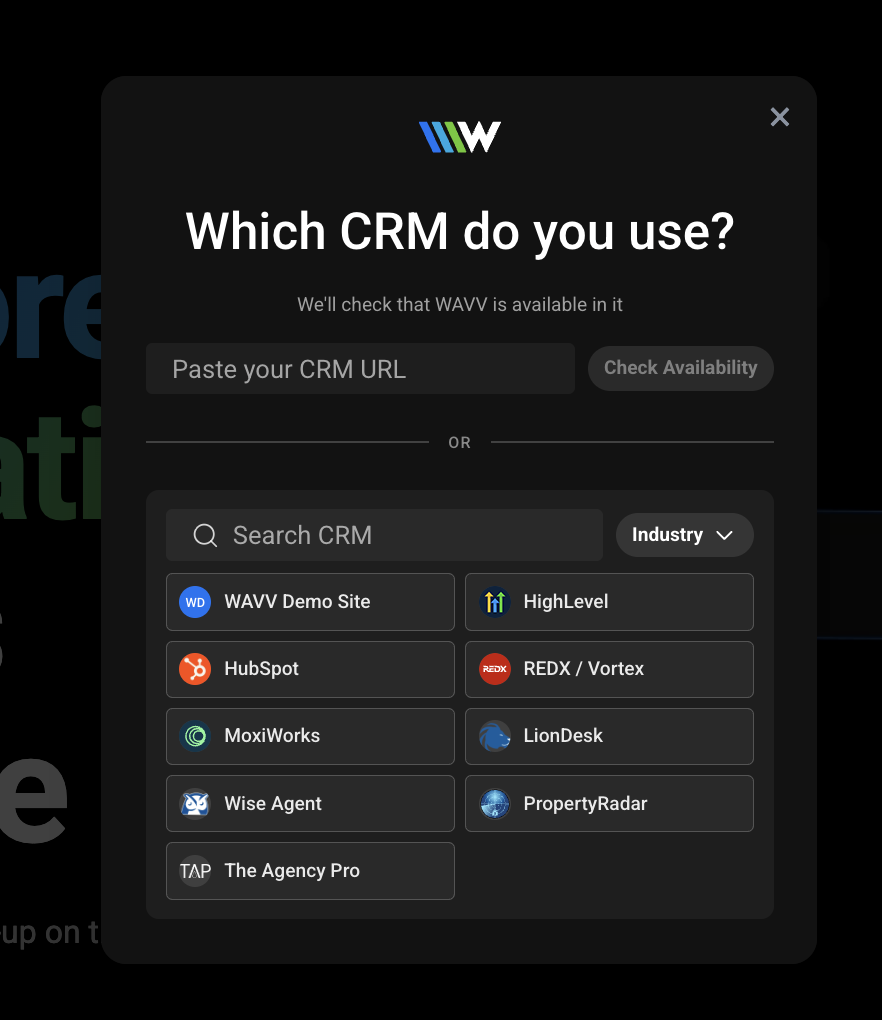
If your CRM integrates directly with WAVV (like GoHighLevel), you'll move straight into installing WAVV from your CRM's marketplace and choosing a plan.
If your CRM is a reseller CRM, you'll be sent to that CRM's own site to purchase and install WAVV from there.
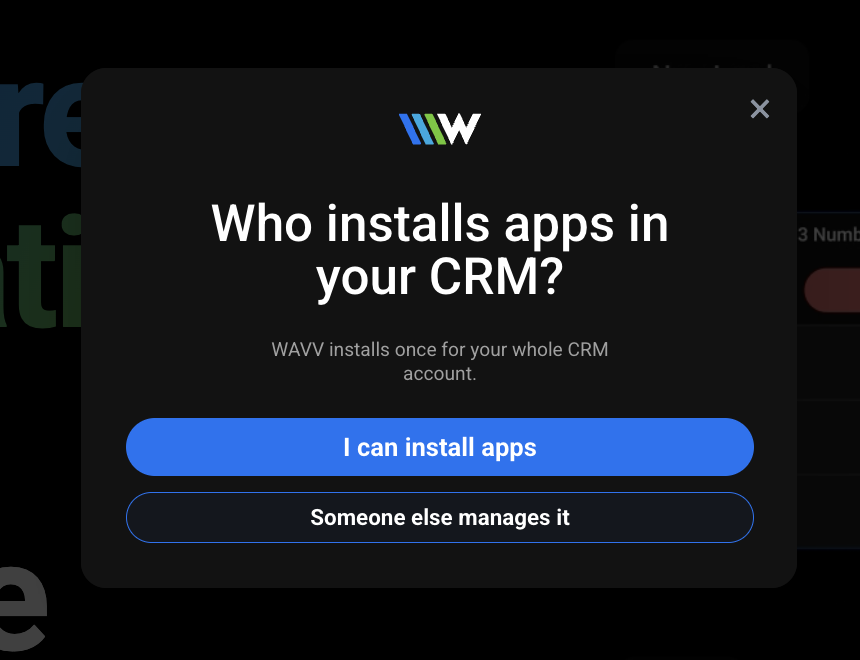
If you don't have permission to install apps in your CRM, no problem — WAVV emails your admin an install request on your behalf. You'll see a confirmation that your admin's been notified, and you'll get a "you're all set, resume setup" email once they've installed it, so you can pick up right where you left off.
Joining an Existing Team
If you're invited to join a team that's already using WAVV, you skip the CRM setup step entirely — you'll go straight to a quick "tell us about you" screen, then launch directly into your CRM.
Agency Setup
If your account is recognized as managing an agency (multiple sub-accounts), you'll see a short introduction to agency features, then be asked whether you're setting WAVV up for a single team or for your whole agency.
Team: continues into the standard plan-purchase step, same as any other user.
Agency: walks you through a few optional, skippable setup screens — building a Call Board template, setting up call dispositions, and optionally purchasing a subscription for your team — before landing in your Agency Dashboard.
If you skip agency setup, you can activate WAVV any time later from Account. You can also switch between viewing your Agency and your Team from the account menu.
Verifying Your Business (Optional but Recommended)
Setup will ask whether your business has an EIN.
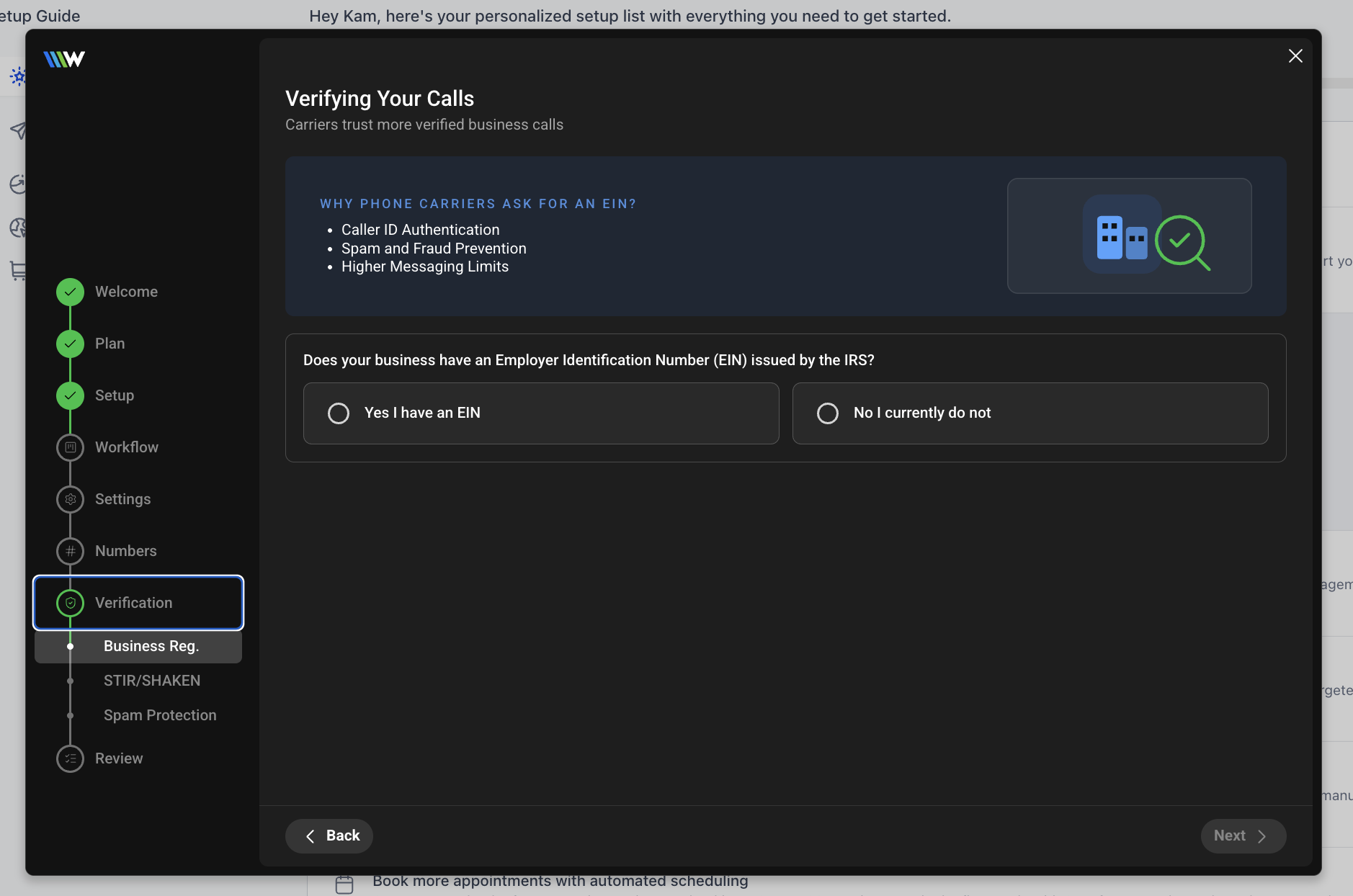
If yes: you'll register your business, then complete Spam Protection and STIR/SHAKEN registration, so your calls are answered rather than flagged as spam.
If no: you can still register as a sole proprietorship using your SSN and complete Spam Protection (you'll also need to name an authorized representative). STIR/SHAKEN specifically requires an EIN, so that particular step won't be available without one.
Every verification step can be skipped and completed later.
Billing During Setup
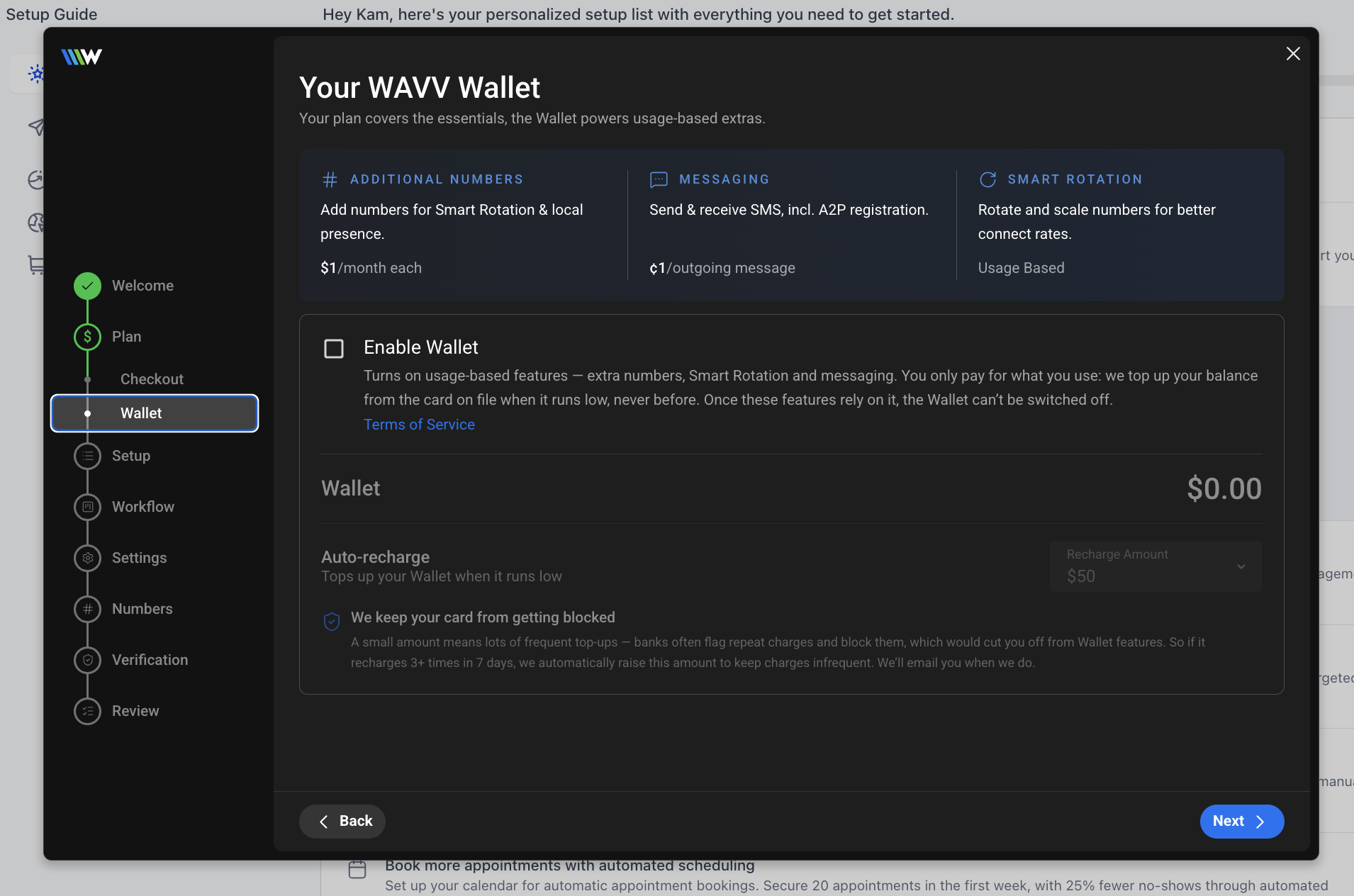
Your free number
Every WAVV subscription includes one phone number at no extra cost. As long as your subscription is active, one number on your account is always free, and it renews every month without charging your Wallet.
How it works
The free number isn't tied to a specific phone number. It works more like a credit that always covers one number on your account.
Your first number is free. When you sign up and get your first number, it's covered.
Additional numbers cost $1/month each. Each one renews 30 days after you got it, paid from your Wallet.
If you release your free number, the free status moves. One of your other numbers becomes the free one.
If you release all your numbers, the free status stays with your account. The next number you get will be free.
Signing In With a Different CRM Account
A WAVV account can only be linked to one CRM login at a time. If you sign in from a CRM identity that doesn't match your WAVV account's email:
Matching email: you're linked automatically — no extra verification needed.
Different email: you'll complete a one-time verification code sent to you.
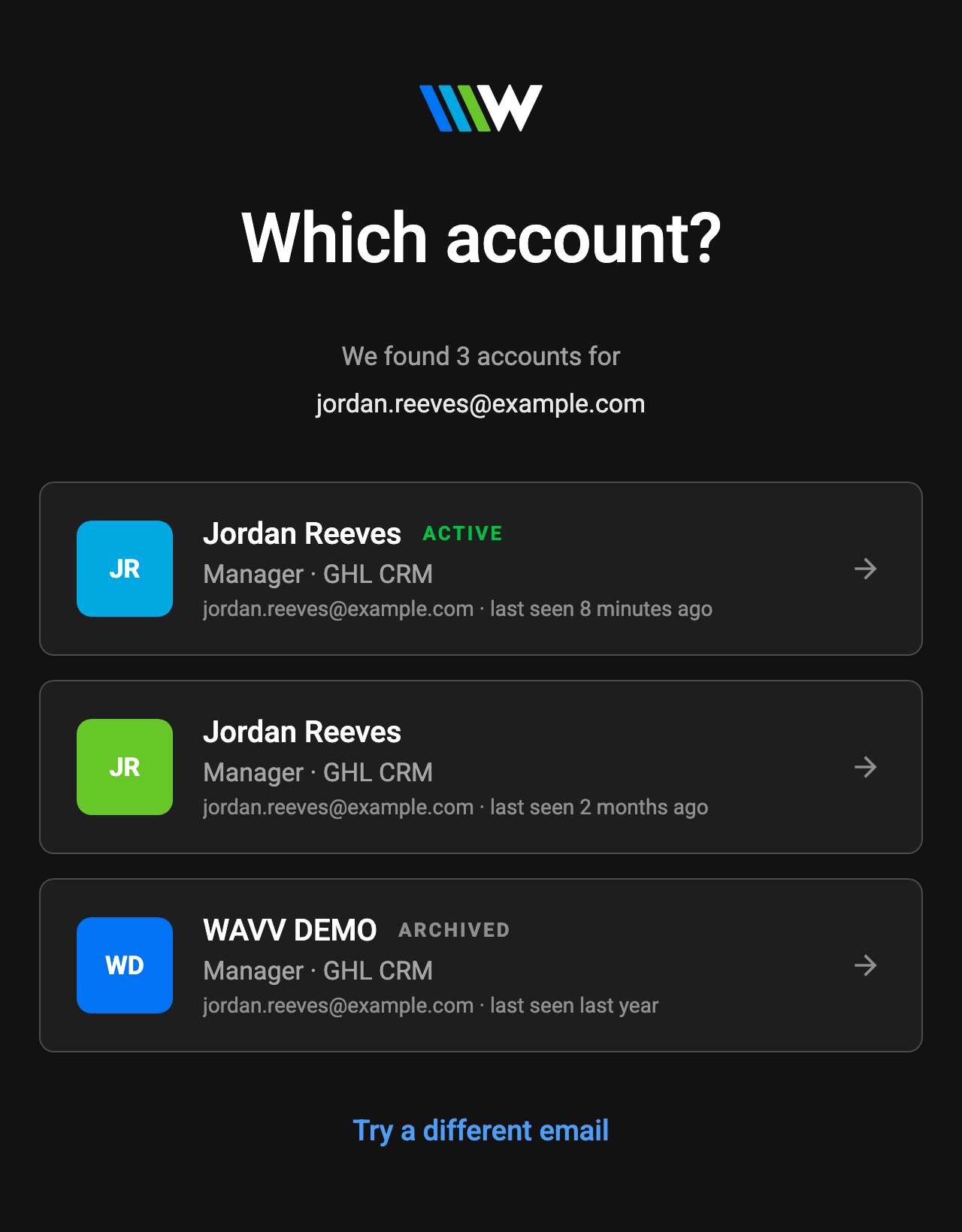
If we find more than one account that could match you, you'll see a list to choose from. Each one is labeled:
Active — a working team seat.
Archived — the team this seat belonged to has since been archived.
No label — an individual account with no team, showing "no subscription" or the CRM/billing provider it's tied to.
Each entry also shows the role, CRM, account email, and when it was last used, so you can pick the right one.
Returning Users
If you sign up again with an email you've used before, WAVV will recognize it. You can reactivate a previous subscription and choose a new plan, or start fresh with a new account or email. If you'd previously installed and later uninstalled WAVV, your Launch button simply becomes an Install button again — no error, just a normal reinstall.
Troubleshooting
- My CRM isn't showing up as supported · What to do: You've hit the waitlist — this isn't a rejection, just means we don't support that CRM yet. Join the waitlist, or try connecting a different CRM you use in the meantime.
- I asked my admin to install WAVV and nothing's happened · What to do: Confirm your admin received and opened the install-request email. If they haven't, reach out to them directly to prompt it along.
- My CRM is Wise Agent, RedX, MoxiWorks, LionDesk, or PropertyRadar and I can't find an install button · What to do: That's expected — these are reseller CRMs. You'll be routed to that CRM's own site to purchase WAVV from there.
Still stuck? Reach out to WAVV Support via the chat icon in the bottom-right corner of the Help Center.