
Installing the WAVV app is the first step for any team using WAVV in HubSpot. One HubSpot admin installs it once for the whole account. After that, each rep adds the WAVV Chrome extension and signs in.
Before you start
You'll need:
HubSpot admin access. Only someone with permission to install apps can do this. Reps who join later don't need it.
Any HubSpot plan. The WAVV app works on every plan, and you don't need a HubSpot calling seat.
Your WAVV account email. WAVV links to HubSpot by matching your email, so use the same one in both places.
Google Chrome or Microsoft Edge for the extension in step 4.
How this connects: The app is the bridge between WAVV and your HubSpot data. It lets WAVV read your contacts and segments and write every call, note and recording back to the contact record. It's installed once and shared across your whole HubSpot account.
Step 1: Open the HubSpot Marketplace
Sign in to HubSpot as an admin.
Click the Marketplace icon (the small storefront) in the top bar.
Choose HubSpot Marketplace.
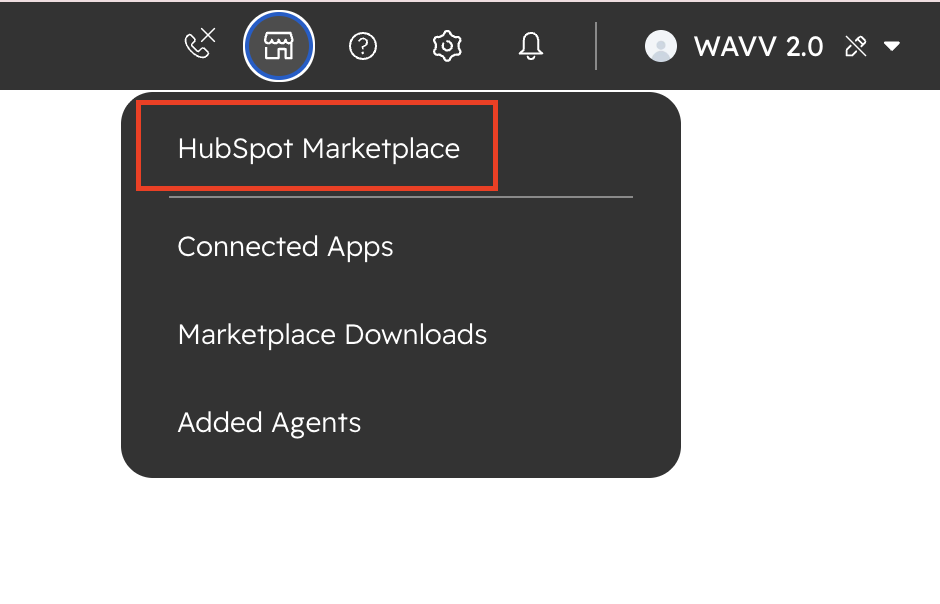
The Marketplace icon sits in HubSpot's top bar, next to help and settings.
Step 2: Find the WAVV app
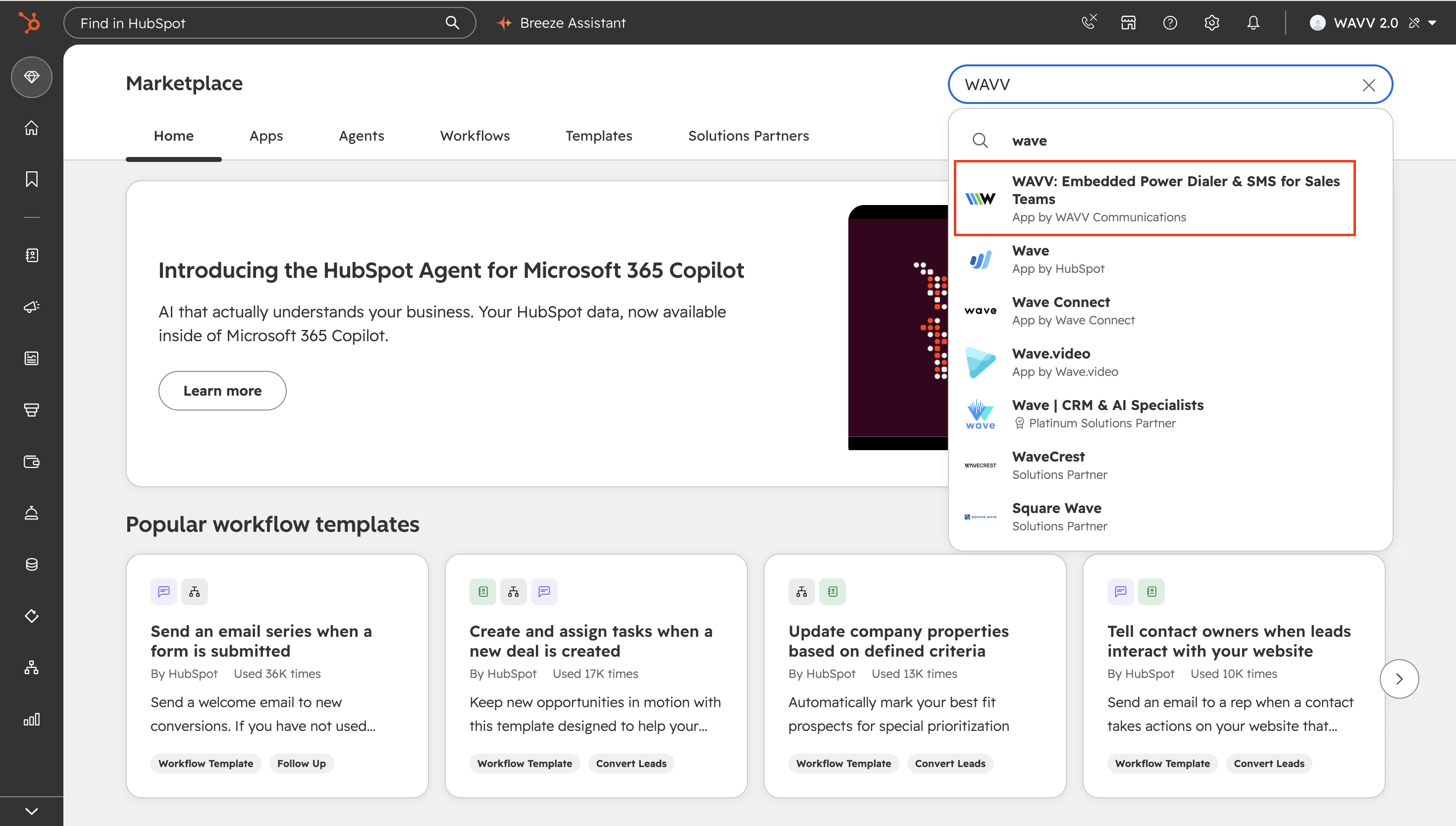
In the HubSpot Marketplace search bar at the top right, type WAVV.
Select WAVV: Embedded Power Dialer & SMS for Sales Teams, listed as an app by WAVV Communications.
Important: Make sure the listing displays the WAVV logo and says “App by WAVV Communications.” Similar apps, such as Wave or Wave Connect, are not WAVV.
Step 3: Install and connect
On the WAVV app page, click Install.
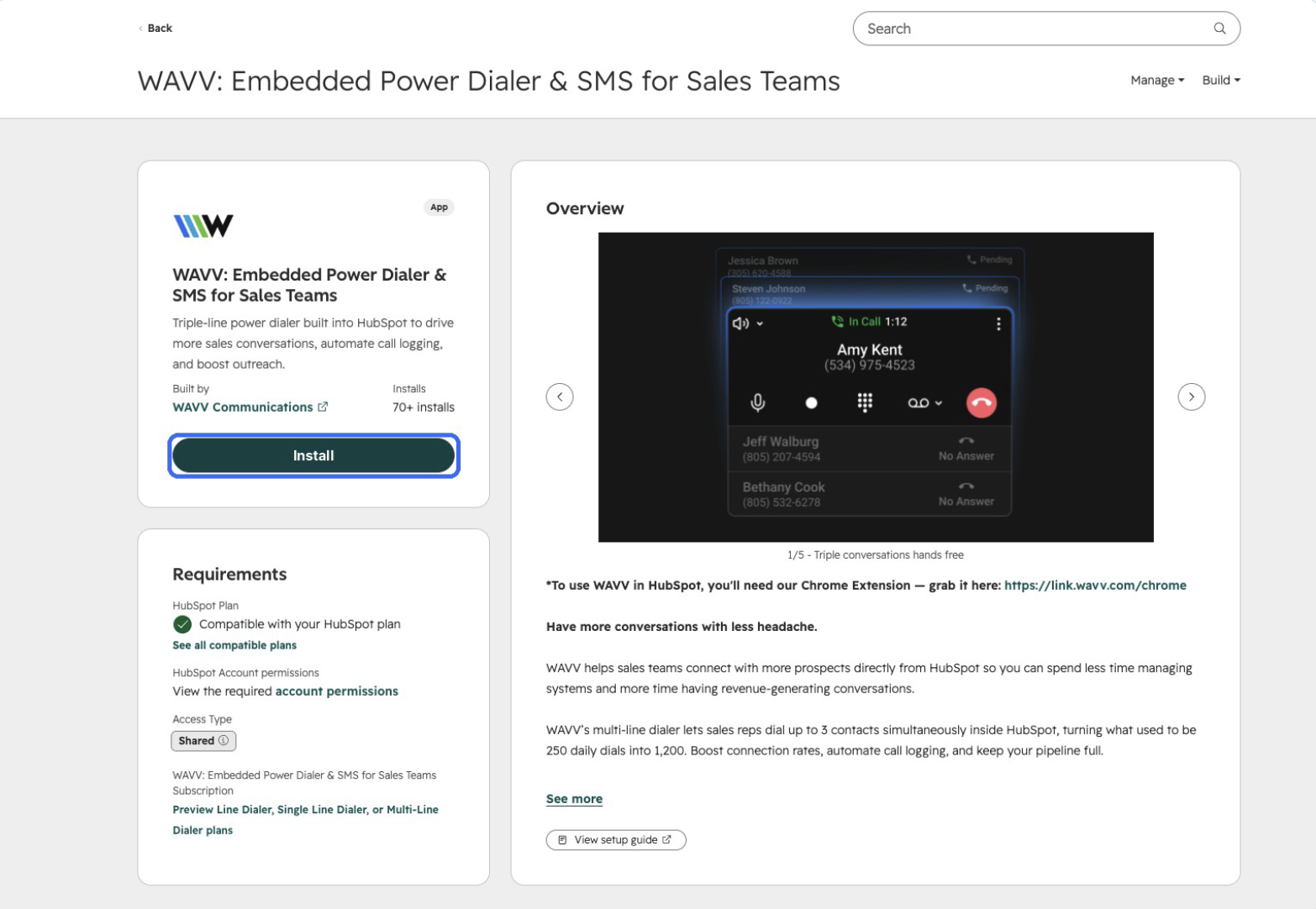
The WAVV app listing. The Requirements box confirms the app works with your HubSpot plan.
If you have more than one HubSpot account, pick the one to connect. Review the permissions WAVV needs, then approve the connection.
That's it for the app. WAVV links to your WAVV account by email, and you become the WAVV admin for your team.
Already see "Manage" instead of "Install"? The app is already installed on your HubSpot account, so someone on your team has done it. Skip to step 4. You can check anytime under the Marketplace icon → Connected Apps.
Step 4: Add the Chrome extension
The app connects your data. The extension is where you make calls. Every rep needs it, including the admin.
Go to link.wavv.com/chrome and click Add to Chrome. The link is also on the WAVV app page.
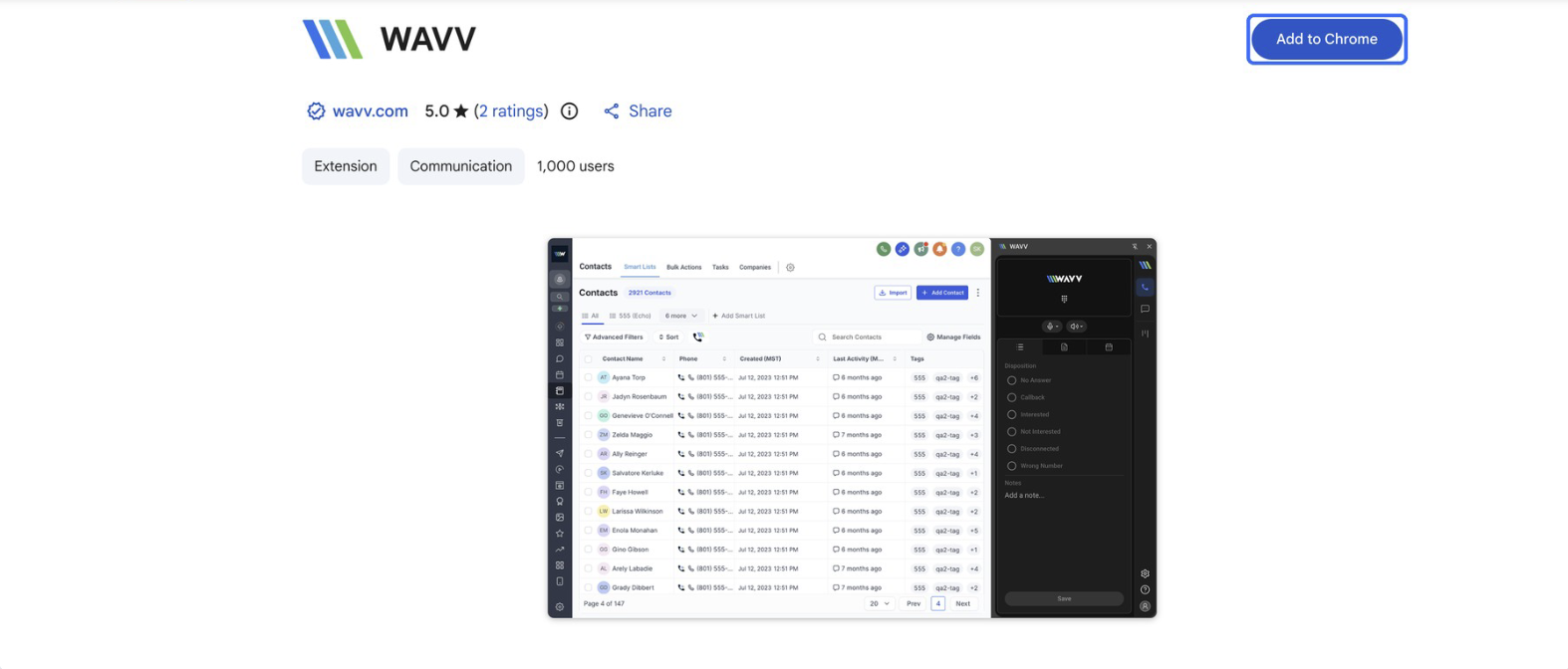
Click the puzzle-piece icon in Chrome and pin WAVV so it stays in your toolbar.
Allow microphone access when asked.
Click the WAVV icon to open the side panel and sign in with your WAVV email.
Open HubSpot in the same Chrome window. You'll see WAVV docked on the right.
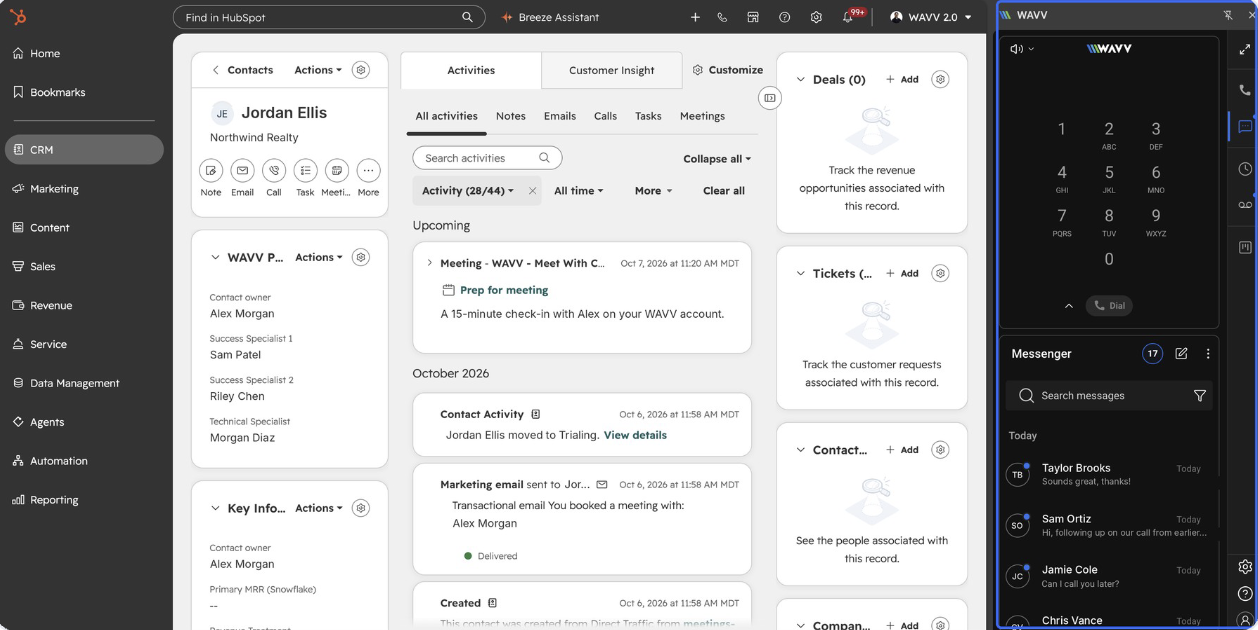
You're connected when the WAVV side panel shows up next to HubSpot.
What's next
You're installed. Next, build a segment in HubSpot, bring it onto a call board, and start dialing. The WAVV for HubSpot Setup Guide covers these in Phases 2–4.
Troubleshooting
- No Install button, or it's greyed out · What to do: You need permission to install apps in HubSpot. Ask your HubSpot admin to install it, or to give you access.
- Button says "Manage" · What to do: WAVV is already installed. Go straight to step 4.
- Extension won't connect after install · What to do: Make sure HubSpot and the side panel are in the same Chrome window. Turn the extension off and on ( puzzle piece → Manage Extensions ), refresh HubSpot, and try again.
- "Account Mismatch" screen · What to do: Your WAVV email and your HubSpot email are different. See Account Mismatch screen: linking your WAVV account to your CRM .
Still stuck?
Reach out through chat at help.wavv.com or contact your WAVV Success manager.
Related: WAVV for HubSpot: Setup Guide · Chrome Extension (BETA) Setup Guide
Frequently asked questions
Do I need a HubSpot calling seat to install WAVV?
No. The WAVV app works on any HubSpot plan, and you can dial from the WAVV side panel without a calling seat. You only need one if you want HubSpot’s own Call button to launch WAVV.
Does every rep need to install the WAVV app?
No. One HubSpot admin installs the app once for the whole account. Each rep only needs to add the WAVV Chrome extension and sign in with their own WAVV email.
I’m moving from GoHighLevel to HubSpot. Can my WAVV account and number come with me?
No. A WAVV account works with one CRM at a time, so HubSpot needs its own WAVV account and phone number. Contact support and we’ll help you cancel your current subscription so you can start fresh in HubSpot.