
Bulk actions let you change many contacts on a call board at once. You can select a few cards, a whole stage, or every contact that matches a filter. Then you can move, assign, snooze, mark hot, reset call attempts, cancel scheduled calls, mark Do Not Call, or remove them in one step. Large changes run in the background, so your team can keep dialing.
Who can use bulk actions
- Bulk actions (select and change many contacts) · Who can use it: Owners, admins, managers, and the board's owner
- New filters and contact History · Who can use it: Everyone on the board
Bulk actions work on call boards in both GoHighLevel and HubSpot.
Step 1: Narrow the board with filters
Start by filtering the board down to the contacts you want to change.
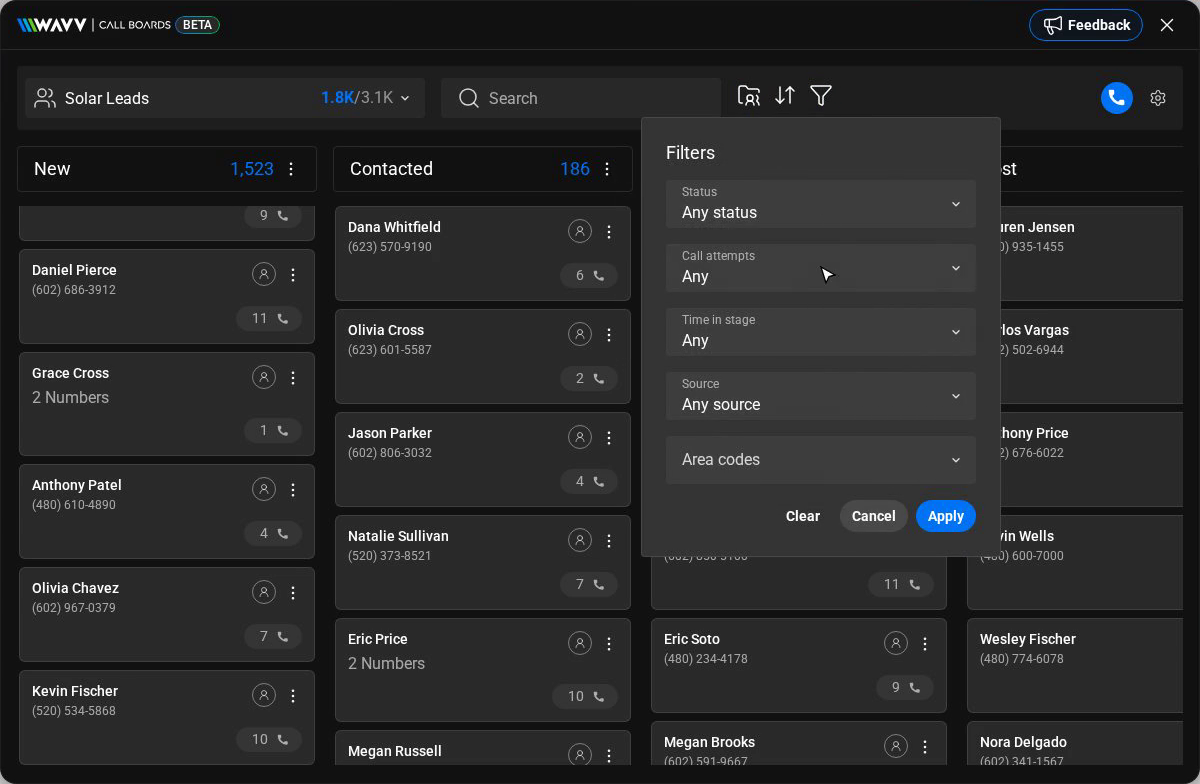
Open your call board and click the filter icon next to Search.
Set any of these filters: Status, Call attempts (for example, 3+ attempts), Time in stage (for example, 7+ days), Source, Area codes, or Do Not Call.
Click Apply. A badge on the filter icon shows how many filters are on.
The person icon next to the board name controls whose contacts you see: Workable Contacts, All Contacts, My Contacts, or a specific team member.
Step 2: Select the contacts
To start selecting, click the three dots on any contact card and choose Select.
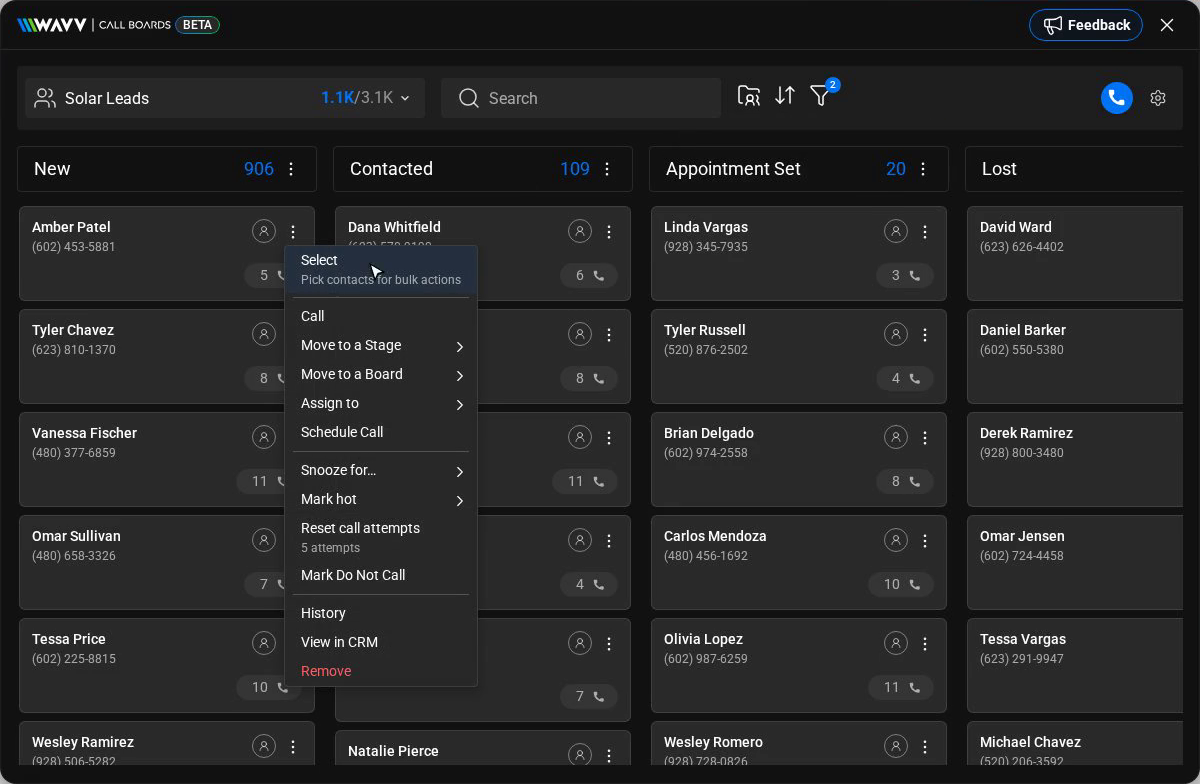
The board header turns into a selection bar that shows how many contacts are selected. Each card now has a checkbox.
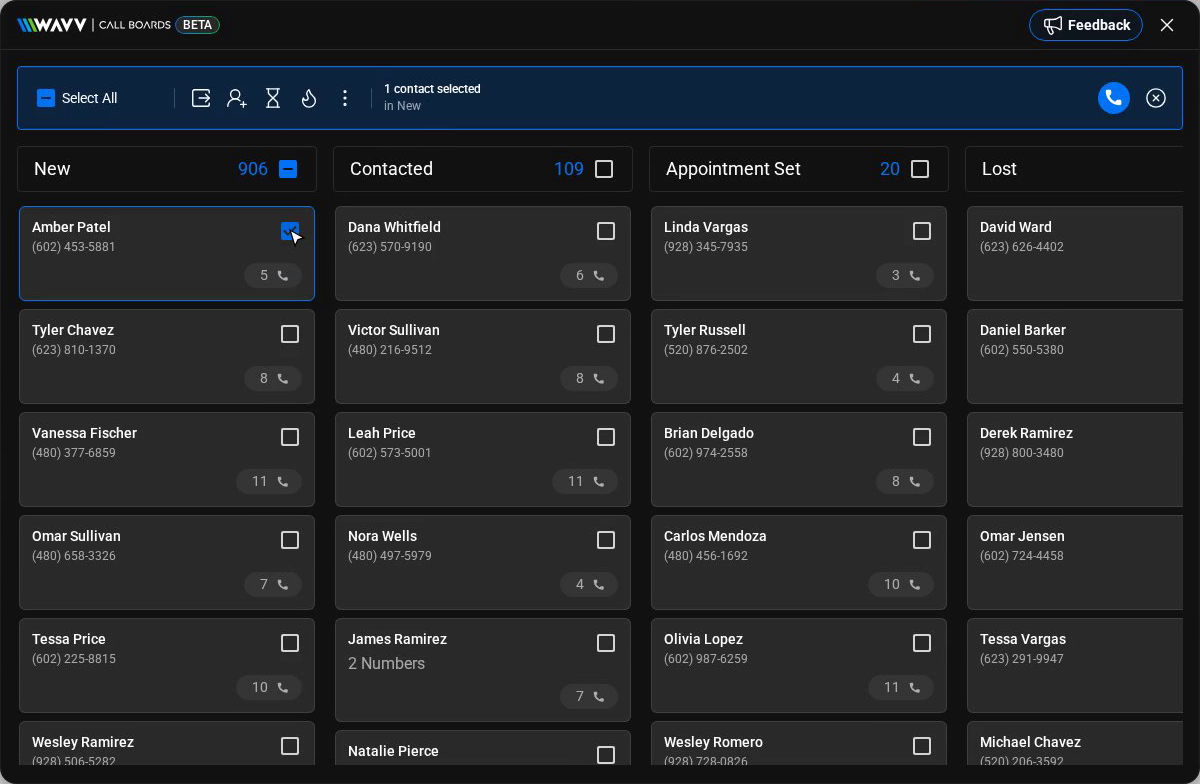
You can select contacts three ways:
- Specific contacts · Do this: Check the box on each card. You can pick cards from different stages.
- A whole stage · Do this: Check the box next to the stage name. This includes every contact in the stage, even ones you haven't scrolled to yet.
- Everything matching your filters · Do this: Click Select All in the selection bar. The bar shows the total, for example "All 1,098 contacts selected · matching 3+ attempts · 7+ days."
To clear your selection, click Deselect All or the X on the right of the selection bar.
How this connects: Filters decide what Select All picks up. Set your filters first, then select, so you only change the contacts you mean to.
Step 3: Choose an action
Use the icons in the selection bar to change every selected contact.
- Move (box with arrow) · Action: Move to Stage, Move to Board, Remove from Board · What it does: Moves contacts to another stage or board, or takes them off this board
- Assign (person +) · Action: Assign to a team member, or Unassign · What it does: Changes who the contacts are assigned to. Unassign also updates the owner in your CRM.
- Snooze (hourglass) · Action: Snooze for a set time, or Unsnooze · What it does: Hides contacts from the dialer until the snooze ends, or brings them back now
- Hot (flame) · Action: Mark hot, or Clear hot · What it does: Flags contacts so they're called first
- More (three dots) · Action: Cancel Scheduled Calls, Reset Call Attempts, Mark Do Not Call · What it does: Clears scheduled callbacks, sets attempts back to zero, or marks contacts Do Not Call (this also updates your CRM)
- Call (blue phone) · Action: Call · What it does: Dials exactly the contacts you selected. Contacts in Cleanup are skipped.
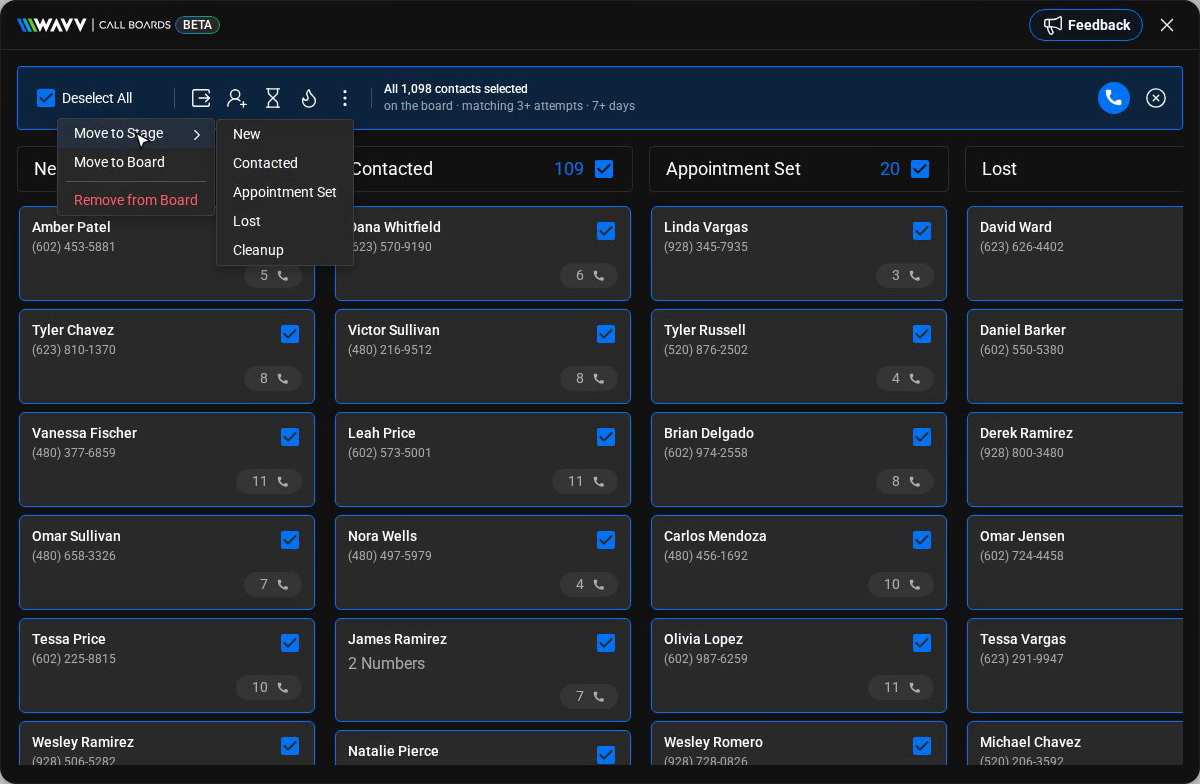
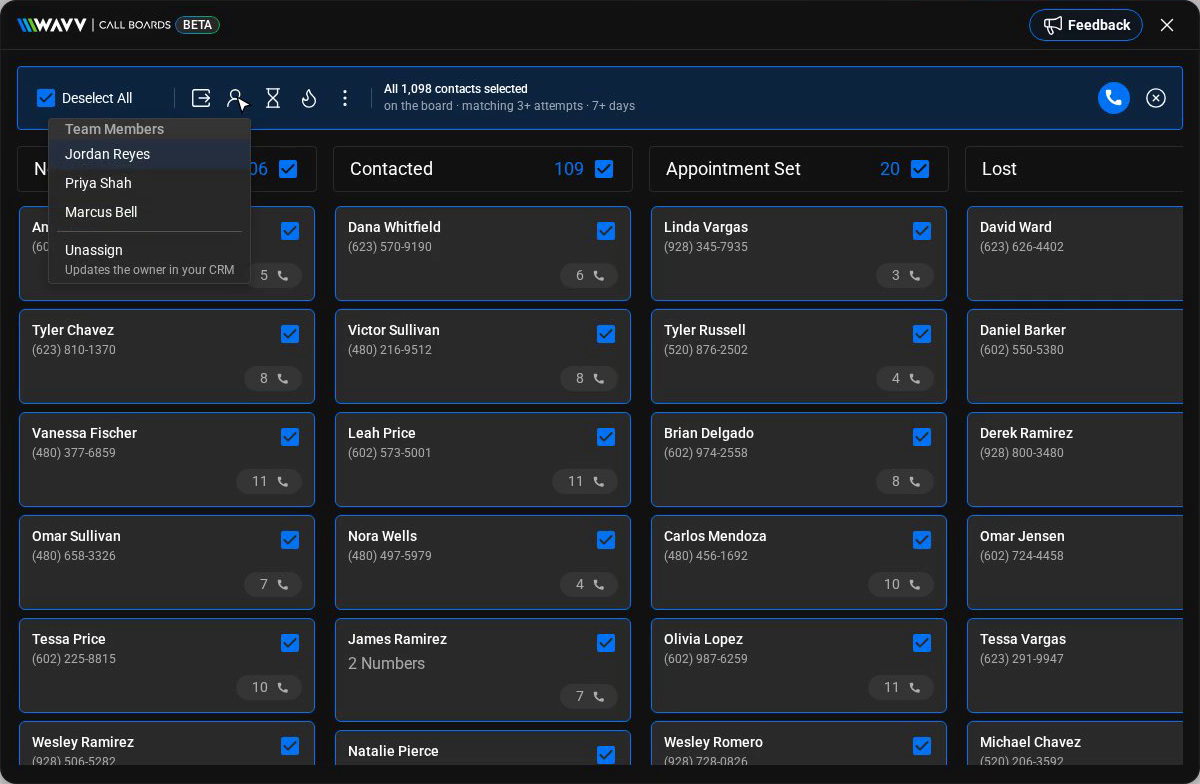
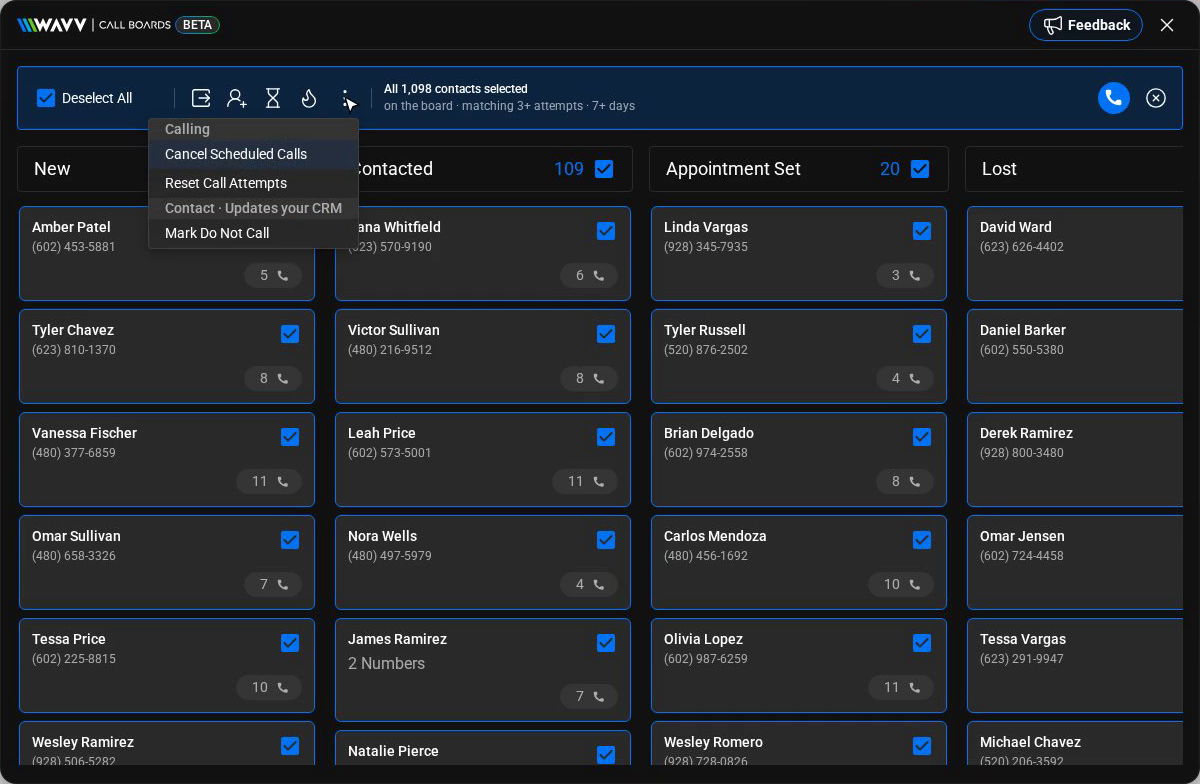
Working on one contact? The same actions are in each card's three-dot menu, so you don't need to select it first.
Step 4: Confirm and let it run
Confirming large changes: If you've selected more than 100 contacts, WAVV asks you to confirm the count first. Bulk changes can't be undone, so check the number before you continue.
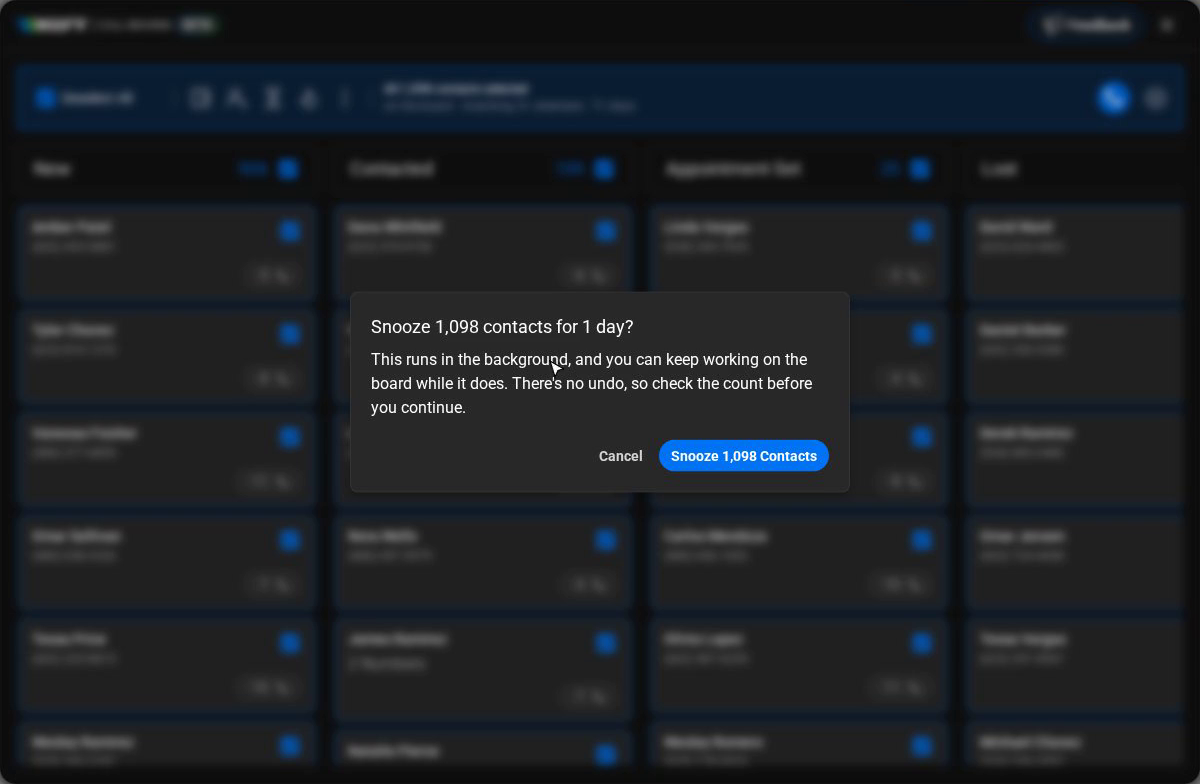
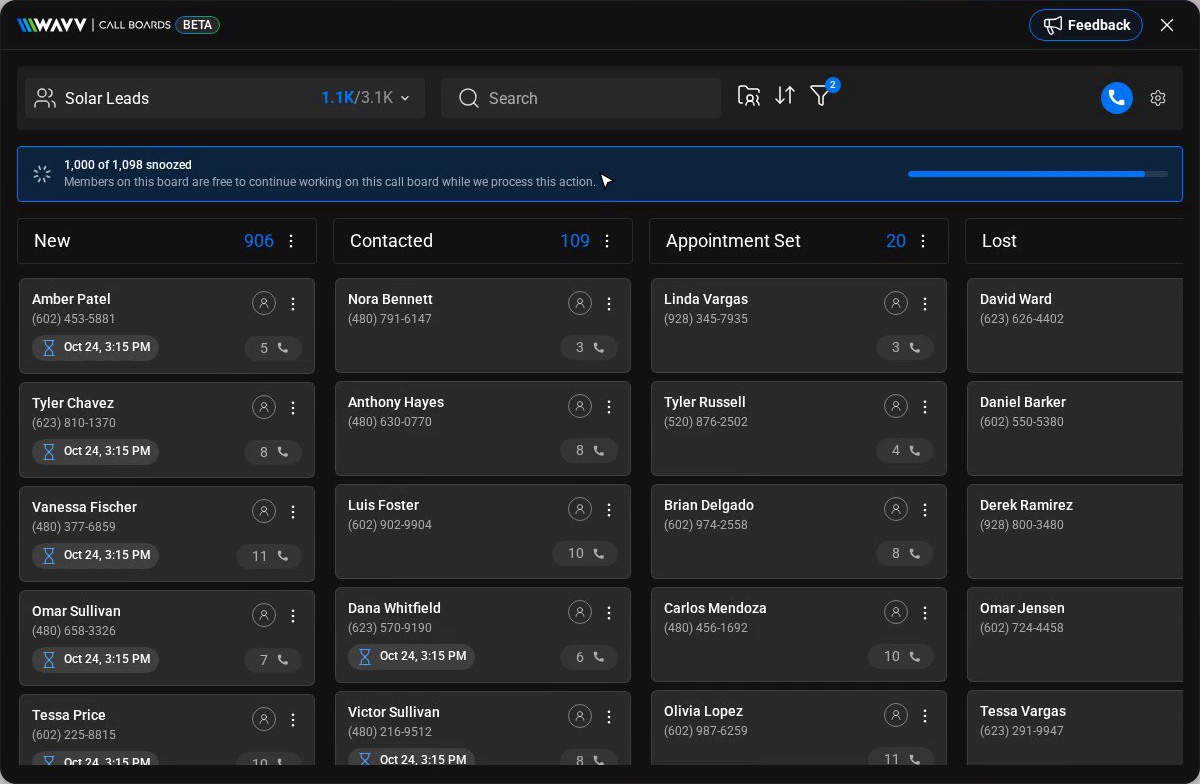
Running in the background: Large changes run in the background, one job per board at a time. A progress bar shows how far along it is, and your team can keep dialing on the board while it runs.
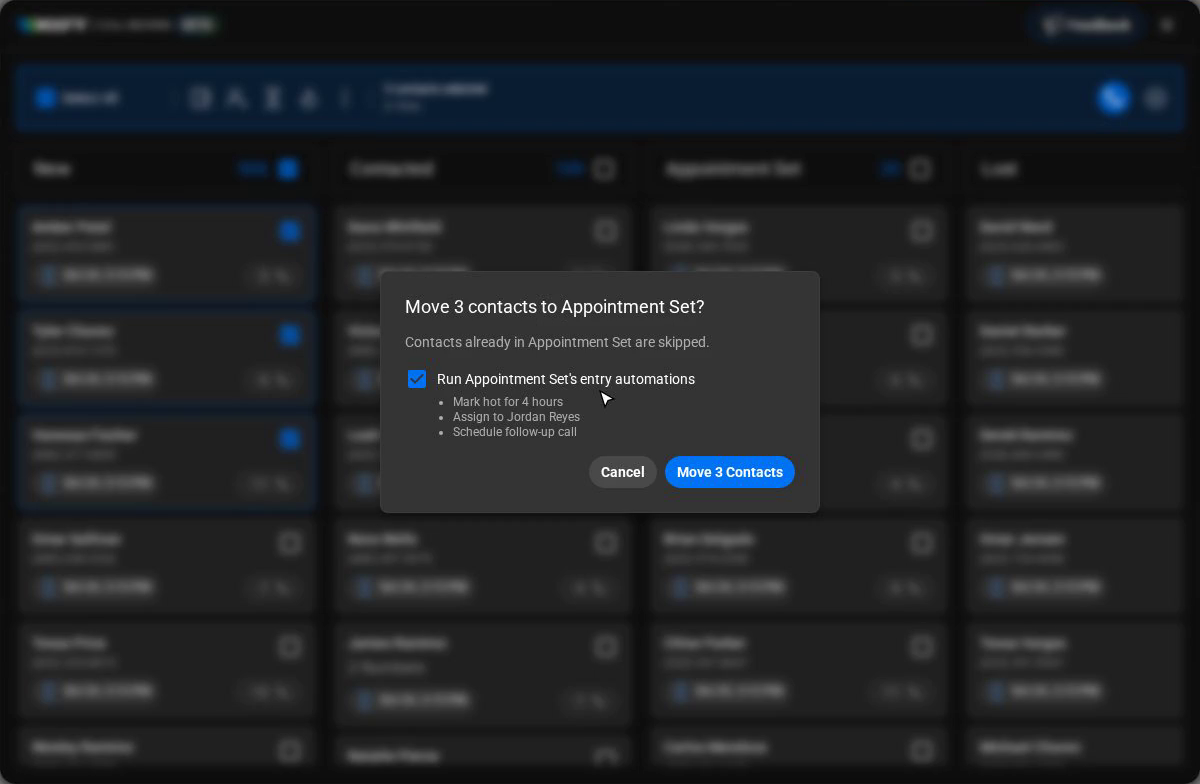
Moving into a stage with automations: If the stage you're moving contacts into has entry automations, WAVV lists them and asks whether to run them. Contacts already in that stage are skipped.
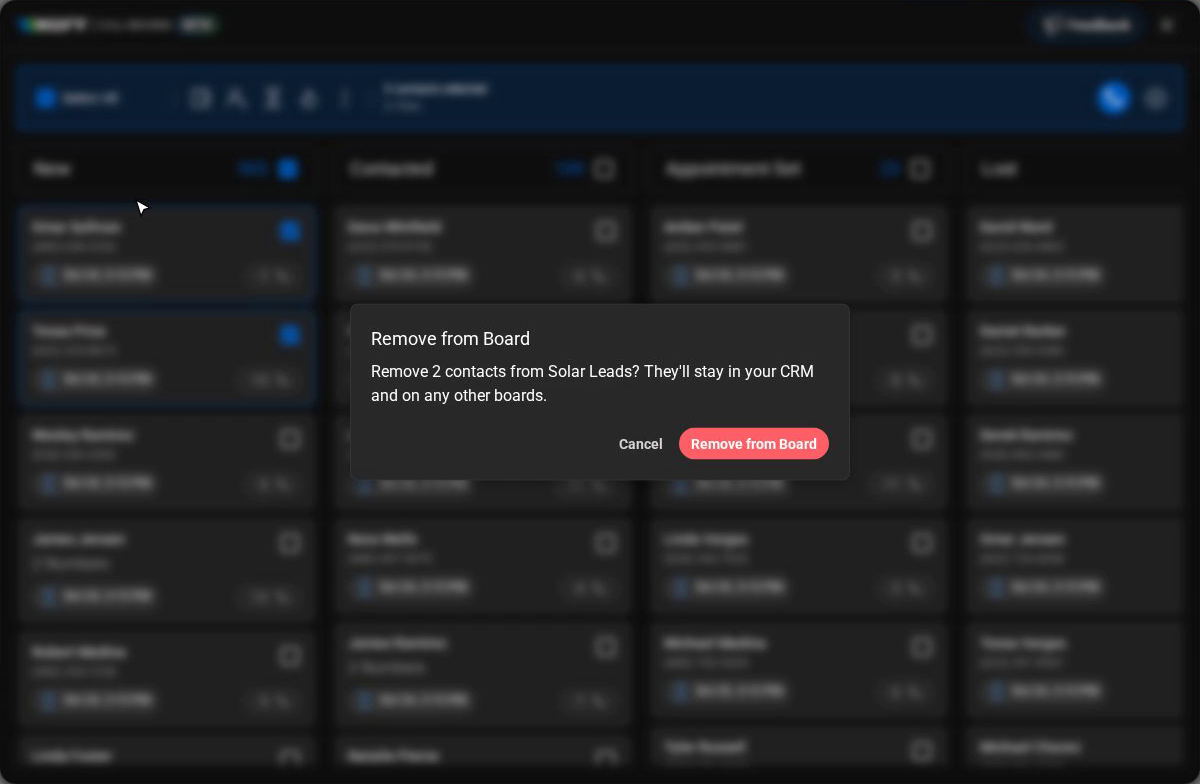
Removing from a board: Removing always asks you to confirm. Contacts stay in your CRM and on any other boards. On pipeline boards, you'll need to type DELETE to confirm.
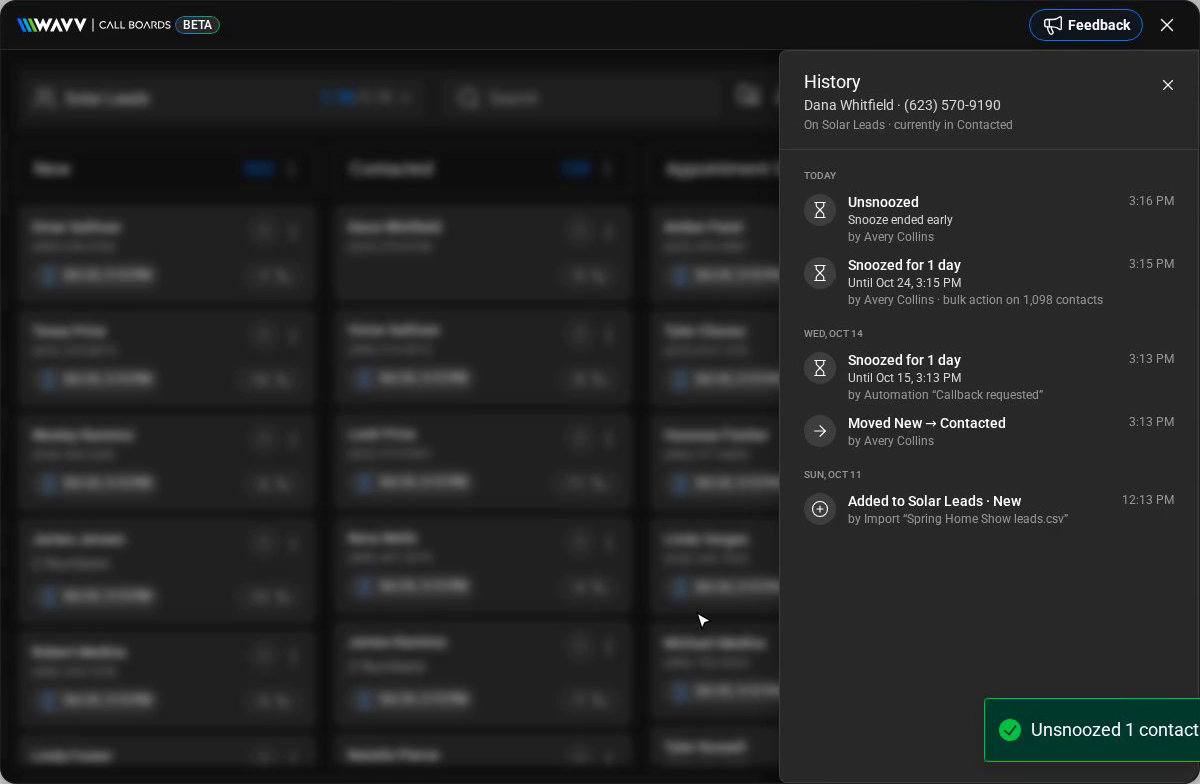
Step 5: Check a contact's History
Every contact card now has a History option in its three-dot menu. It shows what changed and when, and who made the change: a team member, an automation, or an import. Bulk changes also note how many contacts were in the job, for example "bulk action on 1,098 contacts."
How this connects: The usual flow is filter, select, fix. For example, filter to 3+ call attempts and 7+ days in stage, click Select All, then move those contacts to a follow-up stage or snooze them for a week.
Frequently asked questions
Why don't I see Select on the card menu?
Bulk actions are for owners, admins, managers and the board's owner. If you're an agent, you can still use the new filters and see a contact's History, but you can't change contacts in bulk.
Can I undo a bulk action?
No. That's why WAVV asks you to confirm the count for anything over 100 contacts. If you need to reverse a snooze, select the same contacts and choose Unsnooze. You can also unsnooze a single contact from its card menu.
Will my team be interrupted while a bulk change runs?
No. Large changes run in the background, and everyone can keep dialing on the board. Only one bulk job runs per board at a time.
Does Select All include contacts I haven't scrolled to?
Yes. Select All and the stage checkbox include every matching contact, not just the ones loaded on screen. The selection bar shows the total so you can check it.
Will moving contacts into a stage trigger that stage's automations?
Only if you choose to. When the stage has entry automations, WAVV lists them and lets you check or uncheck Run entry automations before you confirm.
Does removing contacts from a board delete them?
No. They're only removed from that call board. They stay in your CRM and on any other boards they're on.
How do I find out who changed a contact?
Open the card's three-dot menu and choose History. It shows each change, when it happened, and whether a team member, an automation or an import made it.
Can I hold Shift to select a range of cards?
Not right now. Check each card, use the stage checkbox, or use Select All with filters.