
Overview
This feature enables you to create a call campaign from a list of contacts, view campaign statistics and call history, update campaign statuses, and resume any campaign you previously created.
To create a call campaign, navigate to the Contacts page in your CRM and select multiple contacts to dial. A call campaign will automatically be created when you begin dialing your selected contacts.
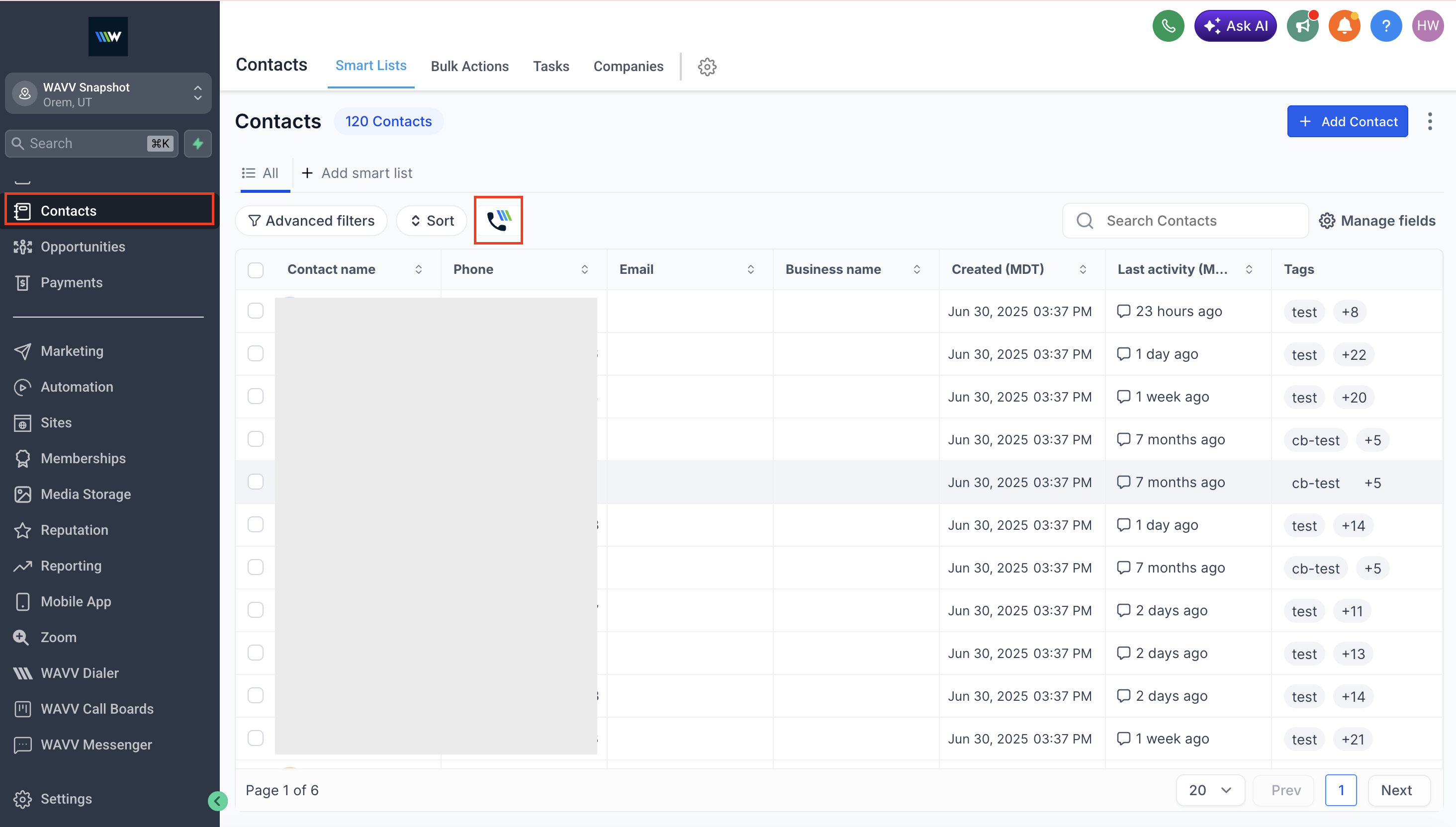
To view your existing campaigns, navigate to the Contacts page in your CRM and click the Dial button without selecting any contacts. From there, you can view campaign details and resume a previous campaign where you left off.
Pick Up Where You Left Off
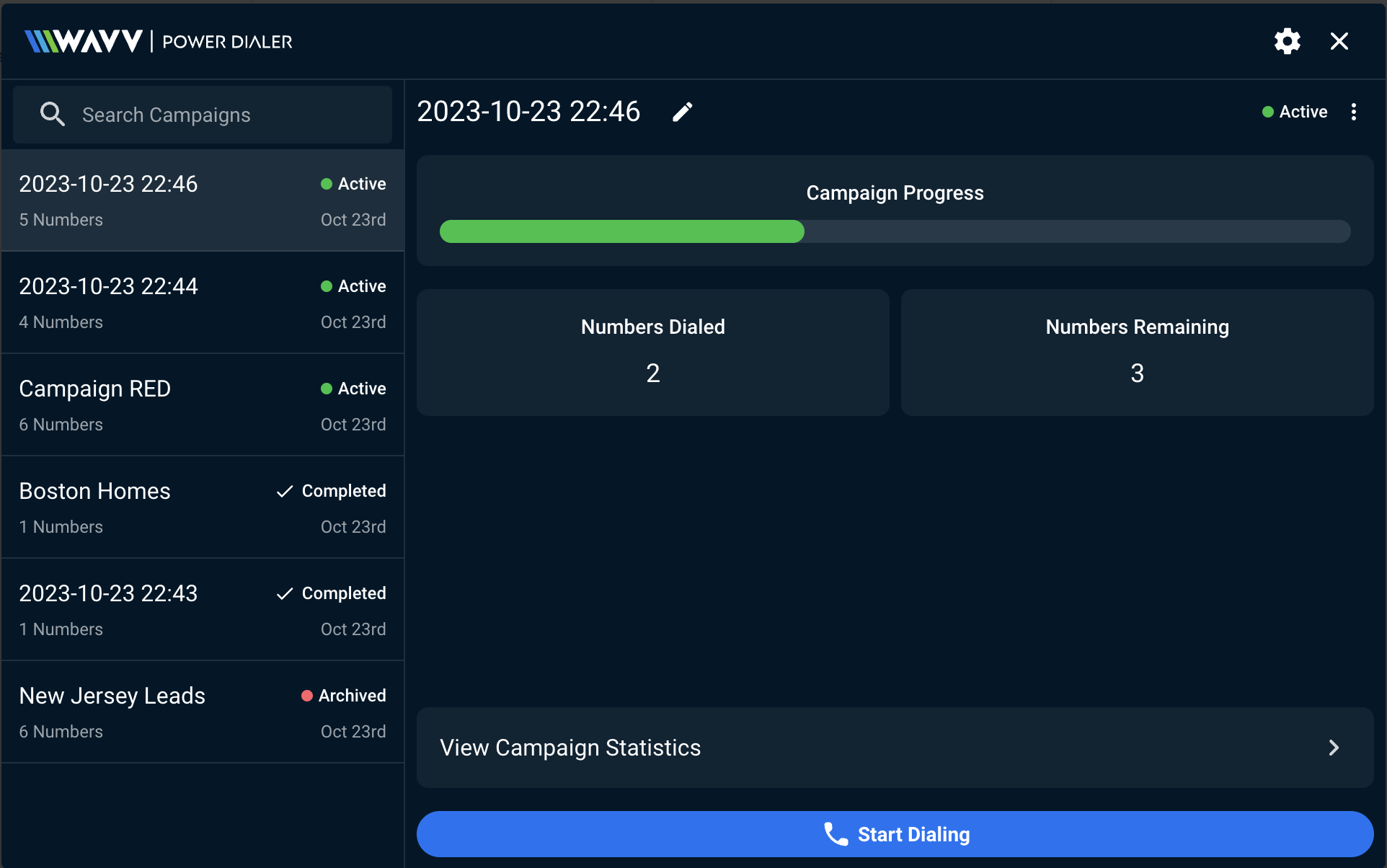
The primary advantage of call campaigns is the ability to create a campaign for a list of leads, dial as many contacts as you'd like, and easily resume your progress later. When you're ready to continue dialing, you can return to your campaign history and pick up exactly where you left off.
To view your campaign history, navigate to the Contacts page within your CRM and click the Call button without selecting any contacts.
Campaign Statistics
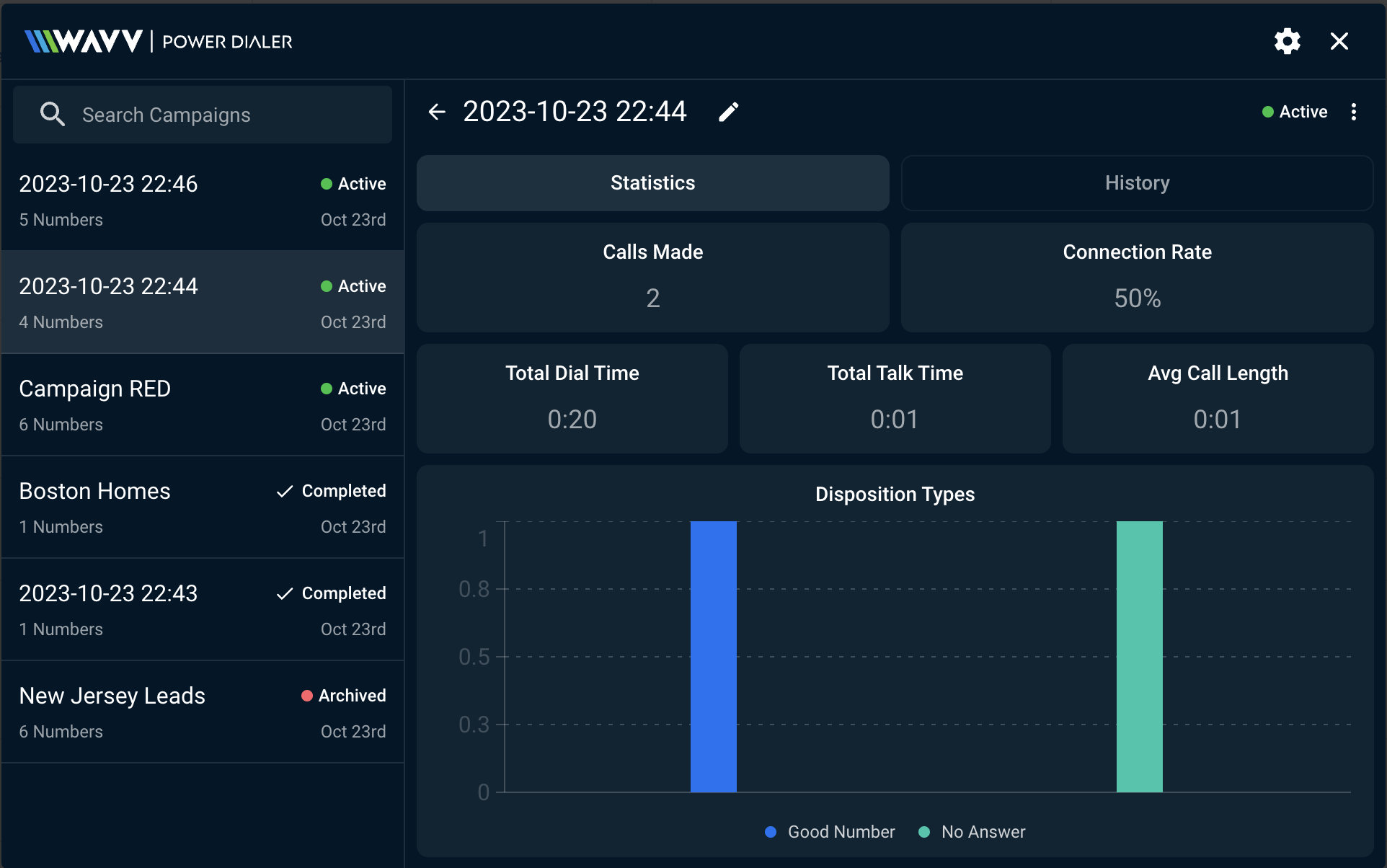
WAVV will track the progress of each of your call campaigns as well as provide insight into the number of calls made, the connection rate, total dial time, talk time and average call length as well as a breakdown of dispositions for the campaign.
Campaign History
In addition to stats, we will show you a call history of all of the calls that have been made for a given campaign. We have enhanced the details beyond our original call history by providing the contact name with the phone number dialed to help users get more details on exactly who was called when and what happened with that call.
How does it work?
Creating Campaigns
To create a campaign, you just need to select any number of contacts and click on the dial button. WAVV will automatically create a campaign for the contacts selected, give the campaign a default name of the date and time it was created(this can be renamed later), and track your progress dialing this list.
Resuming Campaigns
To resume any campaign, simply click on the dial button without selecting any contacts. This will launch the campaign modal where you will see a list of campaigns that have been created for you. From this screen, you can click on the campaign you'd like to resume and click on the "Start Dialing" button and the campaign modal will close and the dialer will launch and begin calling.
Updating Statuses and Managing Campaigns
From the campaign modal you can update the status of any campaign by click on the kebab menu near the top right hand corner and set the status of the campaign. The available statuses are:
Active - This is for any campaign that has been started, but not yet completed.
Completed - This is a status that a campaign will automatically update to when all of the selected numbers for a campaign have been dialed. You can still view these in the campaign modal and you will have access to the statistics and history of this campaign.
Archive - This is a manual status you can change a campaign to that will move it to the bottom of your campaign list. You will need to reactive these campaigns to continue dialing on them. You can still view these in the campaign modal and you will have access to the statistics and history of this campaign.
You will also have the option of deleting any campaigns from this same kebab menu. These will be removed from your UI and you will not be able to access the statistics, or campaign history for these campaigns.