
Step-by-step explanations from the video above:
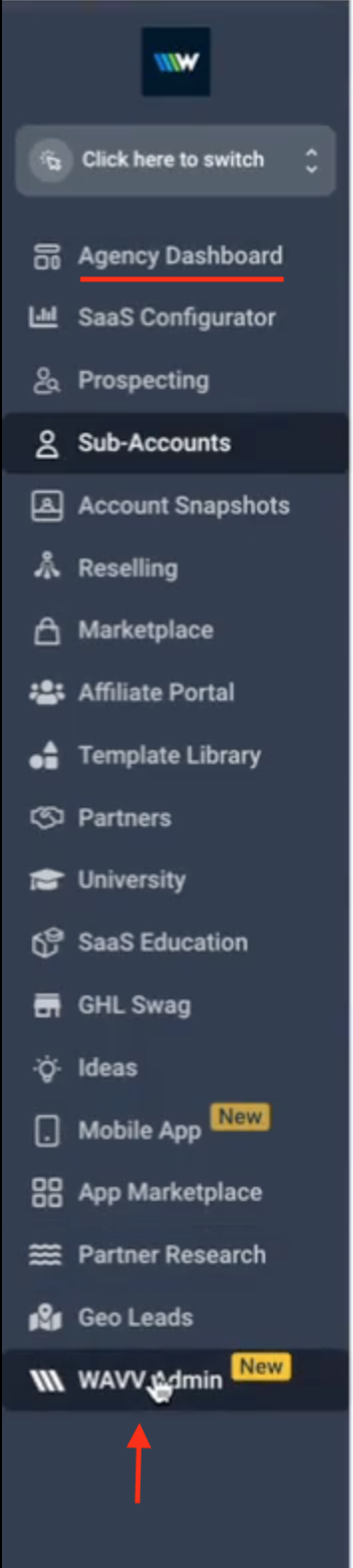
If you are an admin in the agency or the owner of the agency, you will go to your agency dashboard, and click on WAVV Admin.
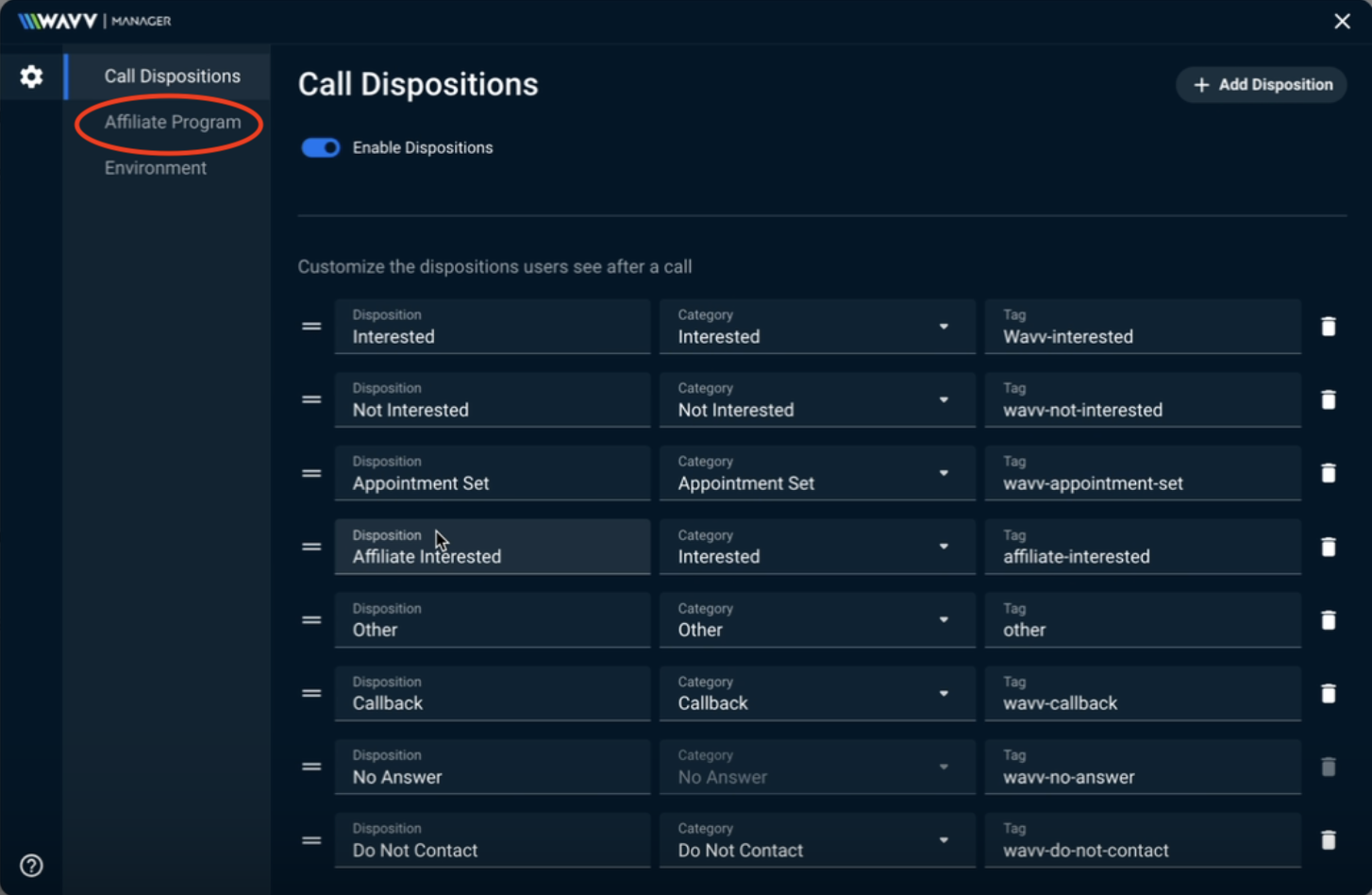
2. The disposition screen will come up, which will show the following default dispositions. You won't see the "Affiliate Interested" disposition as we have added that to ours, but otherwise it will look the same. You can modify these dispositions to be whatever you'd like. You can change the name of the disposition, alter tags, and delete or add new ones.
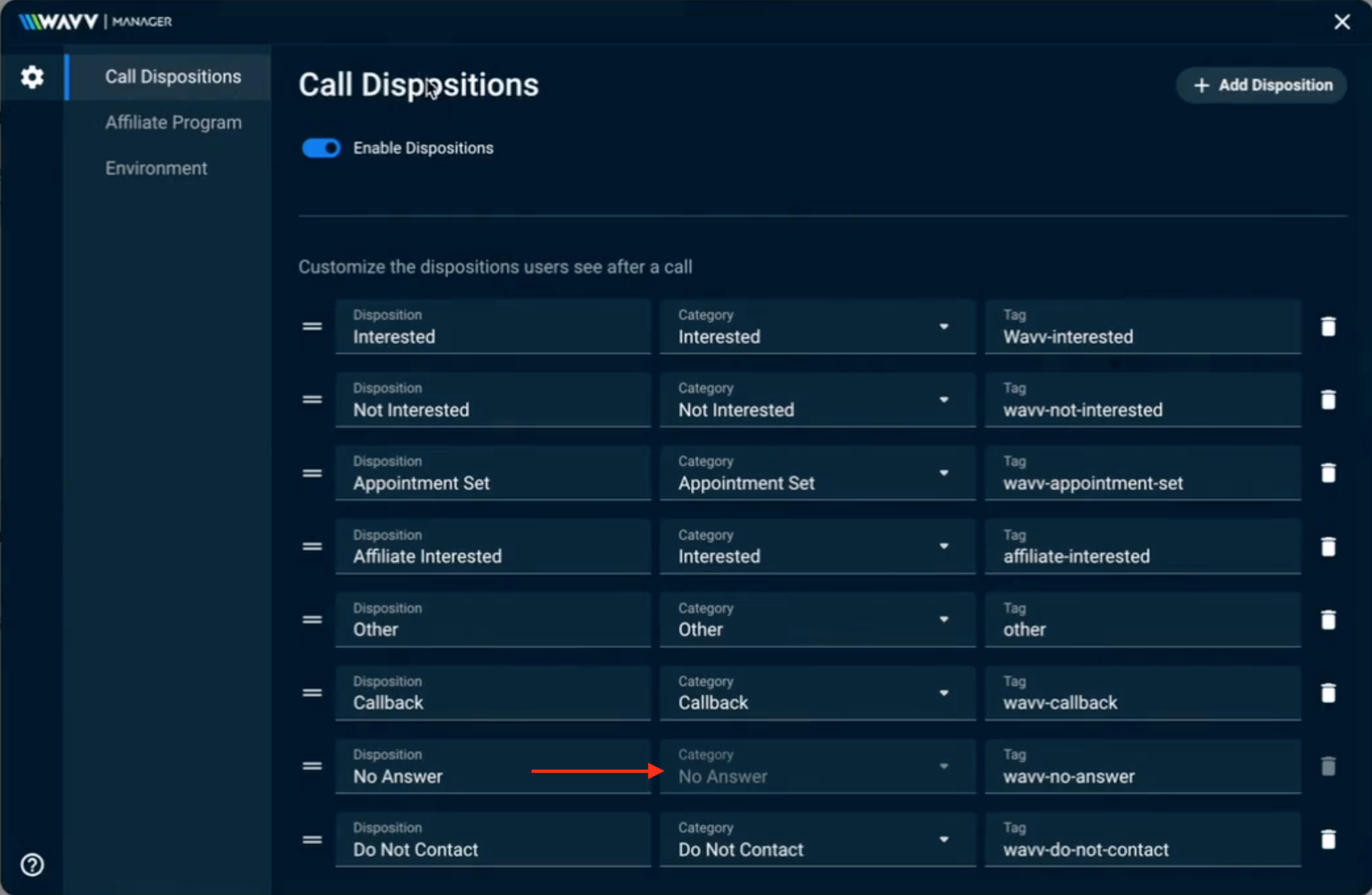
3. Every time you or another user selects a disposition then the tag associated with that disposition will be added and that can trigger follow-up automations and it can move the opportunity card around.
The only dispositions you won't be able to delete are the ones that look greyed out. This is because they are automatic dispositions. Anytime you click "No Answer" after a call where someone doesn't answer then the tag will be added onto the contact. You can change what the tag is, what the disposition is called, what shows up for your user, but it will always be added when someone doesn't answer.
The categories in the middle column of the dispositions page are not very crucial, as it is for our own data to know what kind of disposition it is.
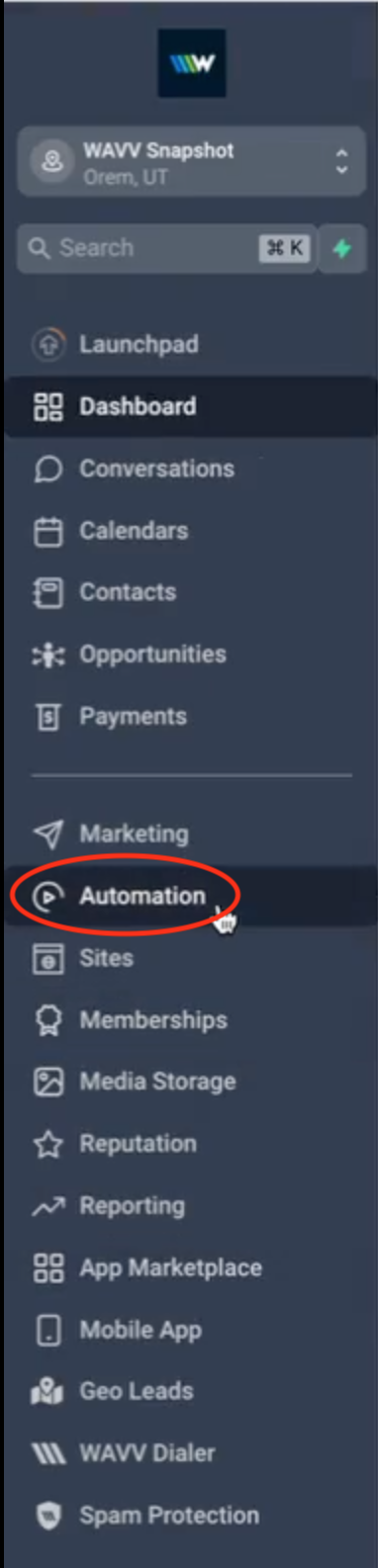
4. We have a snapshot of automations based on our default dispositions that you can use. You're welcome to import those automations, but if you modify them, then you will need to modify the automation based on that. Once you've imported the snapshot: Click on the "Automation" tab, which will bring you to the Workflow List where you will click on the folder titled "WAVV Calls Pipeline."
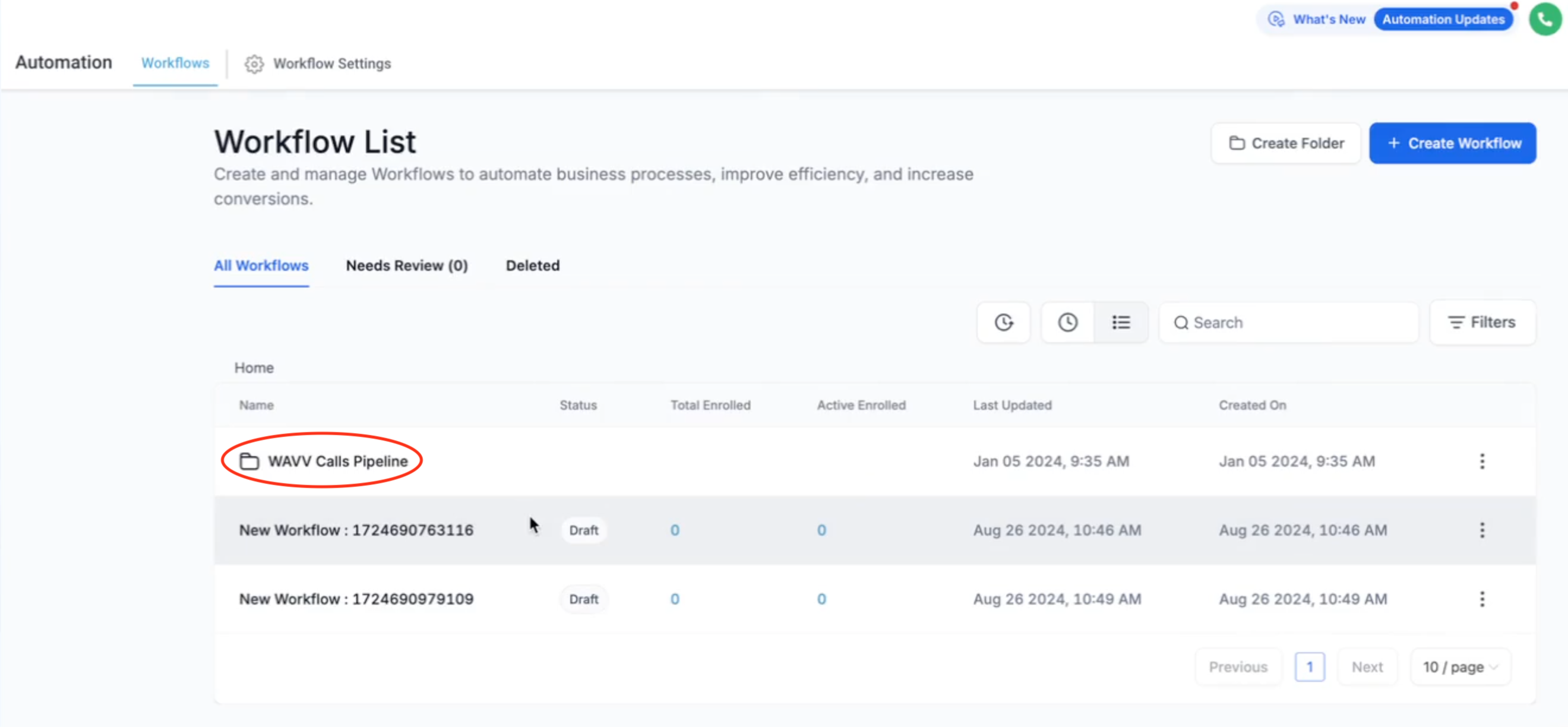
5. When you import the snapshot, you'll see all of these pipelines, and the automations based on these default dispositions.
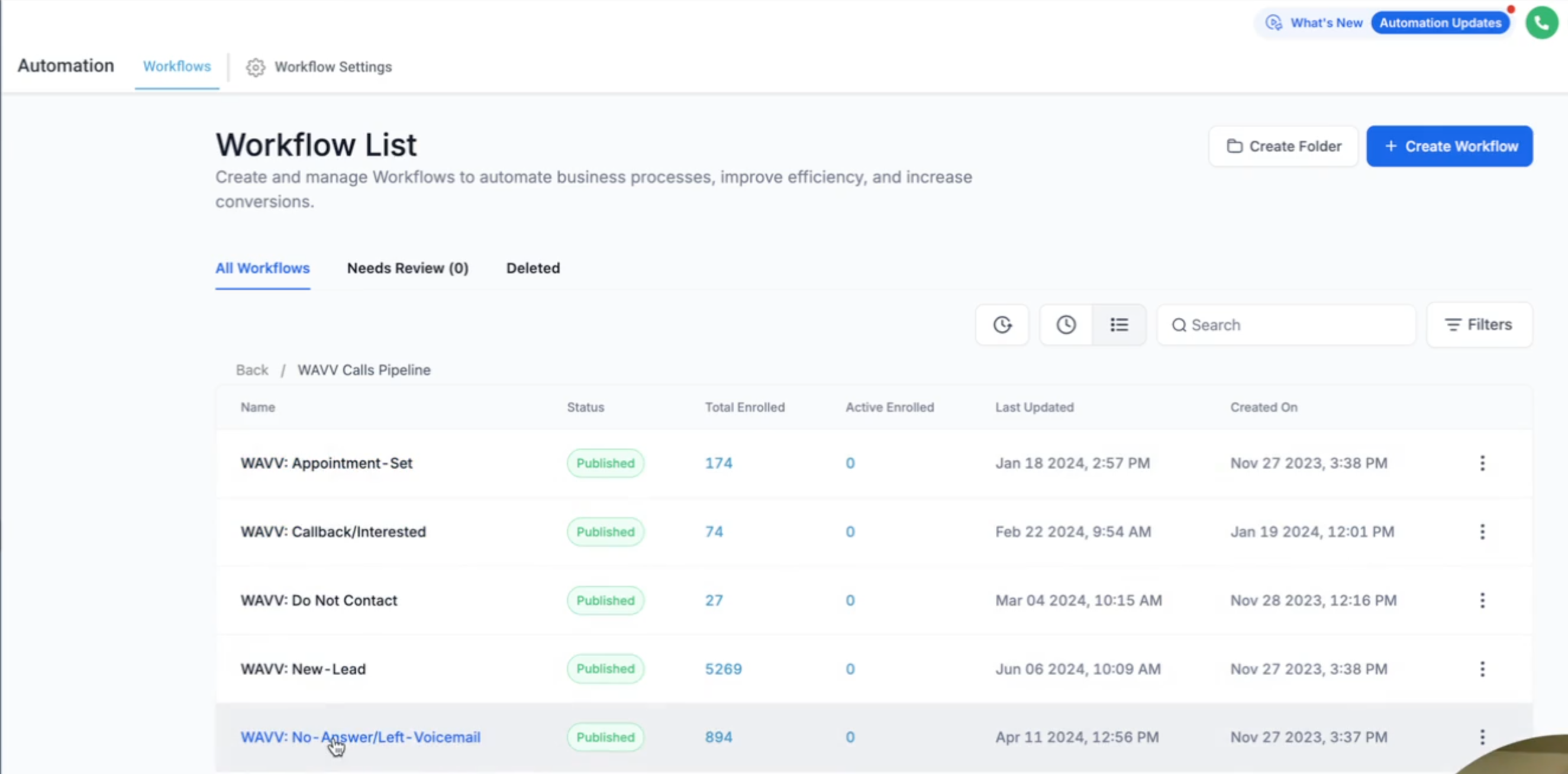
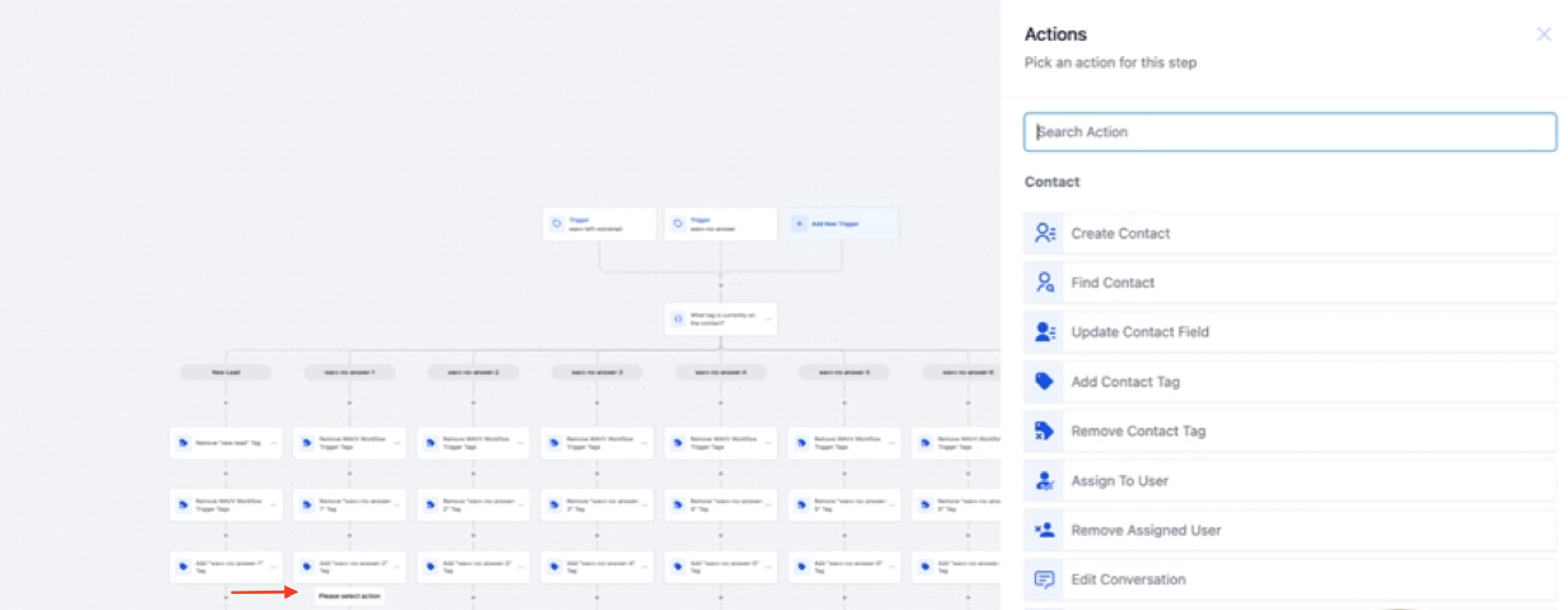
6. Let's go into "no answer, left voicemail" to walk you through it.
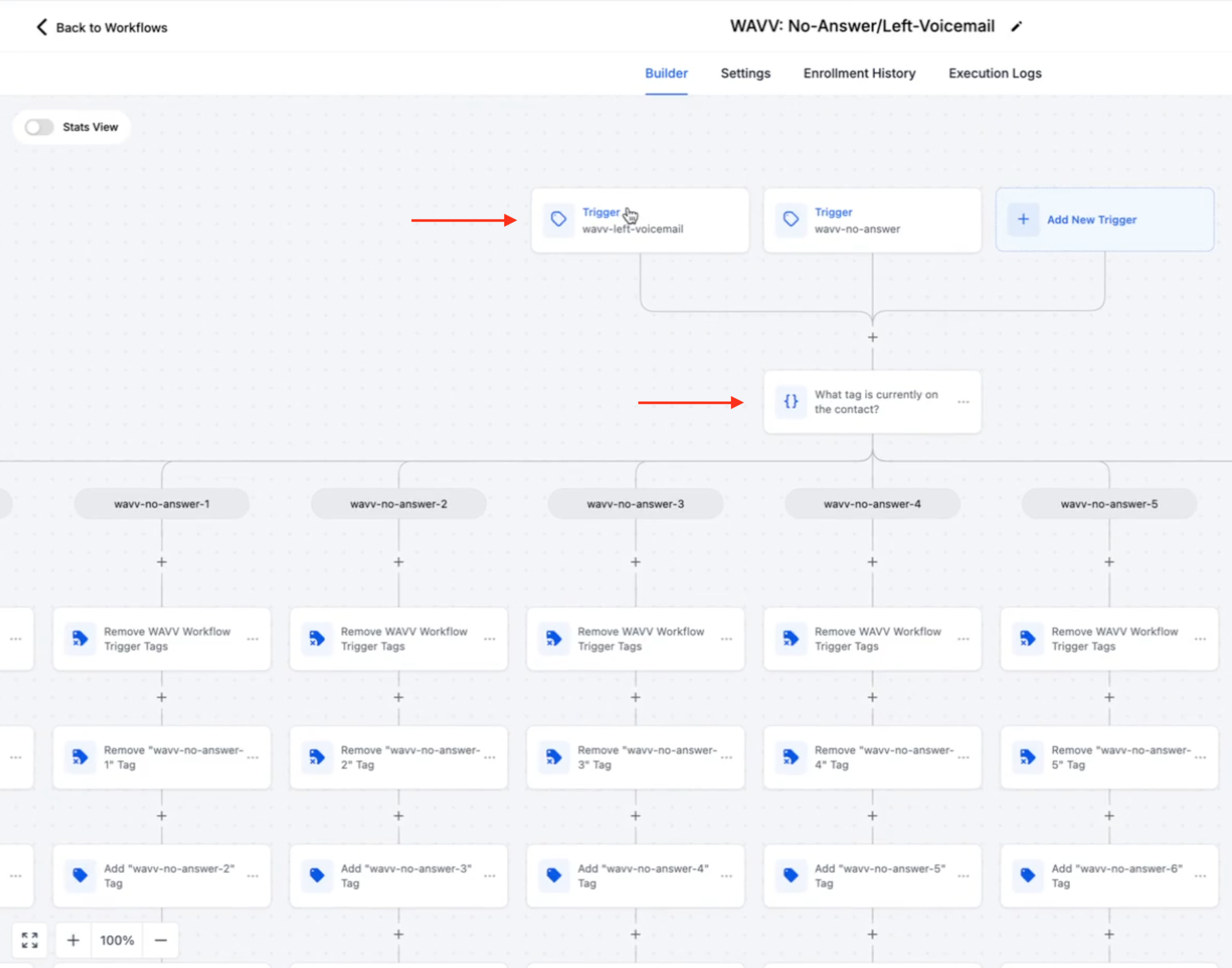
All this automation does is anytime this trigger, (the tags) are added onto a contact, then it will come in here and say what tag is currently on the contact.
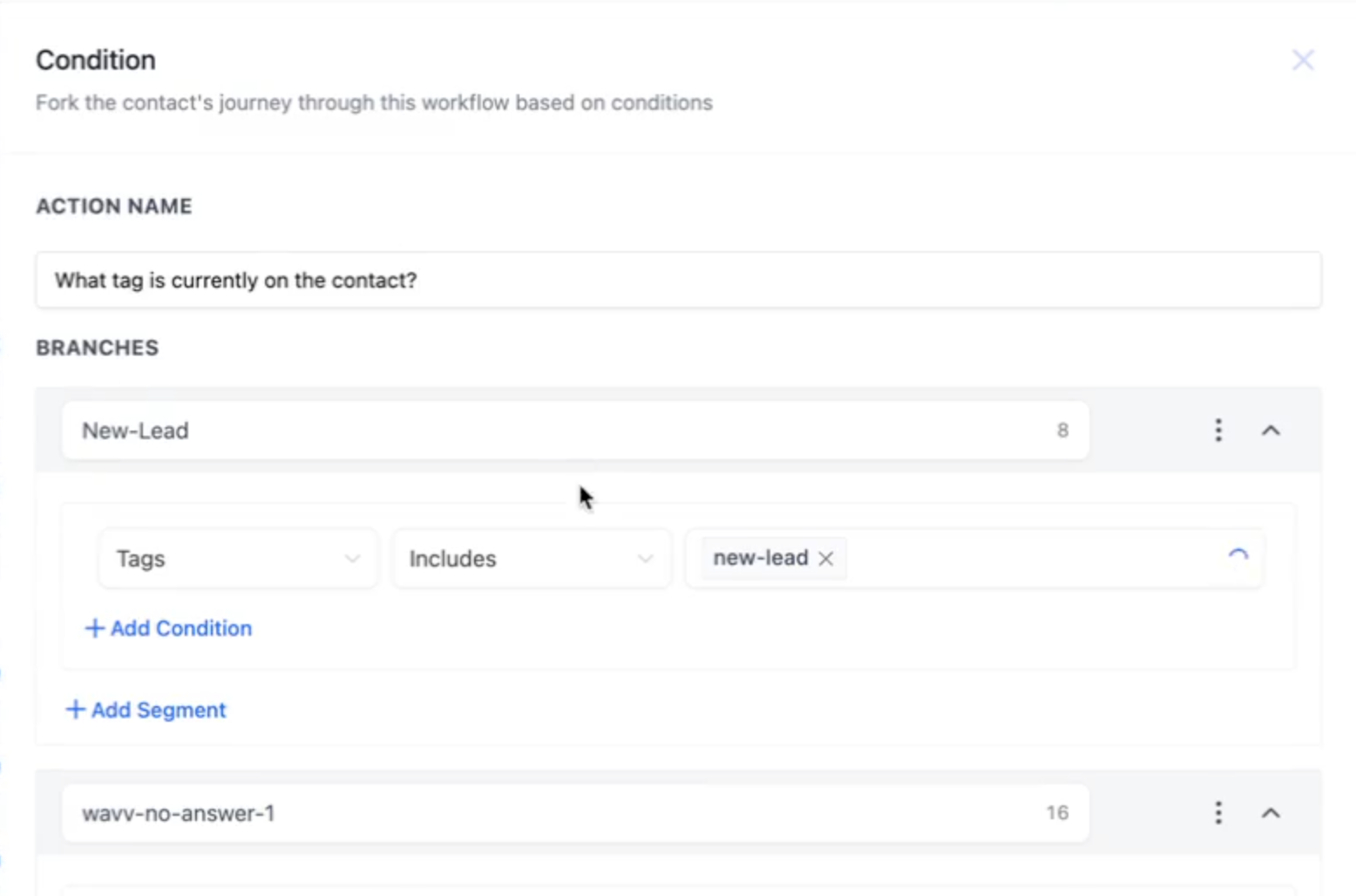
7. If you click on "What tag is currently on the contact?" underneath the triggers, another page will pop up on the side asking what tag is currently on the contact. It will walk you through each and it'll send the contact through whatever stage in the pipeline.
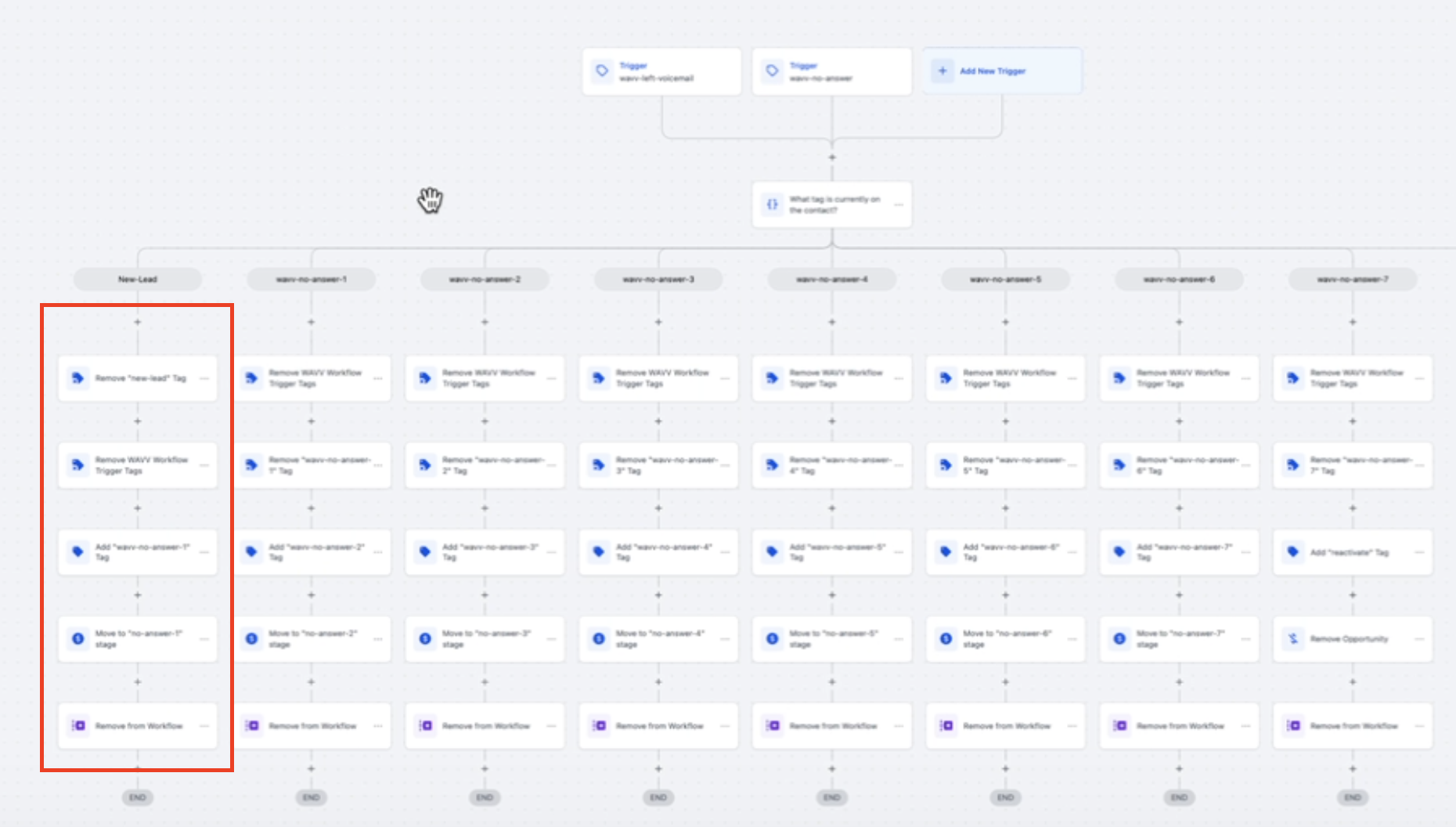
8. If you want to add in text or anything when someone isn't answering, you just hit the add button that is in between the stages of the pipeline, and you will see many actions available like send a text or email. You leverage high levels automations with the WAVV custom dispositions. Make sure to customize to however you'd like.
If you'd like to sign up for the affiliate program, click the second option on your dispositions page.
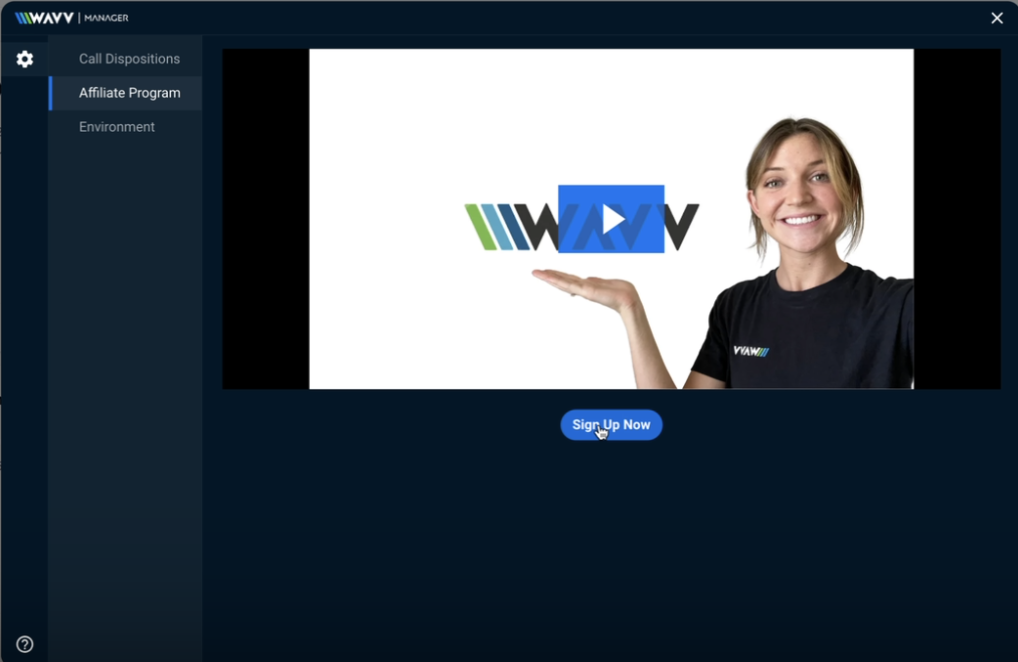
You'll be brought to a video explaining the program and where you can sign up.
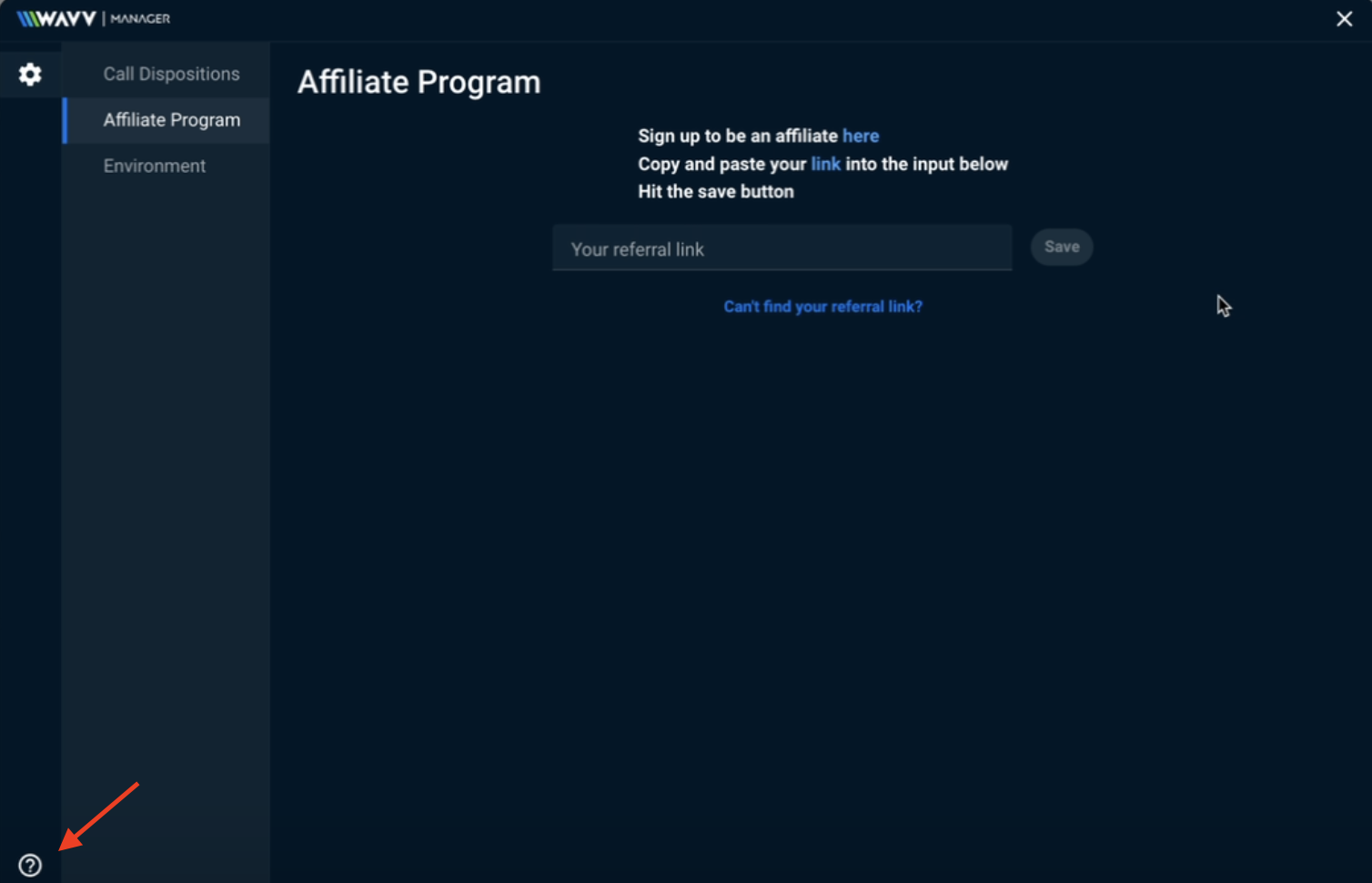
We use First Promotor to manage the affiliate program and you don't need to send any links. You will have a link here, but you don't need to send any links if someone signs up in your CRM, they're automatically attributed to you.
If you have any questions, you can click this help button to chat in with our support team. We also have an affiliate manager that can talk to you and help you get going.
Affiliate manager contact info:
If you want to go more in depth on automations, click this button to go to that video: